
Today, Creative Team Member, Nancy Adams, is sharing Digital Scrapbook Your Ancestry and Heritage Photos.
This tutorial is prepared using Photoshop Elements but can also be completed in the full version of Photoshop.
Digital Scrapbook Your Ancestry and Heritage Photos
Introduction
Illustrate how to enhance heritage digital scrapbooking and photo artistry layout designs.
- Give Life to heritage photos.
- Intensify and embolden Color.
- Add Light to enhance Contrast.
- Instill Meaning by elevating Mood and Drama.
Use LightLeaks and FotoGlows with Blending Modes in Adobe Photoshop and Elements.
- Delivered in .png and or .psd format.
- Designed to add light to your digital scrapbooking and photo artistry layout designs.
- See LightLeaks and FotoGlows
- You will also find them in MultiMedia elements.
1. Blending Modes
Change the way one layer reacts with another to yield different lighting and color effects.
- Located at the top of the Layers Panel in Adobe PhotoShop and Elements.
- ‘Normal’ is the Default Blending Mode.
- Click on arrow to the right of ‘Normal’ tab to access the Menu of Blending Modes.
- Apply Blending Modes to different layers in your digital scrapbooking and photo artistry layout designs.
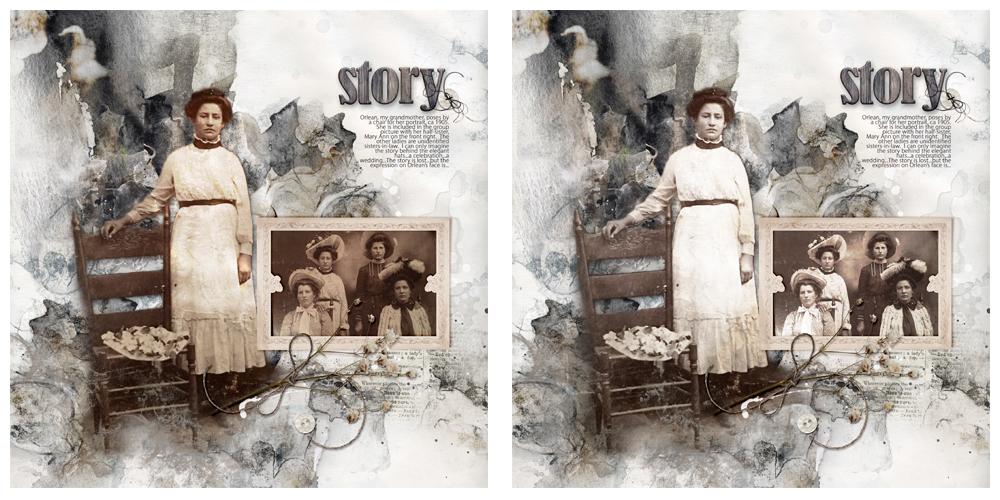
2. Create/Import Heritage Layout Design
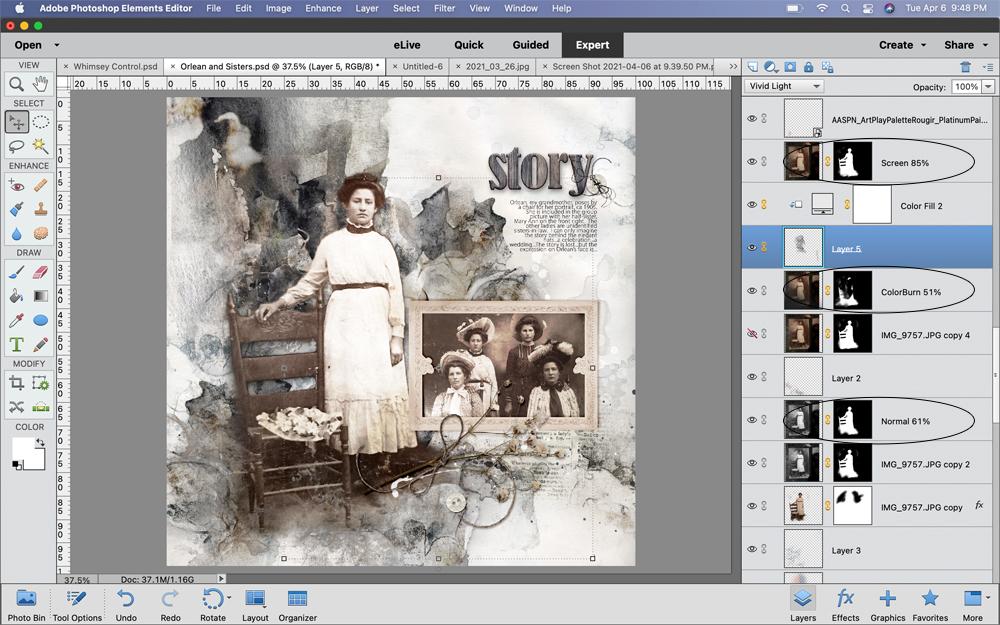
Duplicate the photo layer multiple times and apply different Blending Modes and Opacity adjustments.
- Create Multiple layers of the photo by pressing CTRL/CMD + J buttons on your keyboard.
- Hold down the CTRL/CMD key, select the multiple layers in the Layers Panel, then click on the ‘chain’ icon to link the layers together.
- Adjust the Blending Mode and Opacity for each of the layers.
Tips.
- Experiment with the Blending Modes and adjust the Levels or Opacity of the layers to improve the effect.
- You can also apply a Layer Mask to any of the layers to and use Brushes to target the effect of a Blending Mode to a specific area of the image.
- See AnnaBlendz Artsy Brushes.
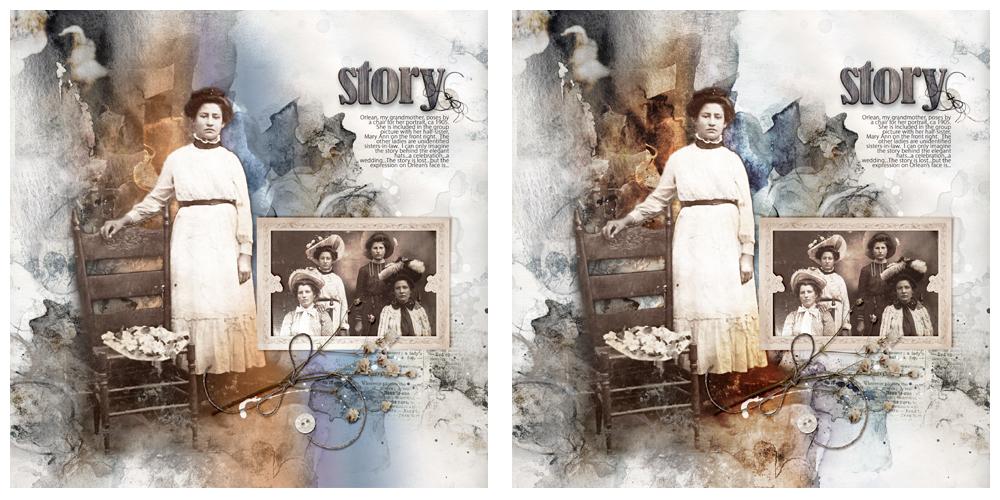
3. LightLeaks
Add dramatic or subtle light effect using LightLeaks and Blending Modes.
- Use to transform the Colors and Visual Depth of an image.
- Available in Warm or Cool cool tones to coordinate with a variety of color palettes.
- Select and open the LightLeaks .png file of choice.
- Use the Move Tool to place the LightLeak on your digital scrapbooking and photo artistry layout design.
- Apply different Blending Modes and adjust the Opacity slider as preferred.
- LightLeaks No. 2 (7.png) was used twice and set to Vivid Light with an Opacity of 64%.
Tips.
- Experiment with moving LightLeak elements up/down the Layers Panel.
- LightLeaks can be clipped to an element or a photo.
4. FotoGlows
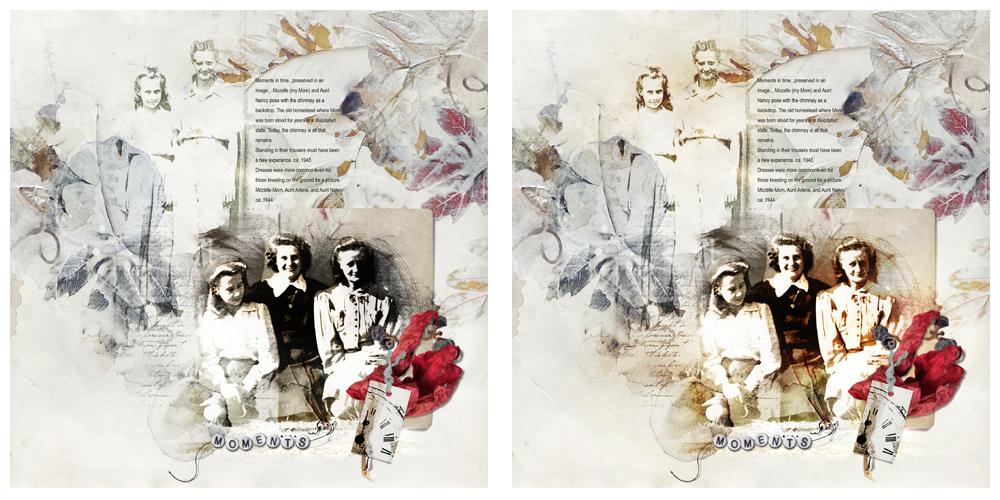
Add accent or spot lighting effects to your digital scrapbooking and photo artistry layout designs.
- Use to create Cohesion across different Tones and Values.
- Select and open the FotoGlows .png file of choice.
- Use the Move Tool to place the FotoGlow as preferred.
- Rotate, Resize and/or Recolor the FotoGlow to best support your photos – See the Useful Techniques Video on our Resources page.
- Apply different Blending Modes and adjust the Opacity slider to enhance the effect.
- WarmGlows No. 8 (1.png set) to Color Burn at 73% and WarmGlows No. 7 (3.png) duplicated and set
to Normal at 100% and Soft Light at 35% Opacity respectively.
Tips.
- Go to Enhance> Adjust Color> Hue and Saturation (Elements) or Image> Adjustments> Hue and Saturation (Photoshop) to modify Color.
- Go to Enhance> Adjust Lighting> Levels (Elements) or Image> Adjustments> Levels (Photoshop) to modify Light.
Summary
Enliven your heritage digital scrapbooking and artistry designs using [aalogo] DigitalART and Blending Modes.
- LightLeaks and FotoGlows are creative tools designed to enhance the Color and Lighting properties of your photos.
- Duplicate your photo layers to apply multiple Blending Modes to the different layers.
- Use the Opacity slider to perfect this technique.
See also:
- Prismatic Digital Artistry and Scrapbooking
- 5 Techniques for FotoGlows
- Design Principles and Element Properties
- Create Intensity with FotoGlows
- Brighten a Photo with FotoGlows
- Color Techniques
Nancy, thank you for sharing these tips and techniques, ones I have seldom experimented with, but find them to be very “exciting” in a layout.
Beverly,
Thank you! Anna’s Heritage series of classes are the inspiration!
Nancy
Beverly, Thank you!