
Today, Creative Team Member, Trish Hoskin, is sharing guidance for creating Photo Artistry with ArtPlay Palettes.
Photo Artistry with ArtPlay Palettes
Make wonderful pieces of photo art in a few easy steps with DigitalART by Anna Aspnes Designs.
1. Select and Edit a Photo
Choose and edit a digital image that inspires you.
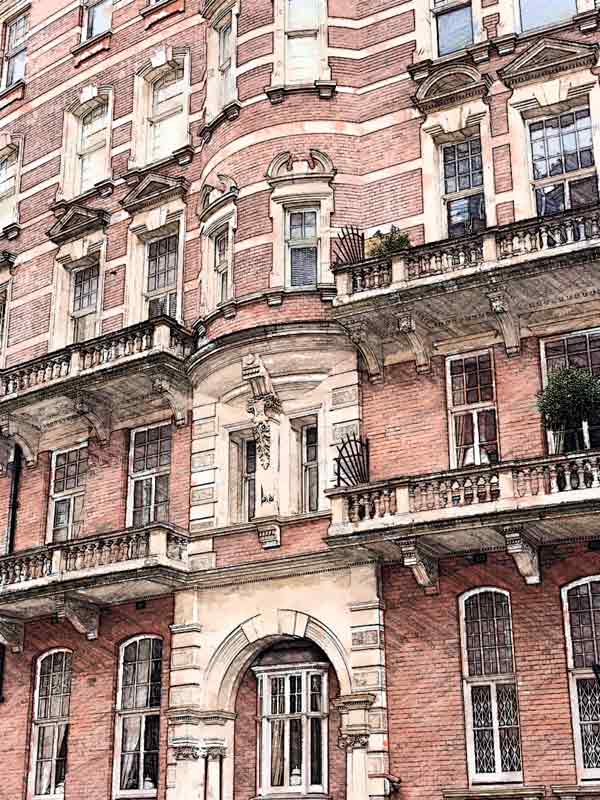
- This photo was taken on a recent trip to London where it was easy get immersed in the amazing architecture.
- The image was manipulated using several apps on an iPhone, before importing into Photoshop.
- Select an ArtPlay Palette that coordinates with the color(s) in your photo, in this case ArtPlay Palette Patriarch.
1. Create a Layout Foundation
Establish a background and blend your photo using a FotoBlendz Clipping Mask.
- Create a New Layout 12 X 12 inches at 300DPI with a white background (File> New)
- File> Open and move the FotoBlendz Clipping Mask (LinearFotoBlendz3_7.png) onto the New Layout background using the Move Tool from the Tools Panel.
- Move the photo layer on top of the FotoBlendz Clipping Mask layer in the Layers Panel.
- Layer> Create Clipping Mask to clip the edited photo to the FotoBlendz Clipping Mask and create a Clipping Set.
Optional. Re-position and/or resize the Clipping Set as preferred.
2. Support Photo with Embellishments
Frame the image with DigitalART supplies to bring focus to the photo.
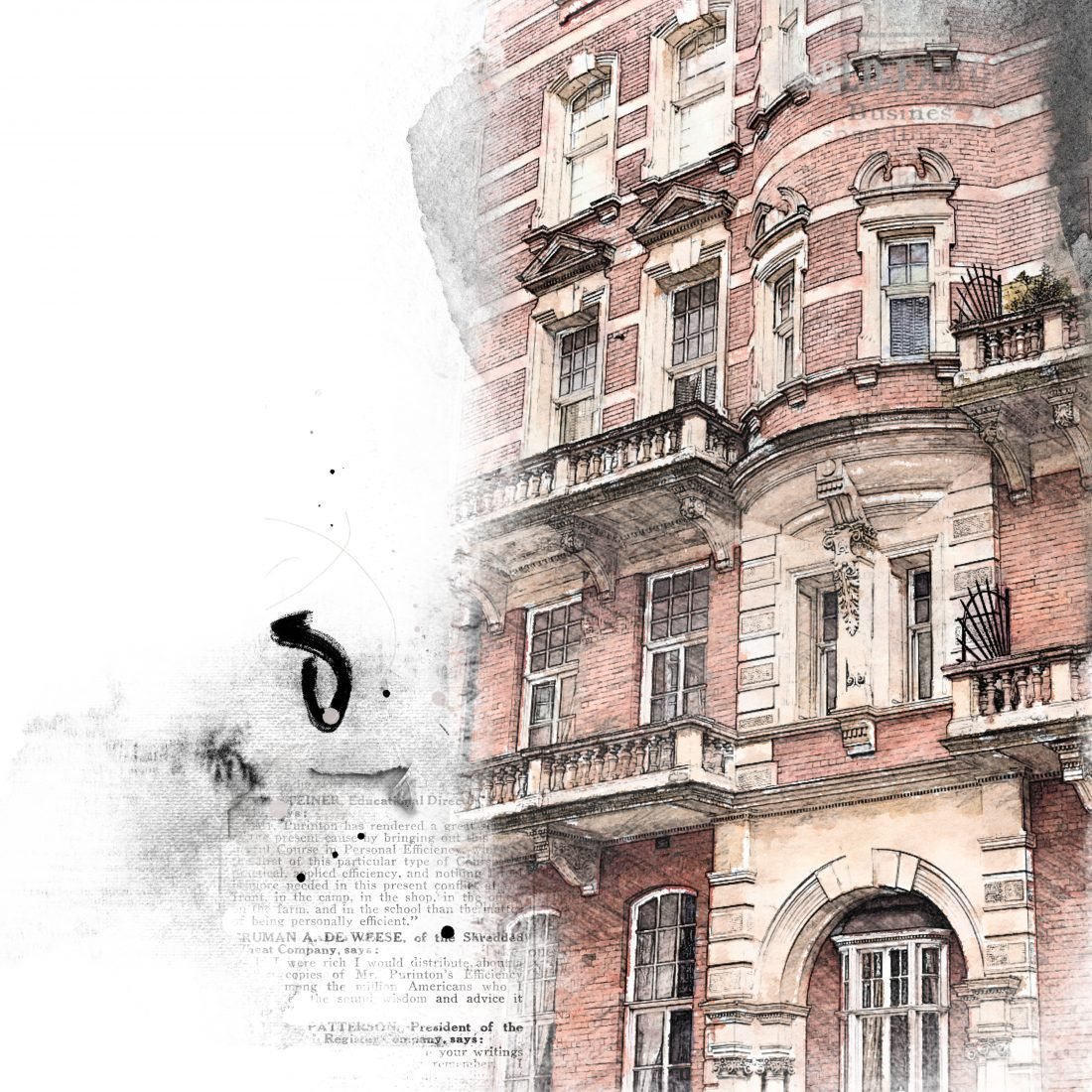
- Add Brushes (ArtPlayPalettePatriarch_Brush10) to to add visual interest and context to the image.
- Add Transfers (ArtPlayPalettePatriarch_Transfer1 and 3) to contain the edges of the image to allow for an interesting transition from photo to white background.
- Add ArtStrokes (ArtPlayPalettePatriarch_ArtStroke1) to lead the eye to focal points in your layout design.
3. Elevate the Artistry
Further enhance your layout design with color, interesting shapes and lines.
Notice how:
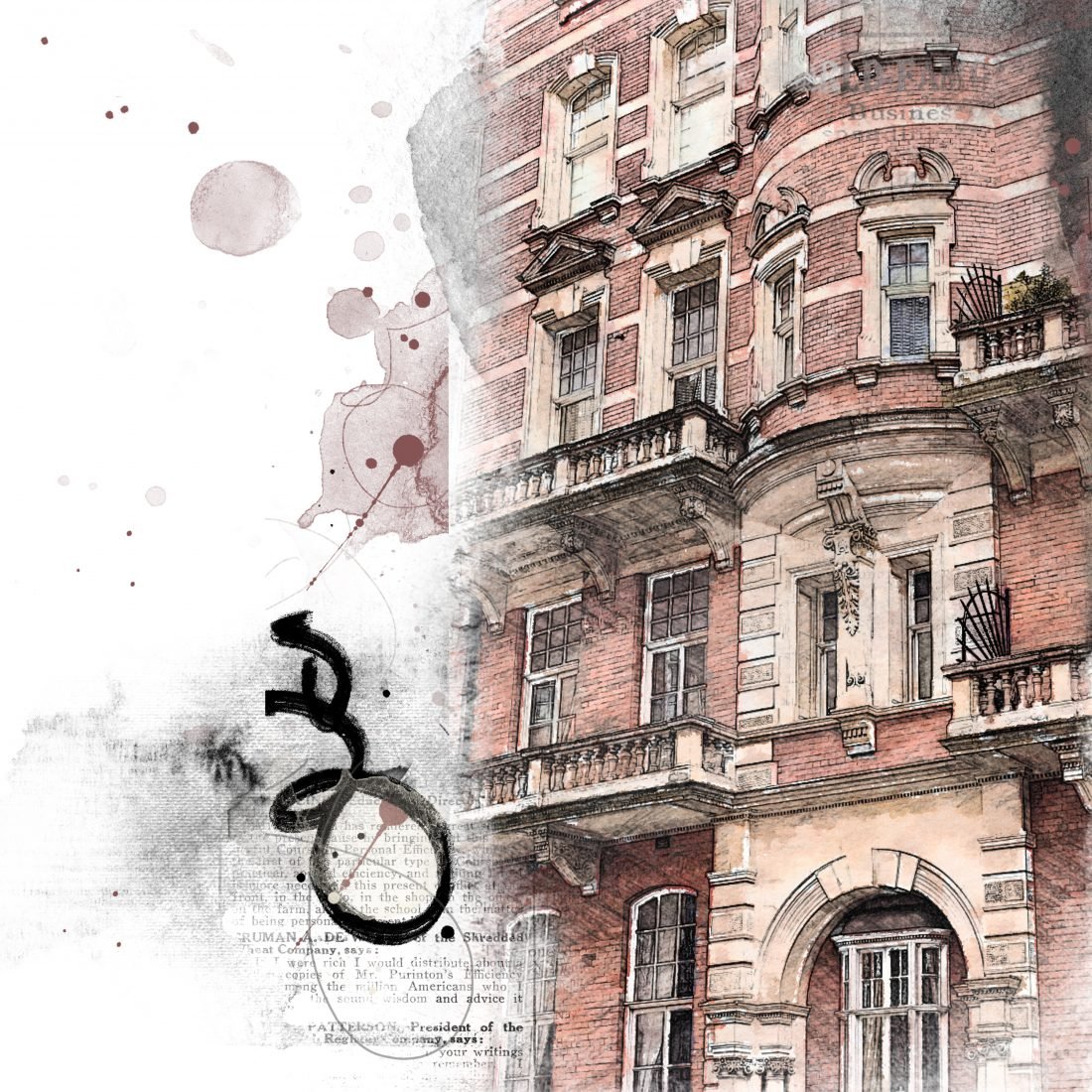
- The additional ArtStrokes (ArtPlayPalettePatriarch_ArtStroke2) frame the edge of the blended photo.
- The red stains (ArtPlayPalettePatriarch_OverlayEdge1) embellish the white space and lead the eye from the ArtStroke to the blended photo.
TRY THIS
- Rotate, resize and/or flip any of the DigitalART elements horizontally or vertically.
- Recolor Brushes or single color Overlays using the Edit> Fill color option.
Recolor Single-Color Elements
(Photoshop)
- Edit> Fill
- Click on the Contents menu and select Color to activate the Color Picker.
- Choose a color or sample from your layout.
- Ensure the Preserve Transparency box is checked.
- Click OK
(Elements)
- Edit> Fill Layer
- Click on the Use menu and select Color to activate the Color Picker.
- Choose a color or sample from your layout.
- Ensure the Preserve Transparency box is checked.
- Click OK
Summary
You can create photo artistry with [aalogo] DigitalART in 3 Easy steps
- Select and edit a photo of your choice.
- Blend with a FotoBlendz Clipping Mask.
- Embellish using ArtPlay Palettes to create visual interest.
I absolutely love this image and effects you applied. The layout, as always is fabulous!
Trish does a lovely job of supporting her photos with artistry.
Love the technique you did on the original photo of the building. Can you share what apps you used to achieve it? Great collage!
thanks for the lovely compliments – people have asked how I changed the image. It is with apps from either an iPhone or iPad. They are Waterlogue and SketchMaster and then combined with Image Blender and then a few tweaks to the strength etc within the apps. Very easy to do and fabulous effect. I love it and use these two a lot in my designs.