
Nancy Adams shares a Fluorescent Chalk Brushes Photoshop Effect.
This tutorial is for use in Adobe Photoshop Elements.
Fluorescent Chalk Brushes Photoshop Effect
Introduction
Learn how to apply a fluorescent chalk effect to BrushSet layers in your photo artistry designs.
- Recolor .png files from BrushSets using Color Fill (Elements) or Adjustment Layers (Photoshop)
- Change the color of brushes to create CONTRAST in your photo artistry designs.
- Apply Visual Interest using a fun fluorescent chalk effect
1. Establish Layout Foundation
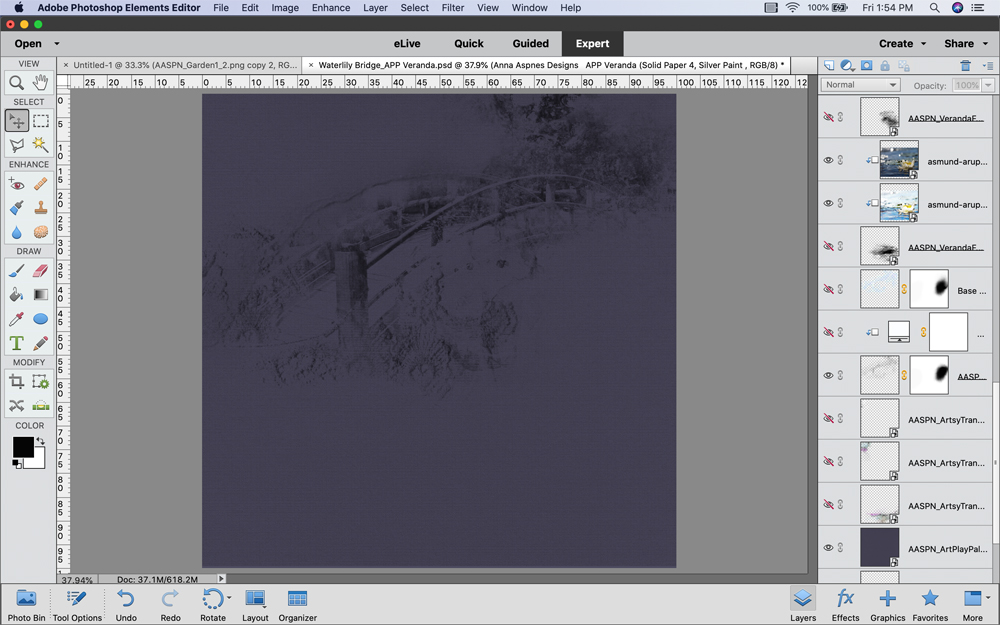
Create a Layout Foundation and Insert a Pictorial Brush.
- Create a New Layout via File> New> Blank File.
- Enter Height and Width 12 x 12 inch (3600 px) with a Resolution of 300 pixels/inch.
- Select Background Contents> Transparent.
- Select via File> Open a darker colored Solid Paper from an ArtPlay Palette.
- Double-click to open the Artsy Paper into your work space.
- Move the Solid Paper onto the New Layout using the Move Tool from the Tools Panel.
- Select a pictorial style brush .png file via File> Open and double click to open.
Note. You can also load the the pictorial style brush .abr file in the Brushes Panel.
2. Invert Brush Color
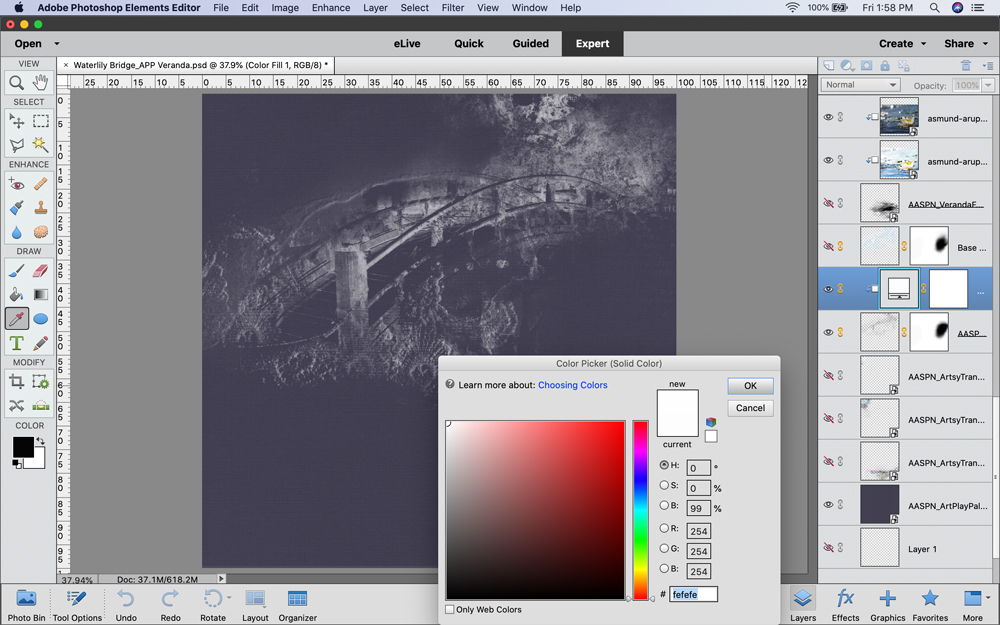
Apply a Color Fill Layer Mask to the pictorial brush layer.
- Select the pictorial style brush layer in the Layers Panel.
- Go to Layer> New Fill Layer > Solid Color.
- Ensure the ‘Use previous layer to create clipping mask‘ option is CHECKED.
- Click OK to activate the Color Picker and select White as your Fill Color.
- This creates a white fill layer clipped to your pictorial style brush layer.
Notice. How this creates better CONTRAST with the dark Solid Paper background selection.
3. Apply Special Effect
Add visual interest using the fluorescent chalk effect unique to Photoshop Elements.
- Click the eye icon to the left of the Solid Paper layer to turn off the visibility of the layer.
- Notice ‘checkered’ transparent background.
- Select the Brush Layer (as opposed to the Color Fill layer) in the Layers Panel.
- Click on the FX icon in the bottom right corner of your screen to activate the Effects Panel.
- Select the Painting option from the drop-down menu at the top of the Effects Panel.
- Hover your cursor over the first thumbnail option to view the Fluorescent Chalk ‘label’.
- Double-click to apply the ‘style’ to your pictorial style brush layer.
- Click on the Layers icon at the bottom right corner of your screen to return to your Layers Panel.
- Notice the effect appear as a New Effects Layer above the Clipping Set (i.e. The Color Fill layer clipped to the brush layer.)
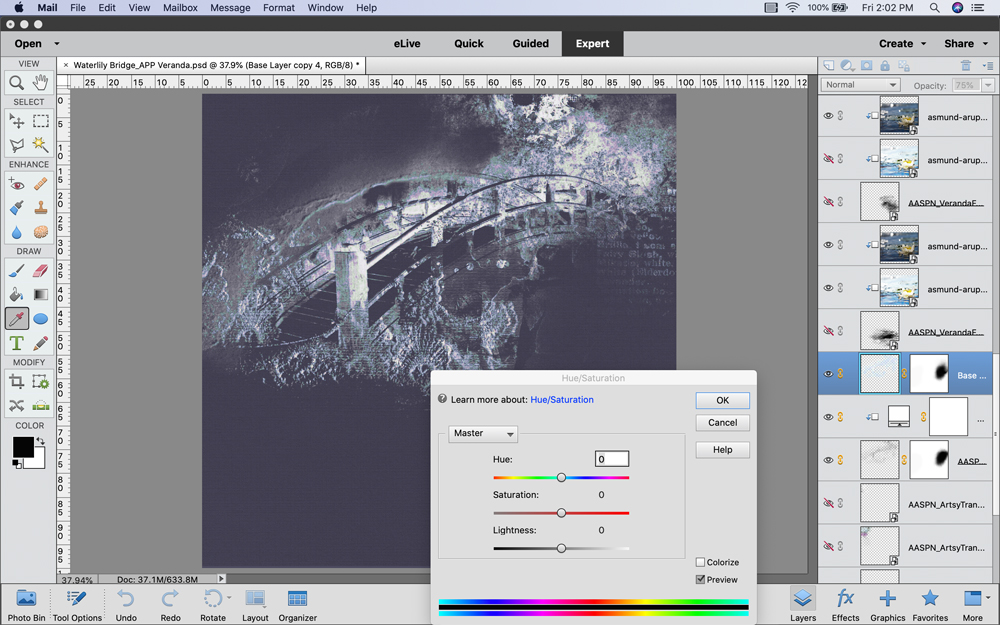
Tip. Adjust the Saturation via Hue/Saturation option to enhance the effect.
- Select New Effects Layer in the Layers Panel.
- Go to Enhance> Adjust Color > Hue/Saturation.
- Move the sliders as preferred – The Saturation slider appears to yield the best adjustment.
Note.
- The Fluorescent Chalk Effect will apply to ALL visible layers at time of creation.
- Clip the layer to the pictorial style brush layer to apply to that layer ONLY.
Summary
Use Color and FX to add visual interests to BrushSets.
- Recolor a brush as needed to create CONTRAST with your chosen background.
- Apply the Fluorescent Chalk Effect to add Visual Interest.
- Modify and enhance using the Hue/Saturation adjustment.
Try This.
- Apply the Fluorescent Chalk Effect to multiple layers in a photo artistry design.
- These may include photos clipped to FotoBlendz masks, BrushSets, Papers and Transfers/Overlays.
- Apply Blending Modes to the Effects Layer to further enhance the Fluorescent Chalk Effect.
See also.
- Special Photo Effects in Photoshop Elements
- Advanced Brushes in Photoshop Elements
- Text on a Path in Photoshop Elements
And if you liked this Fluorescent Chalk Brushes Photoshop Effect, please consider sharing it using the social media buttons below.
Wow, this is just fantastic as it introduces to me new effects to use in PSE. Thanks for this enlightening tutorial. I am still hanging around. Love
So lovely to hear from you Shirley! Happy you enjoyed 🙂
Thank you, Shirley! I only focused on the white brush against the dark ground for the tutorial, but I have experimented with applying the effect to other layers. Have fun playing with the effects!
Is there a way to create this effect in the full version of Photoshop?
Hi Maggie,
This is a preset in Photoshop Elements that is not included in the Adobe Photoshop version.
I do not know of an alternative in Photoshop.
Anna