
Barbara, shares her Easy Curled Edges and Blend Ifs Title in Digital Scrapbooking Tutorial.
Note that the Blend Ifs portion of this tutorial is available in Adobe Photoshop only.
Easy Curled Edges Tutorial
The Easy Curled Edges are a breeze to incorporate into your digital artistry and artsy digital scrapbooking
- They add extra interest to your pages because they are basically a template – Each piece of the curled edges template is on it’s own layer to manipulate as needed.
- You can easily rotate and resize to fit your photo or paper as I did in this case to fit my photo and clip it down to the mask and still get artsy.
In Easy Curled Edges and Blend Ifs Title Tutorial, I used Easy Curled Edges No. 1 and ArtPlay Palette Wanderlust to create me digital layout.
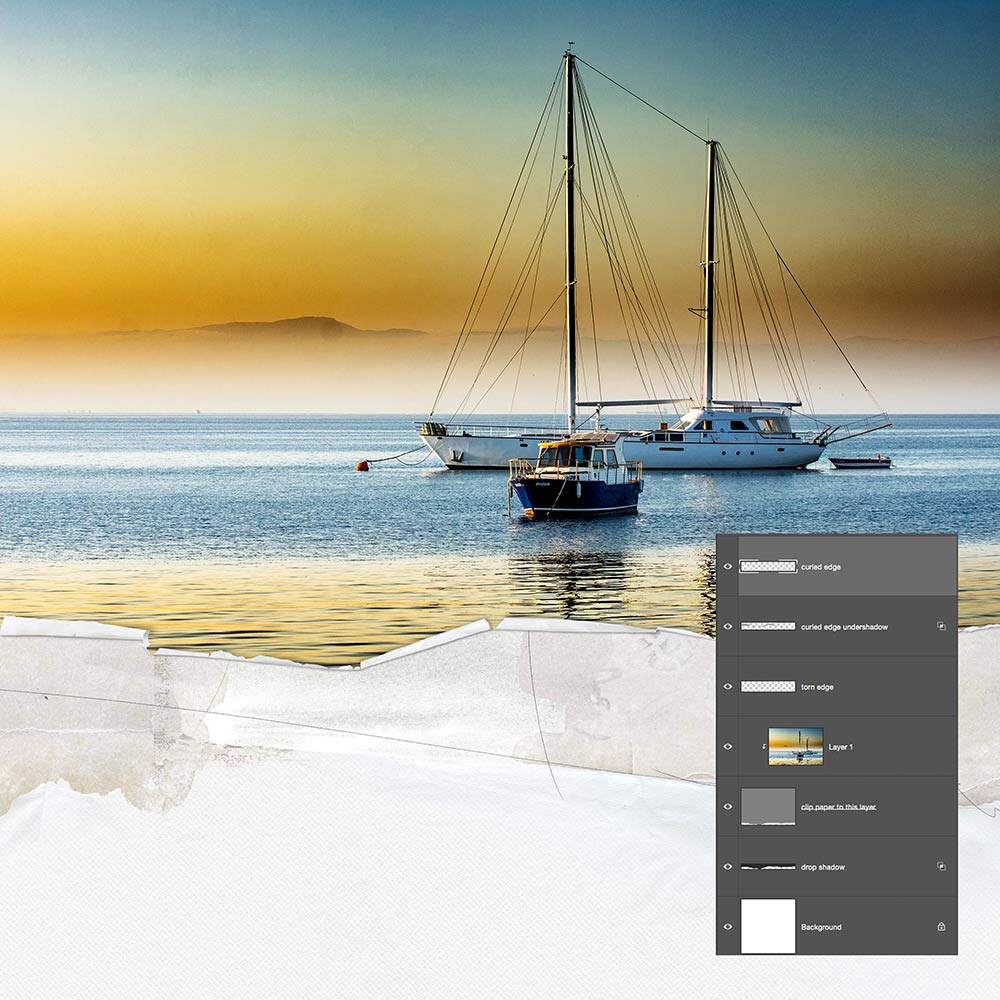
1. Mask Your Photo
Clip your photo to the mask later of the Easy Curled Edge.
- Move your photo layer above the mask layer and clip your photo to the mask (Ctrl+Alt+G).
See this FREE video for further guidance in using clipping masks.
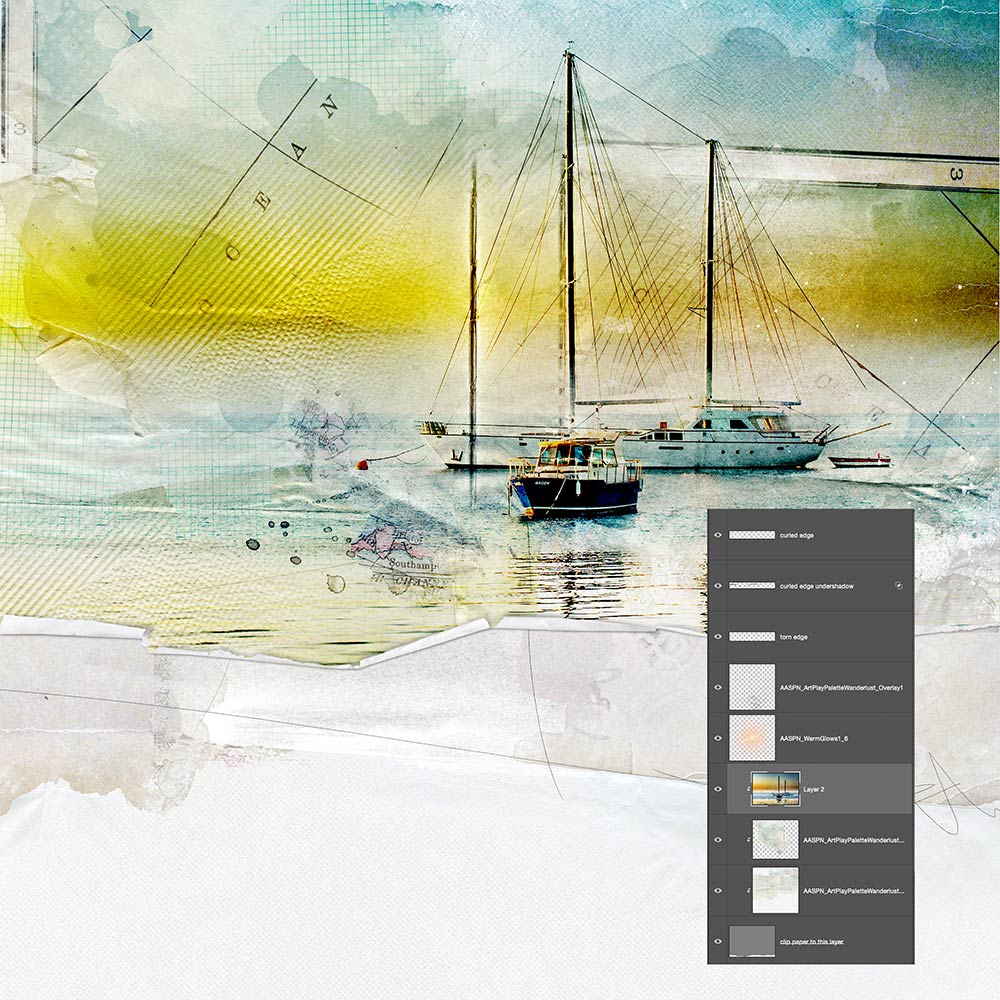
Note. Beneath the photo, I added ArtsyPaper1.jpg from ArtPlay Palette Wanderlust, and a Transfer in the upper left corner, all of which became a clipping set.
- A Color Burn Blending Mode was applied to the transfer.
- WarmGlows, with Color Burn Blending Mode applied, were placed over the photo.
- The Overlay, at the right edge, is blended with the Hard Light Blending Mode.
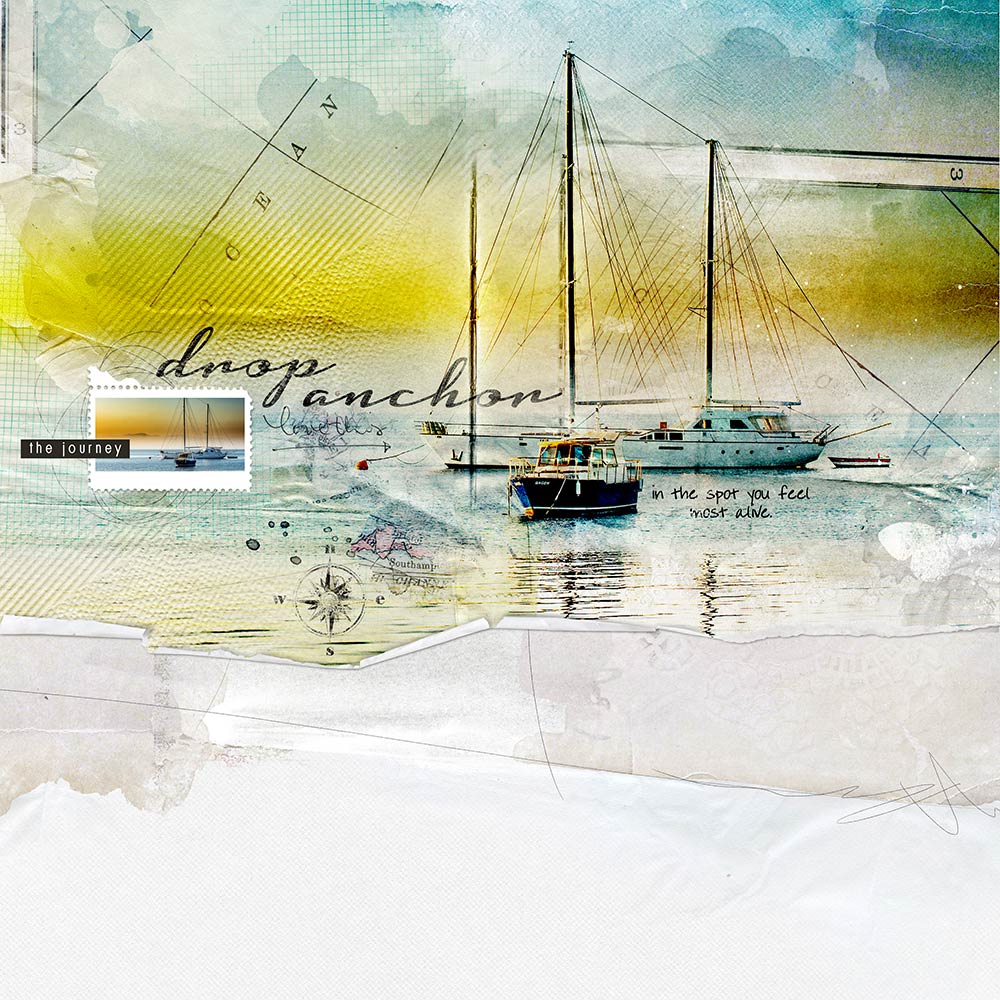
2. Embellish Your Layout
On top of this photo foundation:
- Place the postage stamp frame from the ArtPlay Palette.
- Resize and clip a duplicate copy of the photo to the frame mask.
- Add the title, compass, label, brushes from the ArtPlay Palette, and journaling.
3. Blend Ifs Title
Apply Blend Ifs to the title to create a more natural blend, making the text look like its actually embedded into background instead of floating over the page.
- Double-click on the layer in the Layers Panel to open the Layer Styles window.
- The Blend If sliders are located at the bottom of the panel.
- Move the sliders as preferred.
Note: You can can split the sliders in half, and make the transition smoother, by holding down the ALT/OPT keys on your keyboard.
- Apply Blending Modes, such as Linear Burn, to bring out the subtle textures of the background.
Summary
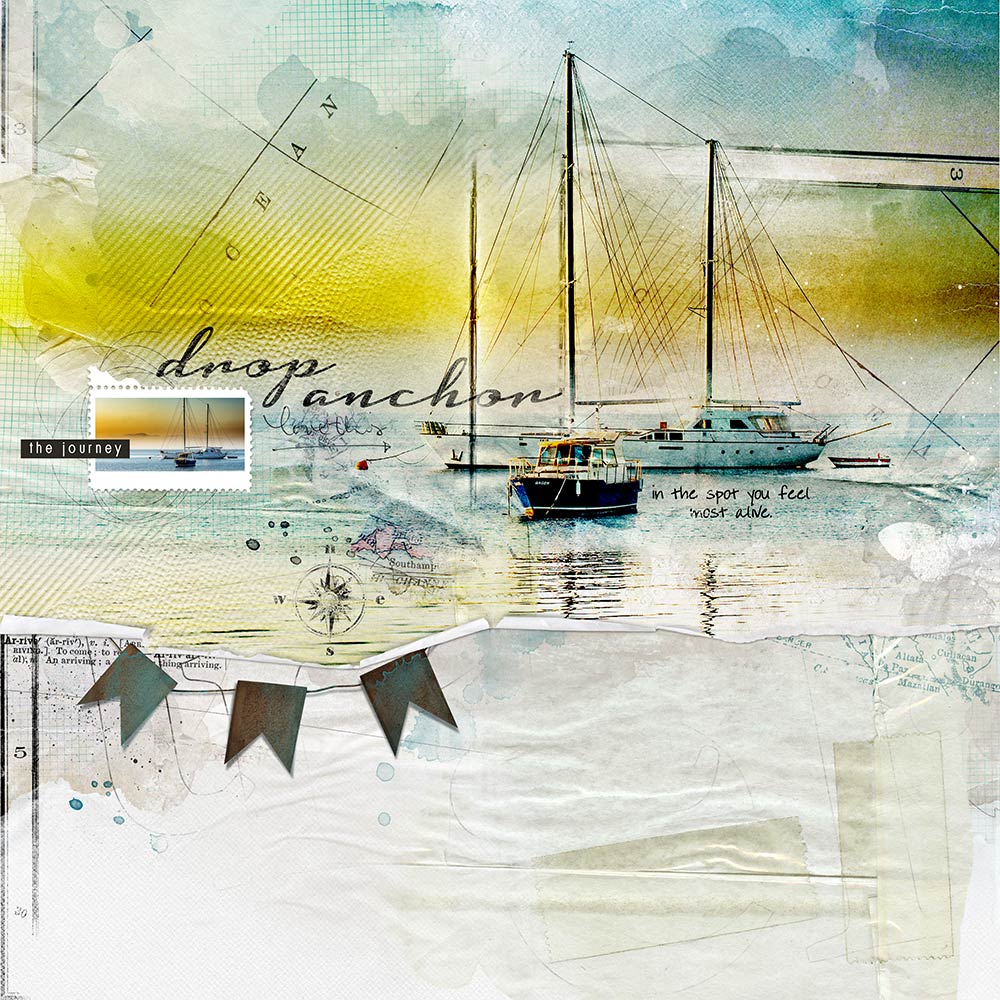
Easy Curled Edges are easy to use enabling you to achieve multiple effects with different photos and papers.
- Place different elements so that they appear to be peaking out from the curled edge
- Incorporate more than one photo using blending techniques.
- Try out the Blend Ifs title technique.
Post your questions about Easy Curled Edges and Blend Ifs Title in Digital Scrapbooking Tutorial in the comments.