
Creative Team Member, Viv Halliwell, shares how to Create an Artsy Facebook Cover in Adobe Photoshop.
Create an Artsy Facebook Cover
Handy Guidelines
- Don’t clutter your banner, simple is good.
- Remember not to fill the bottom left of your banner that’s where your photo goes!
- A little text goes a long way!
Facebook Cover Foundation
- Create a file at 300 DPI (Dots Per Inch) resolution as all [aalogo] DigitalART suppliedare at that resolution.
- You will convert the image to the appropriate resolution at the end of the process.
- It’s never a good idea to use two different resolutions – it just does not work!
Facebook Banner Size Recommendation.
Width: 851 pixels
Height: 215 Pixels
Resolution: 72 Pixels/inch. (DPI )
Create Your Facebook Cover
In Adobe Photoshop or Elements:
- Go to File> New
- Name the file: Facebook Banner
- Enter 851 x 217 with a resolution 72 (Pixels/Inch)
- Click OK
- Go to SAVE AS and save the template using a file name that describes the banner e.g Facebook Banner_72dpi.
- Save as a .psd file and NOT .jpg file
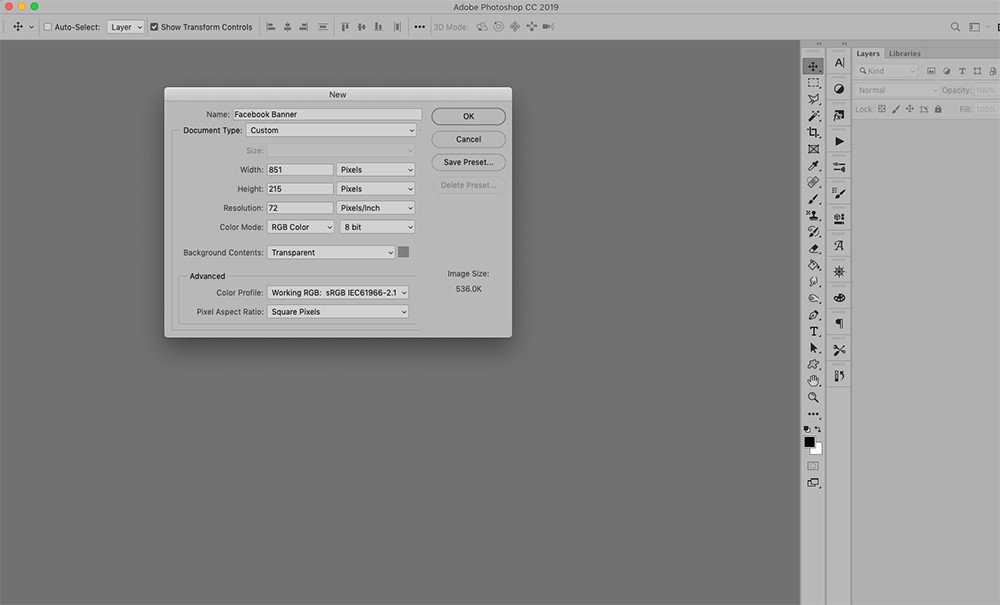
Without closing out the template:
- Go to Image> Image Size.
- Change just the Pixels/Inch box from 72 to 300.
Note. This will change the resolution and increase the pixel size. You will probably have to make your template smaller in Photoshop by zooming out (CMD or CTRL minus -).
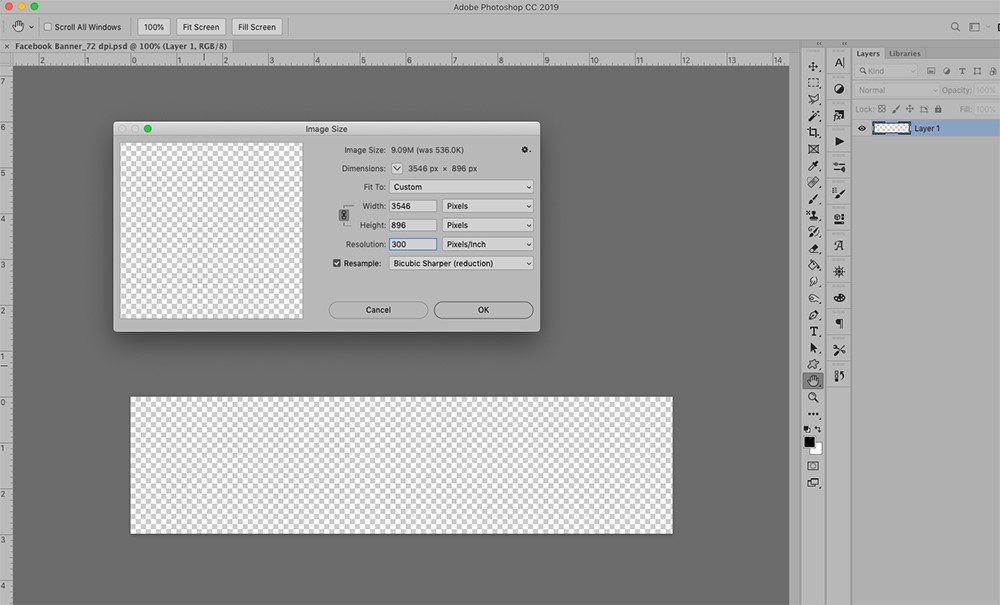
Your template is now the correct size for adding [aalogo] DigitalART supplies
It’s personal preference on how you ‘feed’ your template.
- The easiest and quickest approach is to add an Artsy Paper from an ArtPlay Palette of choice.
- Resize and move the paper as preferred.
- Embellish with WordART, BrushSets and Embellishments.
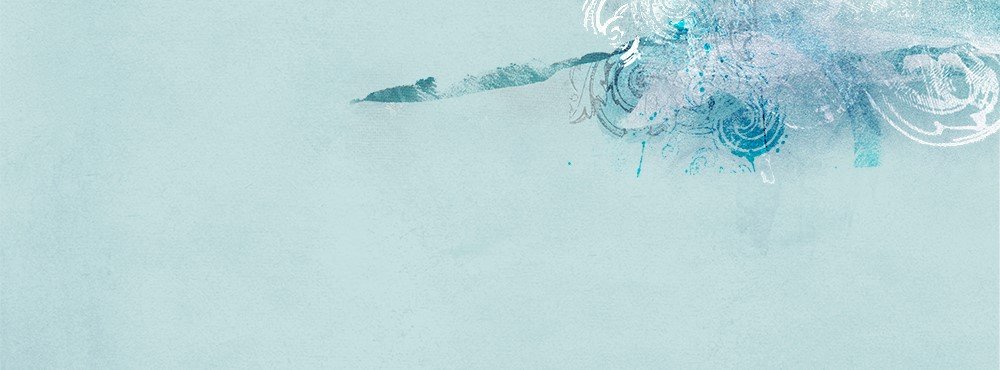
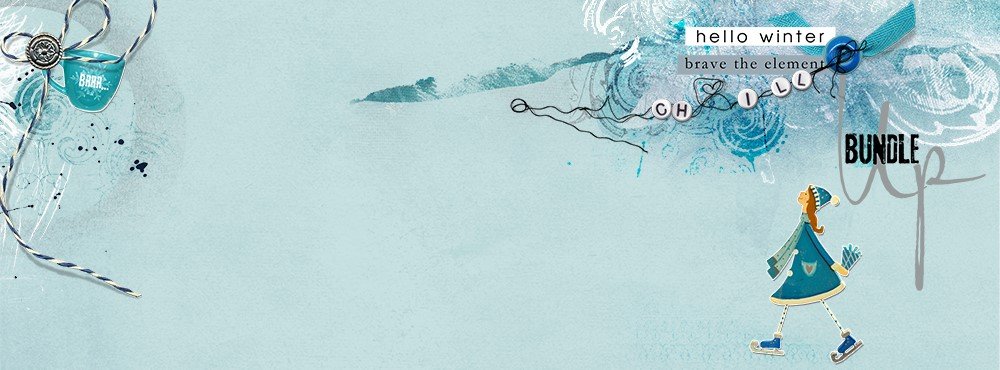
DigitalART Supplies: ArtPlay Palette Chills, ButtonThreadz No. 2
Continue adding supplies until you are happy with the result.
- Remember not to clutter and to keep your elements in proportion
- Alternatively a photograph could be added and blended.
- Make sure that the resolution of your image is 300 DPI.
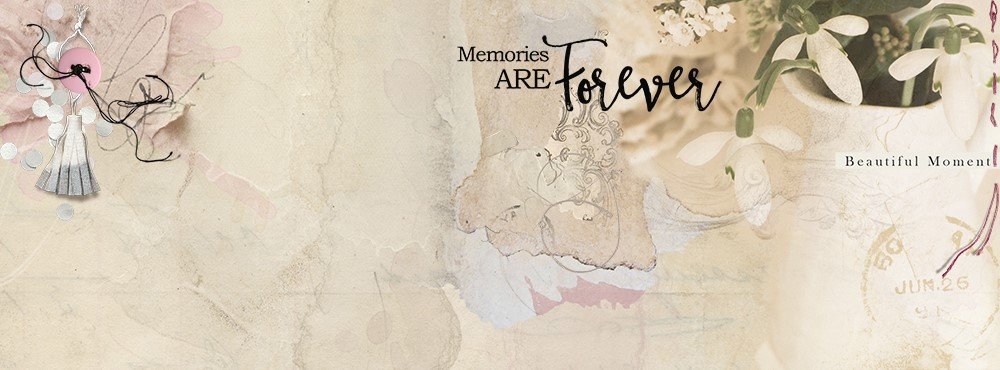
DigitalART Supplies: ArtPlay Palette Florence, ButtonThreadz No. 3 , Memories WordART Mix No. 1
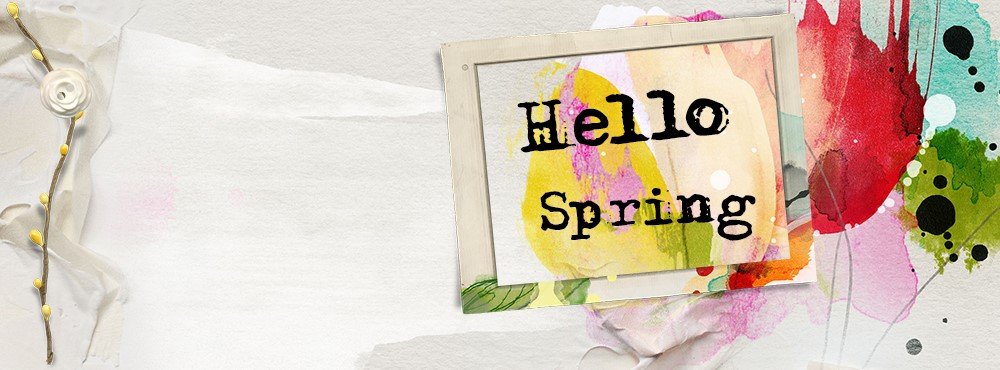
DigitalART Supplies: Artplay Palette Posy
Saving Your Facebook Cover
- Save your image as Facebook Header_300DPI.jpg.
- Go to Image> Image Size.
- When dialogue box opens change 300 Pixels/Inch to 72 Pixels/Inch.
- Now your image is the correct size for Facebook.
- Save your image as Facebook Header_72dpi.jpg.
Add Your Cover to Facebook
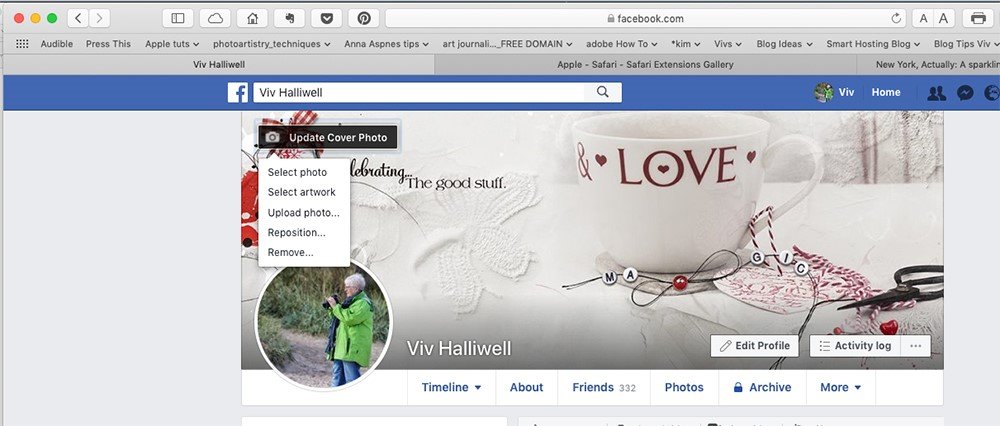
- Navigate to Facebook and add your banner (Facebook will call it Cover photo).
- Click on top left hand side of the header.
- Select Upload photo and navigate to your saved image.
- Hit choose and your image will appear.
Post your digital artistry and artsy digital scrapbooking pages in The Gallery, and if you liked this Create an Artsy Facebook Cover Tutorial, please consider sharing it using the social media buttons below
Your directions are easy to follow Viv! These will be fun to make and use. I love the Chill banner. Thank you!
Thank you for this tutorial. Wondering if you would also have additional information (size/etc.) for creating the profile picture as well. I am a big fan of Anna’s beautiful products!
Hi There
Following the technique above start with a canvas size of 1500 x 1500 pixels at 300. Create your design. Then go to Image – Image size and change the 300 to 72 dpi and you should get exactly the right size.
This is great, Viv! Thank you!