
Today, [aalogo] Creative Team Member, Miki Krueger is sharing a Graphic Poster Effect Using Threshold Filter.
Graphic Poster Effect Using Threshold Filter
Introduction
In this tutorial you will create an edgy graphic poster effect and learn how to:
- Create a photo Extraction using the Quick Selection Tool.
- Create a monotone graphic effect using a Threshold Adjustment Layer.
- Colorize an image using a Gradient.
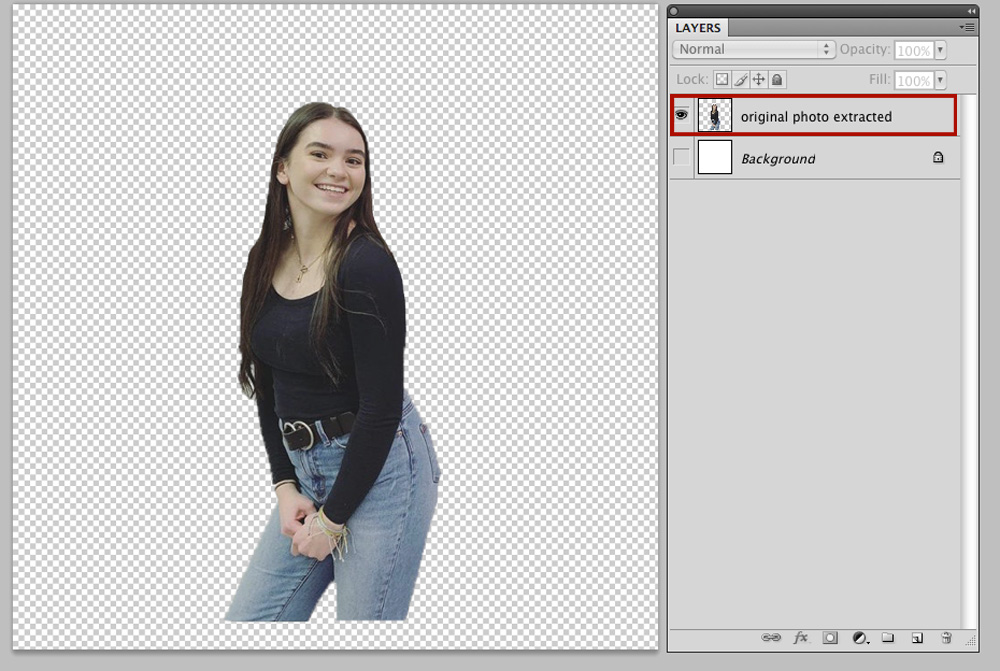
1. Create an Extraction
Remove the background from the photo subject using the Quick Selection Tool.
- Select the Quick Selection Tool from the Tools Panel, or press W.
- Set the Radius to 10 and drag the brush inside the subject to establish a Selection.
- Note that this tool selects similar tones Automatically and finds the image edges via Contrast.
- A line of ‘marching ants‘ will surround the area of the photo to be extracted.
- Go to the Menu Bar > Select > Inverse (Shift + CMD/CTrL + I), then Edit > Delete (CMD/CTrl + D)
- A line of “marching ants” will appear around the area that is to be extracted.
- From the Menu, go to Select> Inverse (Shift + CMD/CTRL + I), then Edit > Delete (CMD/CTrl + D) to remove the background and isolate the subject.
- Use a Photoshop Default Hard Round Brush with the Eraser Tool (E) to clean up the edges and remove any stray pixels.
You can:
- ADD to the initial section by clicking and dragging over more pixels.
- SUBTRACT from the initial selection by holding down the Option key on a Mac (Alt key on Windows) as you move the cursor over the area you want to remove from the selection.
- Note that when you Release the Option/Alt key, the Quick Selection Tool switches back to its default Add Selection function.
2. Add Gaussian Blur Filter
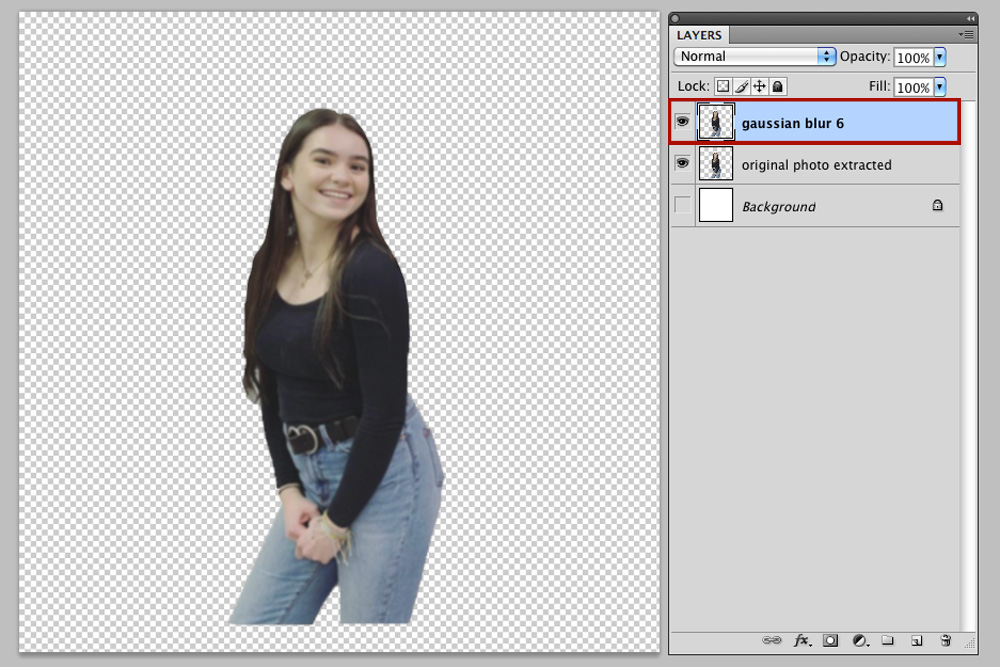
Soften the extracted image using the Gaussian Blur filter.
- Select the extracted photo layer in the Layers Panel.
- Press CMD/CTRL + J to duplicate the layer.
- Go to Filter> Blur >Gaussian Blur
- Change the Radius to 6 Pixels.
- Click OK to apply the effect.
3. Apply Threshold Filter
Create a black and white graphic effect by applying the threshold filter.
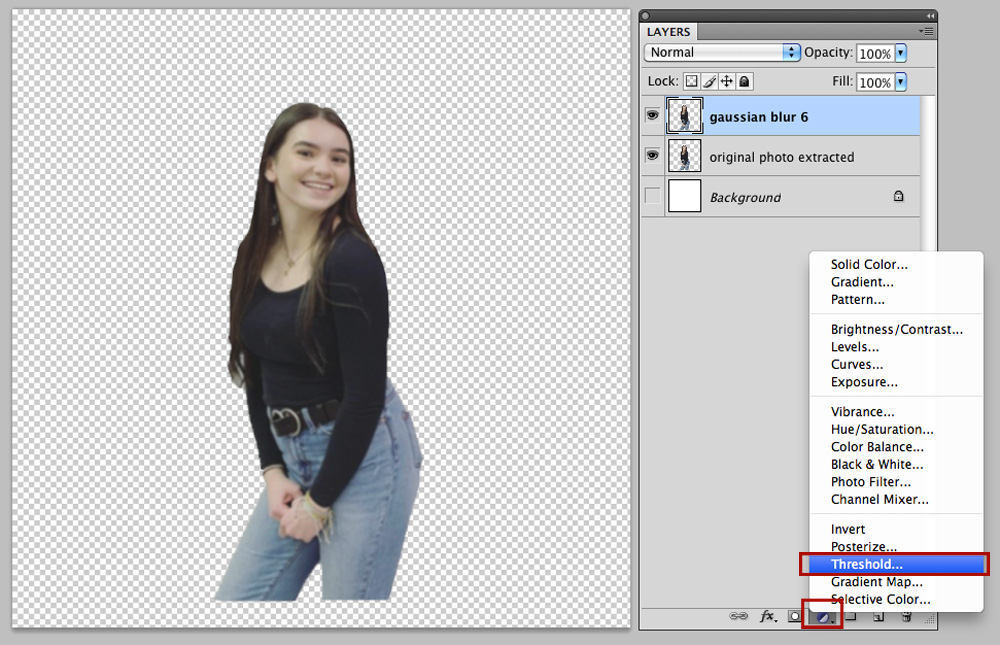
- From the Menu, go to Filter> Adjustments> Threshold.
- Note you can also click on the ‘two tone circle’ icon in the Layers Panel to apply a Threshold Adjustment Layer.
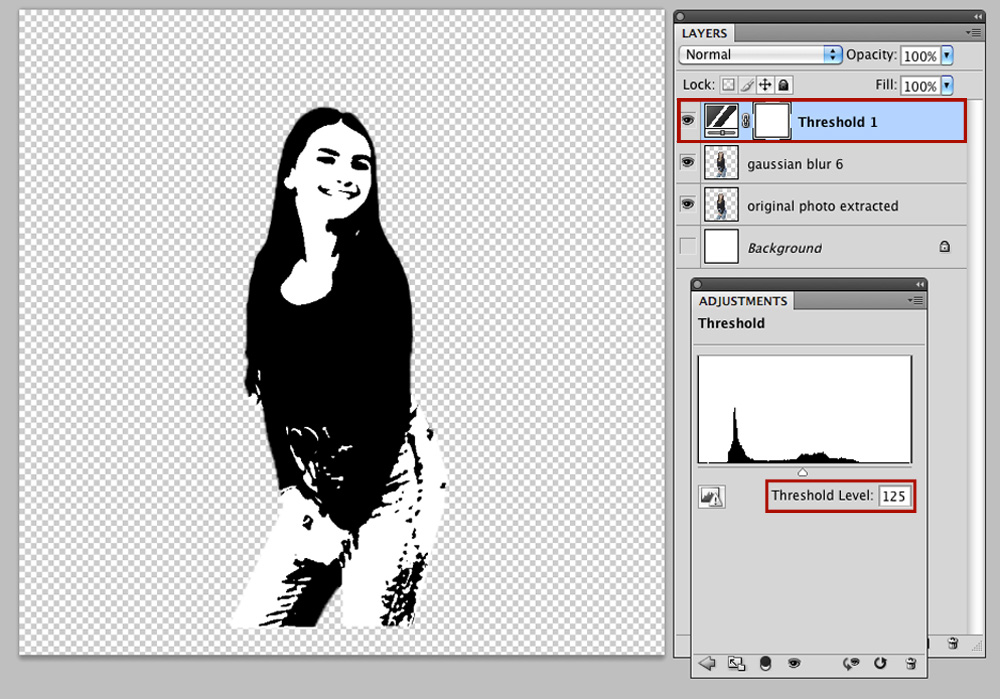
- In the Threshold dialog box, drag the slider under the histogram to a Threshold Level of about 128.
- Click OK to apply the effect.
- Move the slider left or right to adjust the Density Level.
- The best effect is achieved when the Level is not too dark o light, but retains detail.
- Clip the Threshold Layer to the Gaussian Blur Layer.
- Go to Layer >Create Clipping Mask or Option/Alt CMD/CTRL+ G)
4. Apply a Color Gradient
Colorize the extracted image using a Gradient Fill Adjustment Layer.
- Set the Foreground and Background Colors to Black and White respectively in the Tools Panel.
- Click on the ‘two-toned circle’ icon in the Layers Panel and select the Gradient Fill Adjustment Layer option.
- Change the Style to Radial, the Angle to 90º and the Scale to 150% from the dialogue box.
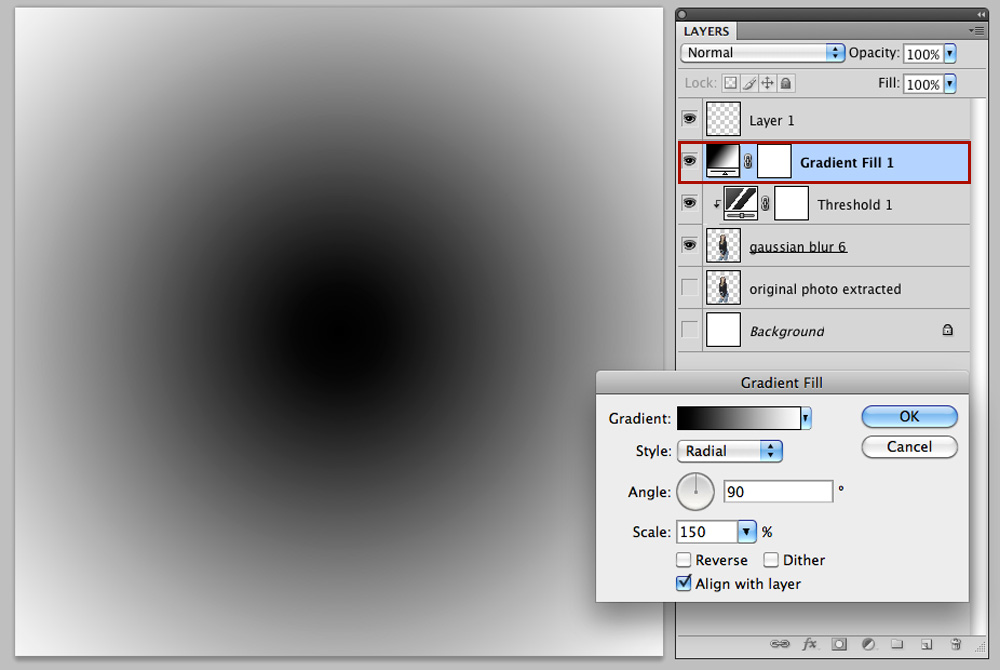
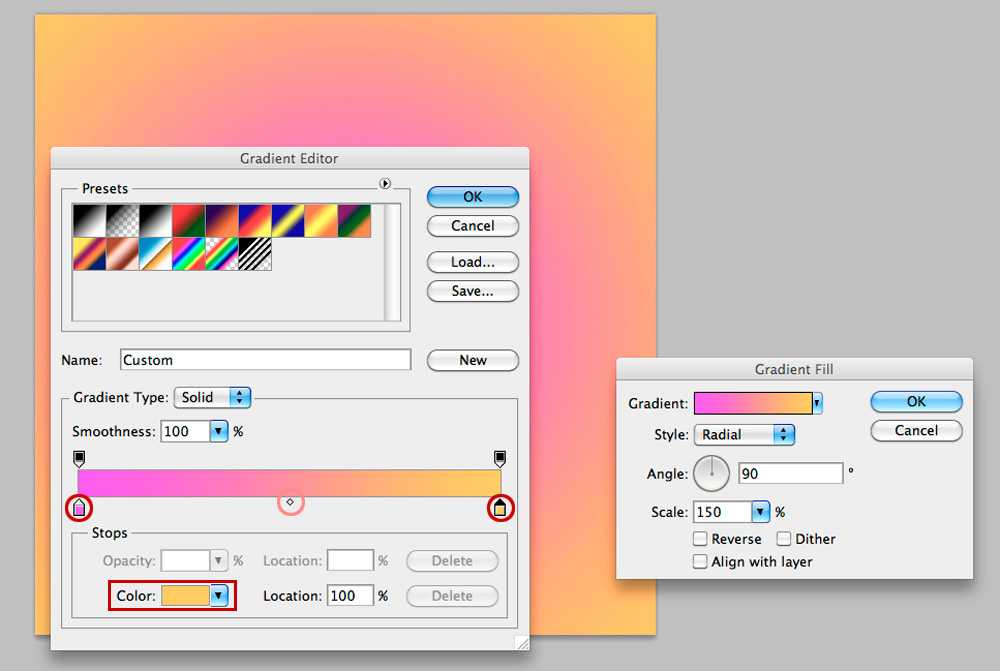
- Click on the Gradient Bar to access the Gradient Editor.
- Select the Black/White Box.
- Choose the Lower Left Stop.
- Click on the Color Box and select the color you want to use from the Color Picker.
- Then click OK.
- Choose the on the Lower Right Stop.
- Click on the Color Box and select a contrasting color from the Color Picker.
- Then click OK again.
Add More Colors to the Gradient:
- Note this current Gradient includes only two colors, but you can add more colors by adding more Color Stops.
- To add a Color Stop, click just below the gradient preview area to establish a point where you want it to appear.
- Next click on the Color Box to make a color selection.
Note:
- The transparent diamond shape or Color Mid Point can be moved to the right or left.
- This indicates the positions where two colors are Equally blended or the 50%opacity position.
- To adjust the Location of the transition midpoint between colors, drag the diamond Below the gradient bar to the left or right.
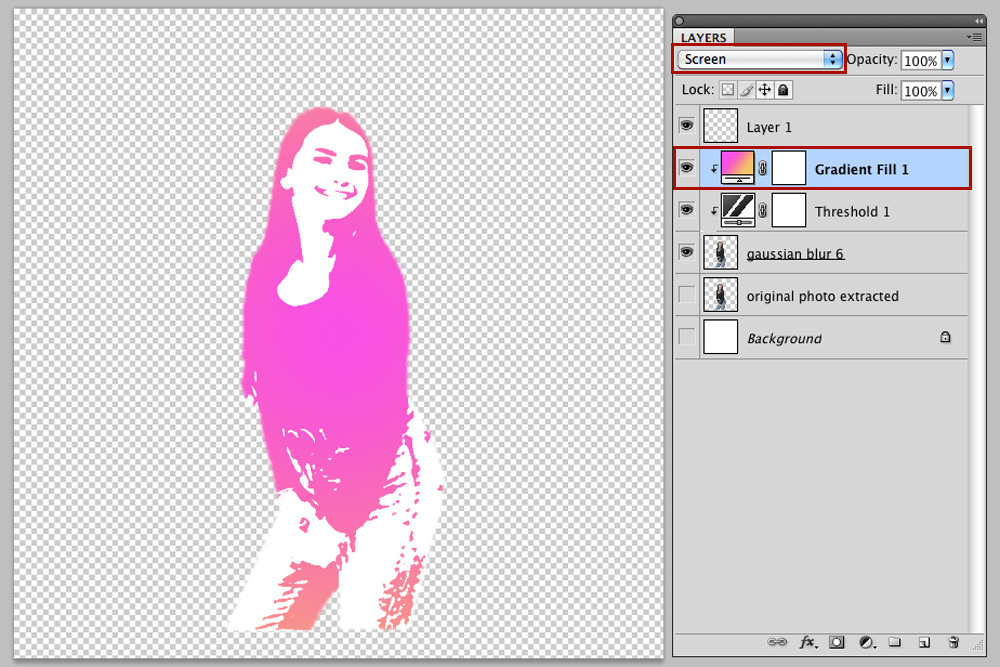
- Clip the Gradient layer to the Threshold Layer.
- Go to Layer> Create Clipping Mask or Option/Alt CMD/CTRL+ G
- Change the Blending Mode of the layer to Screen at 100% opacity.
6. Create Photo Artistry
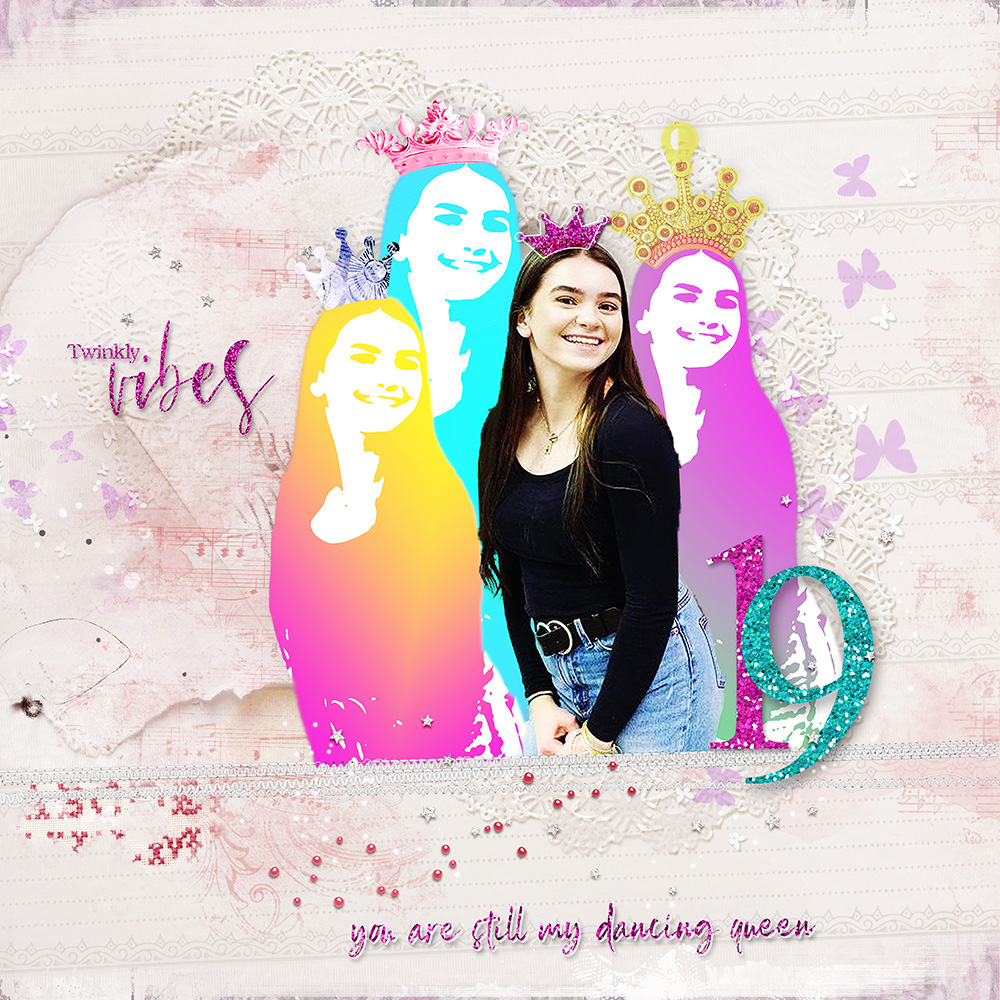
Use your extracted image in a photo artistry or digital scrapbooking layout design.
- Embellish your page with [aalogo] digital assets.
Choose from the following options:
DigitalART Supplies
Find a complete list of the digital supplies used in this photo artistry layout here.
Summary
Add filters and adjustment layers to elevate an extracted photo.
- An Extraction creates a obvious Focal Point through the removal of a distracting background.
- A Threshold filter layer creates a black and white Graphic Poster-style effect.
- A Gradient layer enhances Tension via vibrant or subtle blends of color.