
Today, Margos is sharing a cool technique to Smart Blur Your Watercolor Photo Edits.
Introduction
Uplift your photos and artistry layout designs using sketch and coloring techniques to yield a Watercolor photo effect.
- Use the Smart Blur Filter with inversion to yield the sketch.
- Colorize your image using duplicate layers and the Layer Mask with Brushes technique.
- Apply additional Filters, Blending Modes and Adjustment Layers to refine the watercolor effect.
1. Apply Filter
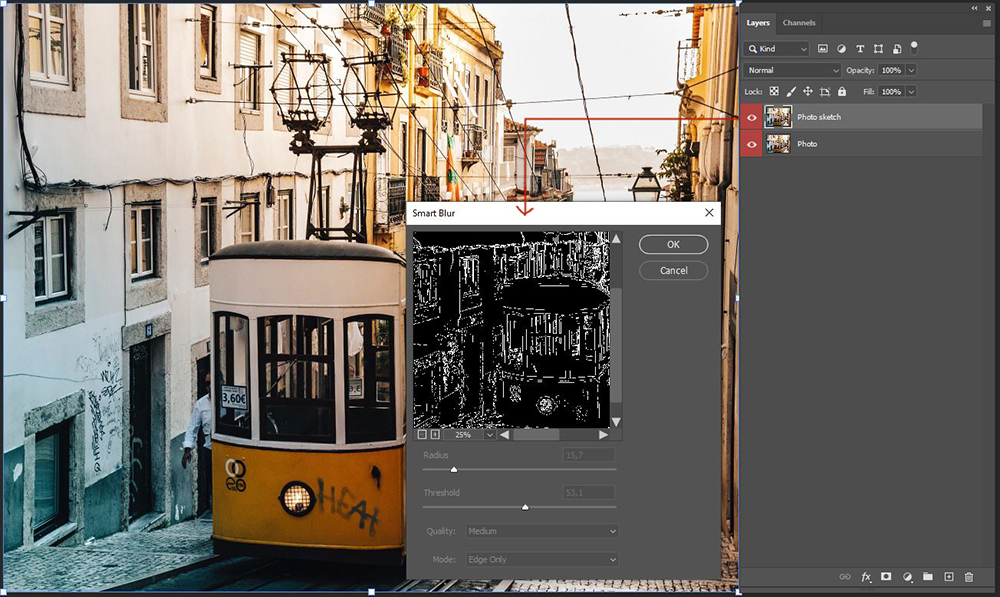
Add a Smart Blur Filter to a duplicate copy of your photo layer.
- Choose and open a photo into your work space.
- Make a copy of the photo layer by pressing CTRL/CMD + J.
- Select the ‘copy’ layer in the Layers Panel.
- Go to Filter> Blur> Smart Blur, set values to preference
- Start with Quality: Medium and Mode: Edge Only.
- Proceed then to the the Radius and Threshold values.
2. Invert and Colorize
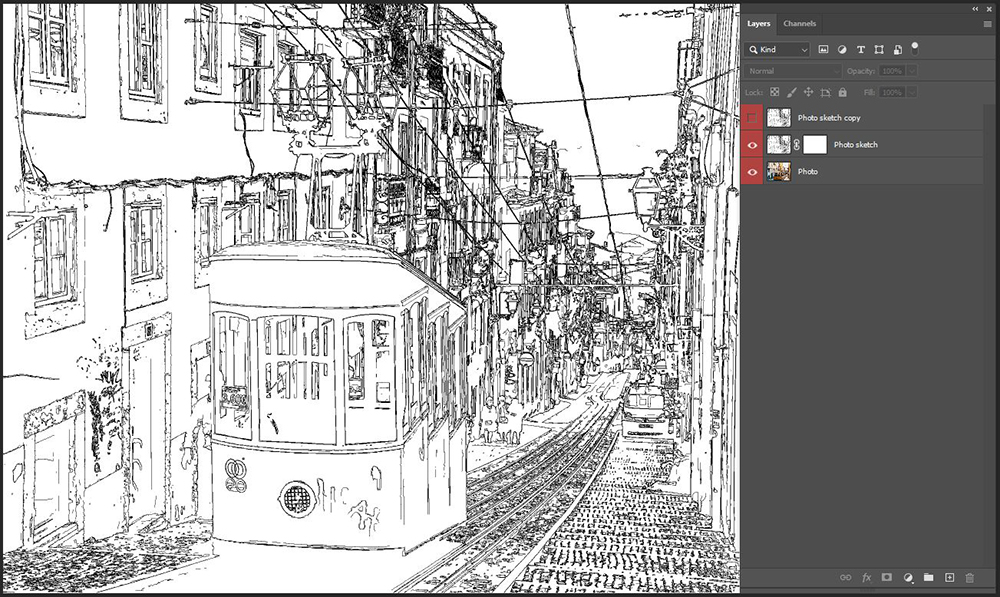
Invert the Smart Blur Filter layer and use a Layer Mask with Brushes to colorize the image.
- Press CTRL/CMD + I to invert the photo ‘copy’ layer and reveal the sketch effect.
- Make a copy using the CTRL/CMD + J command.
- Turn off visibility of this layer by clicking on the ‘eye’ icon to the left of the layer.
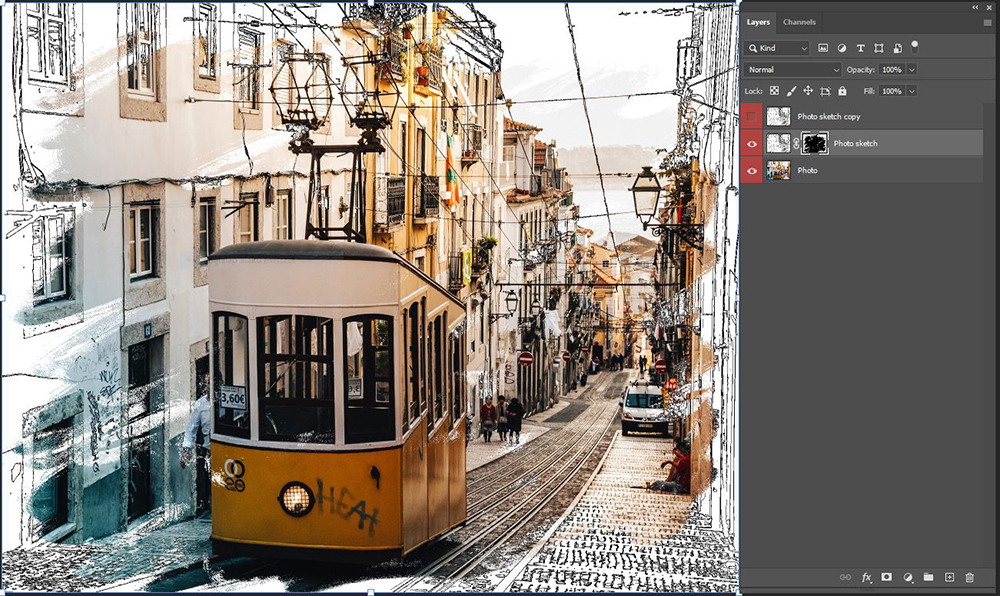
- Add an Layer Mask to the original sketch layer.
- Click on the Layer Mask layer to activate.
- Choose a soft ‘painting’ brush of your choice.
- Ensure your Foreground Color is BLACK and your Background Color is White.
- Set the Blending Mode to Dissolve from the top of the Layers Panel.
- Paint on the Layer Mask to reveal the underlying color photo layer.
Note. Invert the Fore- and Background Colors so that the Foreground Color is WHITE to bring back more of the sketch layer.
3. Soften and Blur
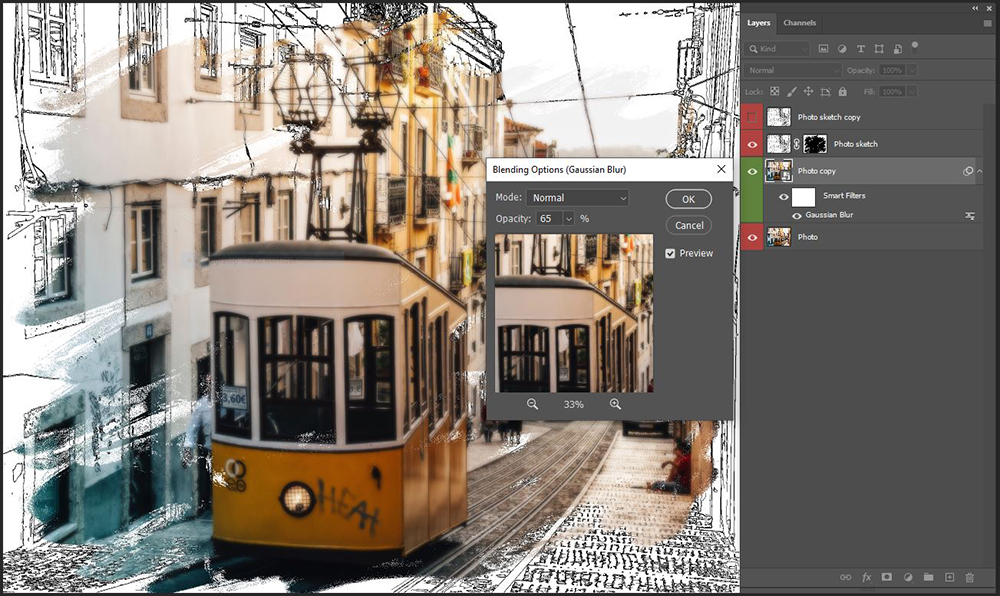
Apply a Gaussian Blur filter to a copy of the original photo layer to add a ‘dreamy’ effect to your image.
- Duplicate the original photo layer via CTRL/CMD + J.
- Right-click on the ‘copy’ layer and select Convert to Smart Object.
- Ensure the Smart Object layer is selected in the Layers Panel.
- Go to Filter> Blur> Gaussian Blur and set the values to best suit your photo.
4. Add Detail
Apply Blending Modes and Adjustment Layers to refine the effect.
- Turn back on the visibility of the photo sketch copy layer by clicking on the ‘eye’ icon.
- Set the Blending Mode of this layer to Soft Light from the top of the Layers Panel.
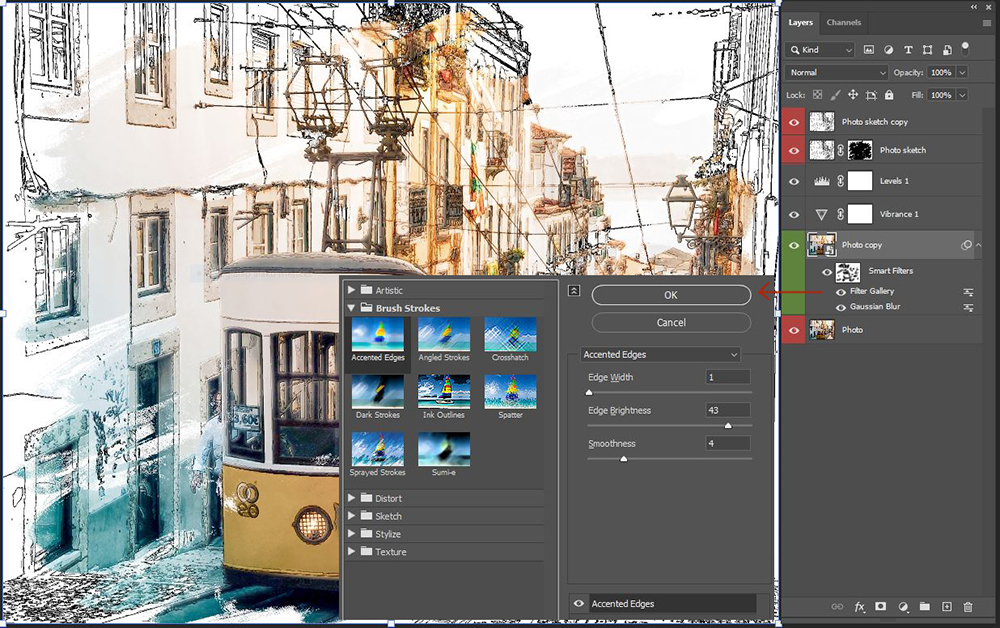
- Reselect the Smart Object (copy of the original photo) layer in the Layers Panel.
- Go to Filter> Brush Strokes> Accented Edges and set values to preference.
- Apply a Levels and Vibrance Adjustment Layer by clicking on the Adjustment Layer icon.
- Modify the layers using the Layer Mask and brushes to refine the effect.
- Save the image as a .jpg file.
5. Create Artistry
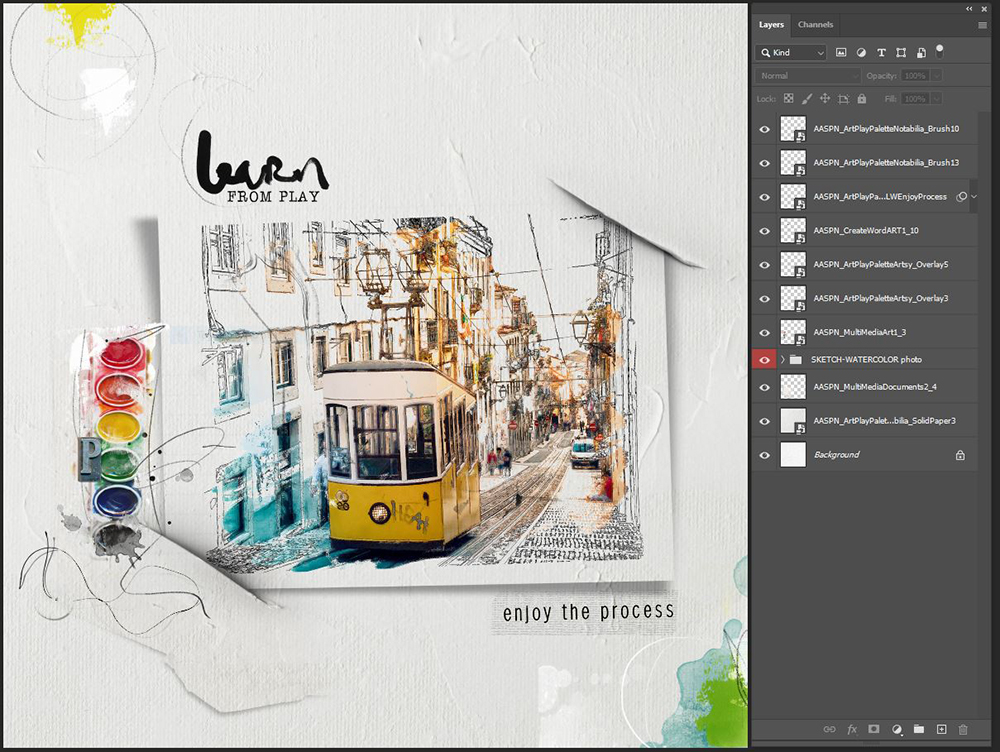
Incorporate the filtered photo into a layout design.
- Create a new 12 X 12 300 PPI layout
- Select a digital paper as your layout foundation.
- Clip the edited image to a FotoBlendz mask or Frame.
- Embellish with DigitalART supplies that support the THEME and COLORS in your layout design.
DigitalART Supplies
A full list of [aalogo] DigitalART used to complete this photo artistry and digital scrapbooking project can be found here.
Summary
Find unique approaches to create beautiful photo artistry and digital scrapbooking pages.
- There are multiple ways to achieve similar effects in Adobe Photoshop and it’s encouraged to experiment.
- Play with different Filters, Blending Modes and Adjustment Layers with the addition of Layer Masks and Brushes.
- Use the Photoshop Tools you already know to enhance the Visual Interest of your layout designs.
See also:
- ArtsyKardz Coloring Effect
- The Best Watercolor Painting Effect
- Selective Coloring with Adjustment Layers
Thank you so much for this tutorial. I am always seeking to find new “sketch techniques” as this seems to be one of my favorites. Easy to follow and can’t wait for my results.
This one is particularly unique. Enjoy!
This looks like so much fun. I can’t wait to try it. Thanks you.
Let us know how you get along with the technique!