
Heather, shares 5 Ways to Add Artsy to Traditional Digital Scrapbook Pages in Adobe Photoshop.
Note that this tutorial may also be achieved using Adobe Photoshop Elements.
5 Ways to Add Artsy to Traditional Layouts
When I began scrapbooking many years ago, I was a traditional paper scrapper – I switched to digital scrapbooking and have never looked back.
While my style has evolved over the years, there are some things that have remained the same. For example, I still like to physically ‘attach’ dimensional elements to my page with stitches or staples (digital ones of course).
The mix of blended and dimensional (paper-like) elements on each layout provides the artsy appeal.
There are many ways to make a traditional layout look more “artsy’ and today I am going to share with you 5 products that will make that super simple.
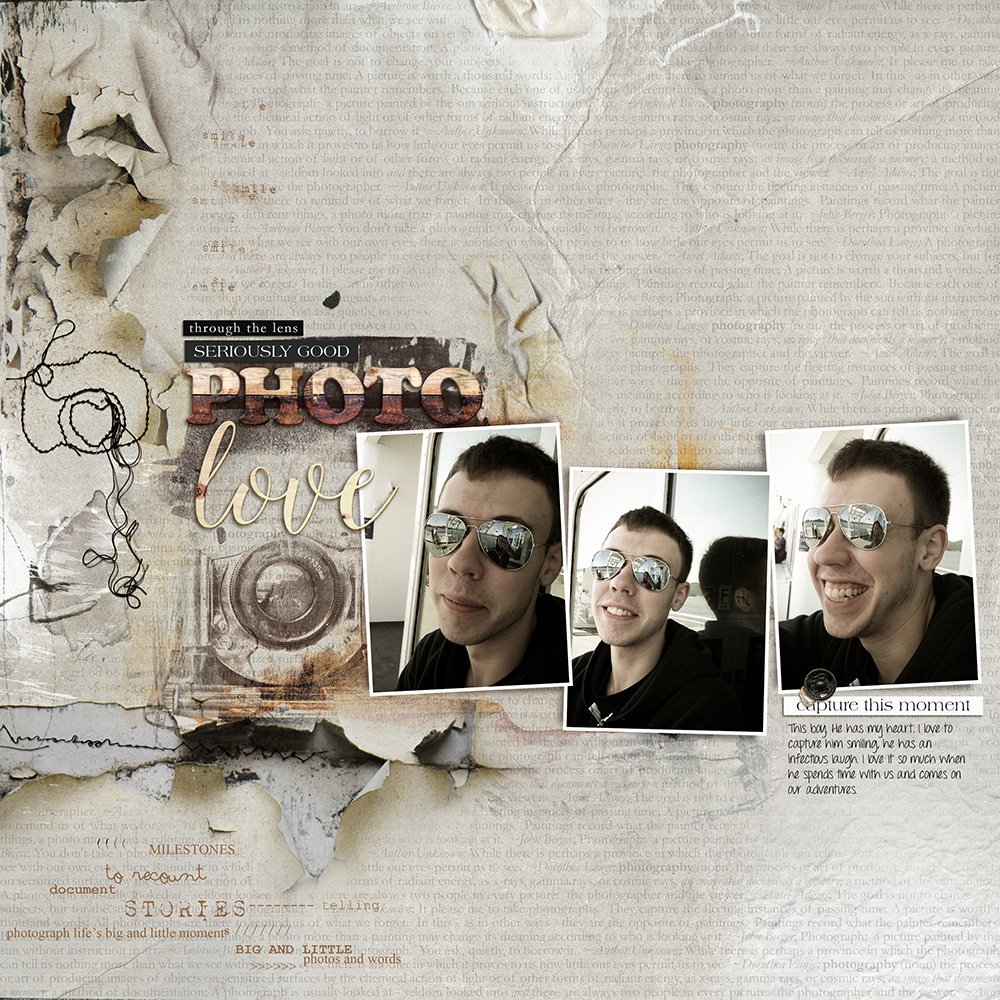
1. Dimension with Embellishments
Digital dimensional elements mirror those found in traditional paper scrapbooking and add depth and dimension to a layout through texture.
- For this 3 photo layout, I selected a fantastic background artsy paper from ArtPlay Palette Pierian, that already had a lot of great looking texture in the design, just behind the photo series.
- A transfer with texture and a WordART element adds dimension and visual interest to the composition.
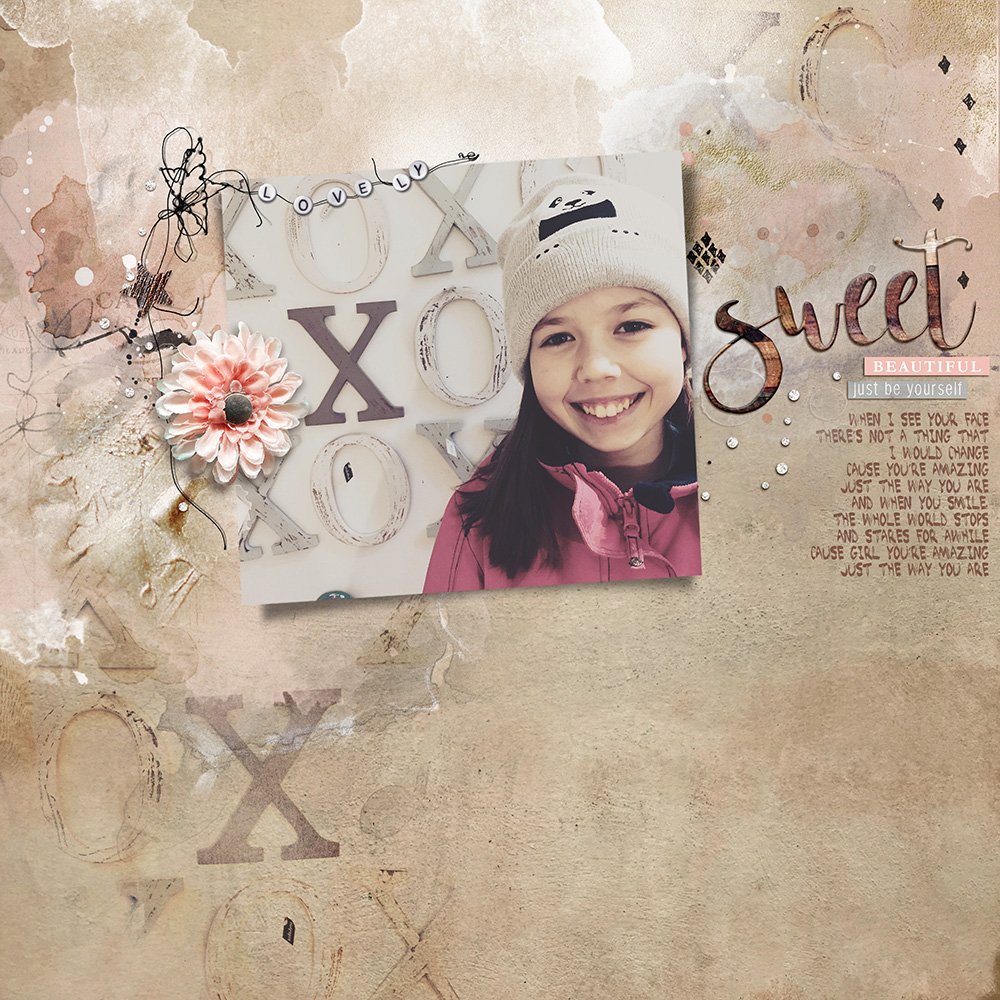
2. Use Transfers
Transfers are multi-color blended elements delivered in one-layer .png format (as opposed to the multi-layered ArtsyTransfers) can be found in ArtPlay Palettes.
- Transfers Differ from overlays in that they typically have less transparency than overlays, and create more focused areas of interest when added to a layout.
- The larger surface area of a transfer makes them suitable for use as a Clipping Mask to easily blend photos.
- Transfer elements from ArtPlay Palette Tres Bon add artsy textural interest.
- The photo was duplicated and placed on an artsy paper foundation, then the Multiply Blending Mode was applied to the photo copy layer to yield the letters on the background of the layout.
- A flower, star and wooden WordART, with Drop Shadow Layer Styles applied, transform the layout into a dimensional composite.
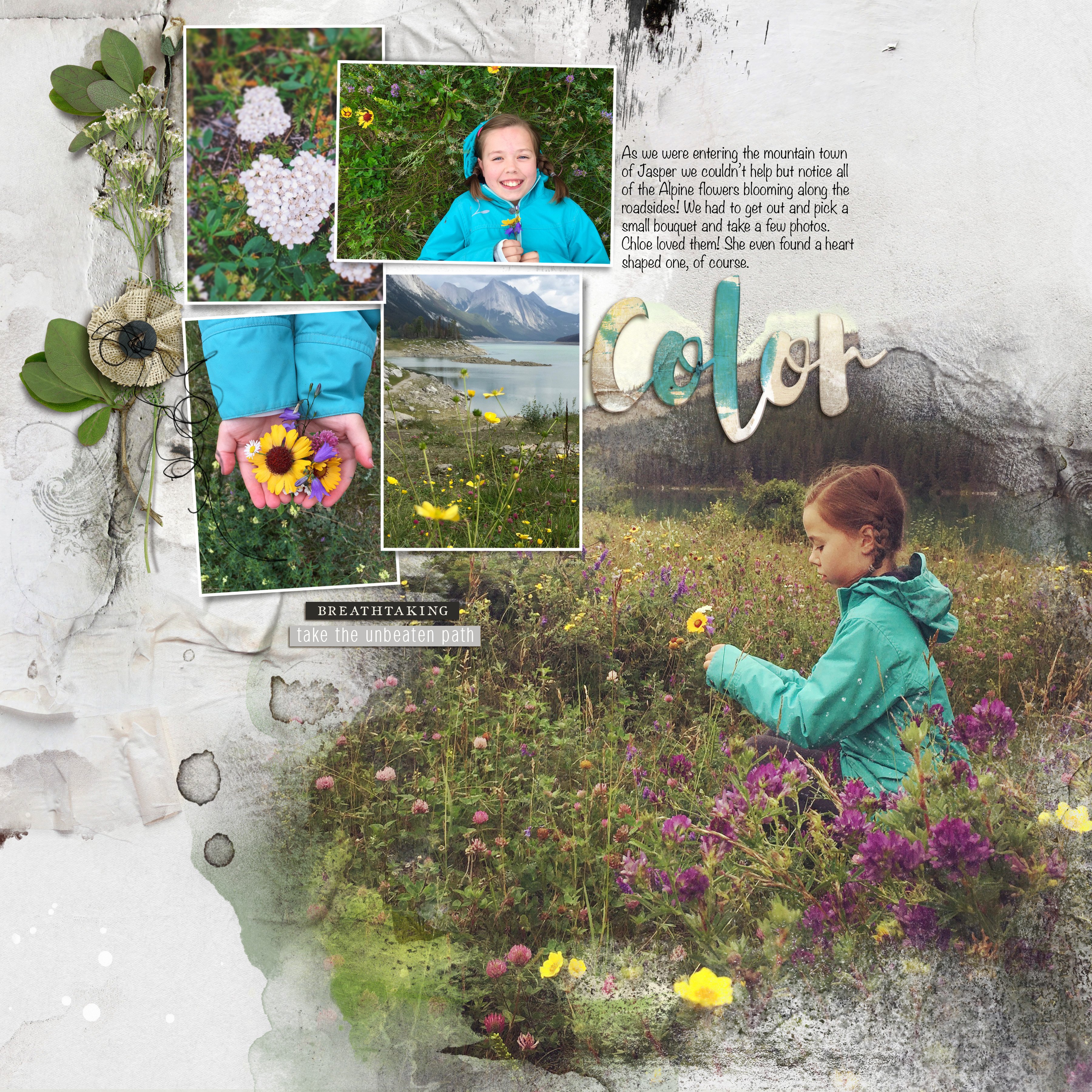
3. Blend with FotoBlendz Clipping Masks
FotoBlendz Clipping Masks are a quick and easy way to create blended layouts.
- This series of clipping masks with edges that transition in an artsy fashion from 100 to 10% opacity.
- They are designed to be used with the clipping mask function in Adobe Photoshop, Elements or Paint Shop Pro.
- Photos and images clipped to the FotoBlendz will conform to mask’s shape and assuming it’s properties.
- A mask from WaterColor Fotoblendz No. 2 set used to blend the photo before supporting it with multiple framed photos.
A simple artsy background paper with shadowed dimensional elements complete the design.
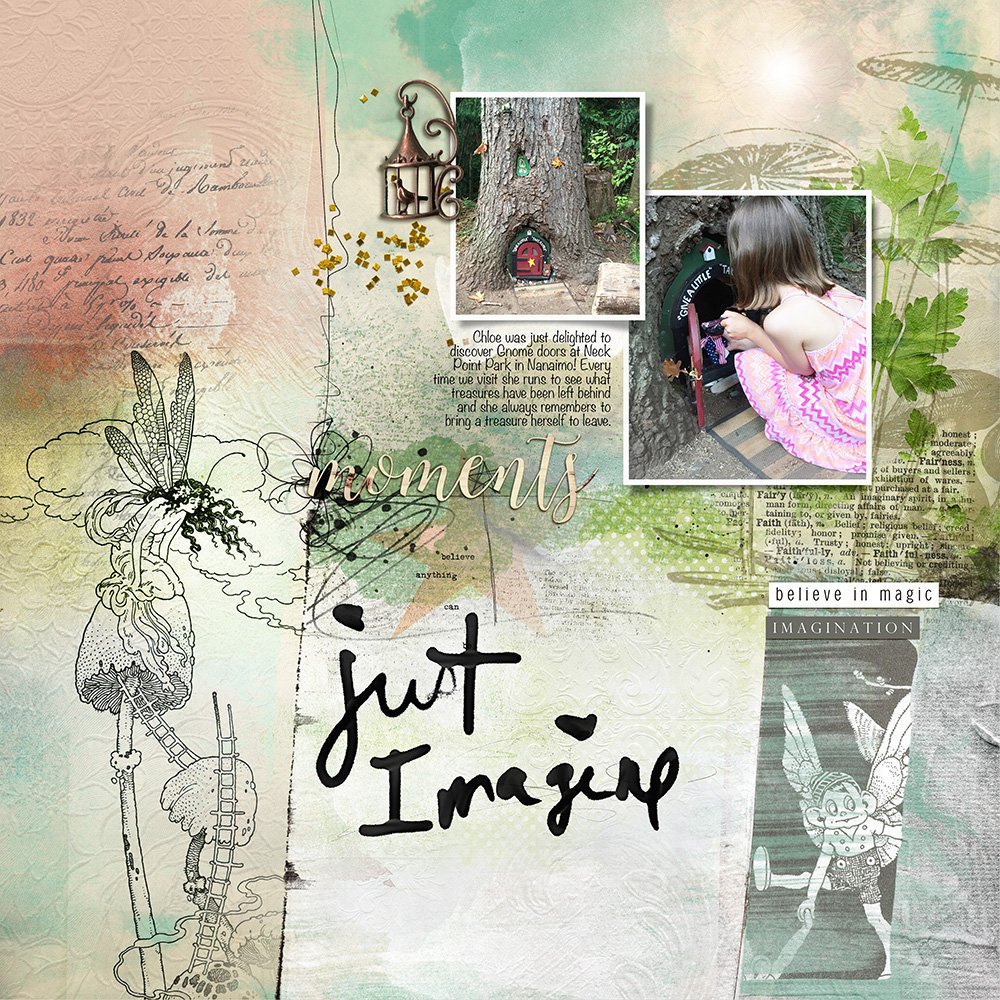
4. Stamp with Brushes
Brushes are the digital versions of the rubber stamps and inks used by paper crafters. In digital artistry, they may also be used as a painting tool.
- BrushSets are delivered in collections in .abr and .png format for use in Adobe Photoshop, Elements, as well as Paint Shop Pro.
- See this Brushes Basics video for further guidance or the Basic to Advanced Brushes workshop, available for Photoshop and Elements, in the store at Anna Aspnes Designs.
- Brushes add depth, in terms of color and texture, to any artsy layout. Change their shape, color and rotation as preferred using the Tools available in Adobe Photoshop and Elements.
- This layout was created using an Artsy Template – Photos were clipped to the framed masks and an artsy paper created the background foundation.
- A few brushes from Mushrooms No. 1 and ArtPlay Palette Fairy were stamped onto new layers using the Paint Brush Tool from the Tools Panel.
- A large title and shadowed dimensional elements complete the layout.
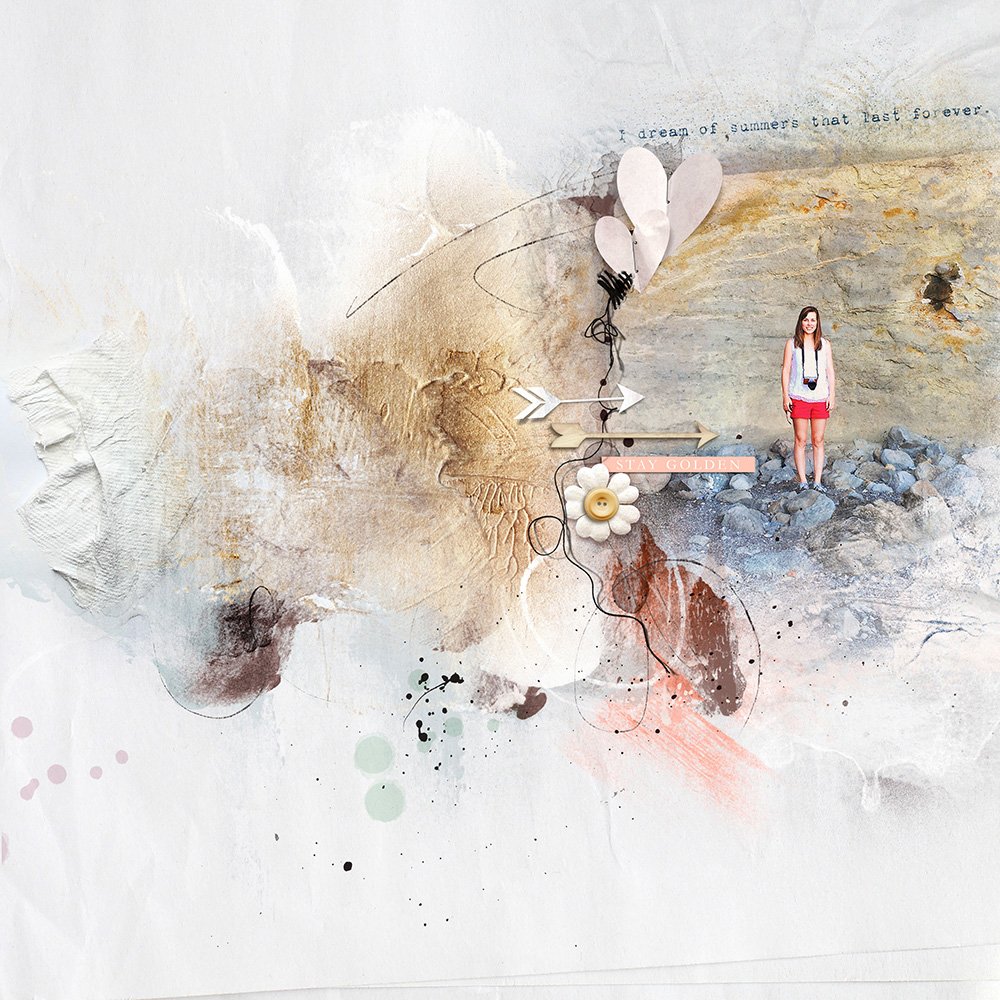
5. Artsy Paper Foundations
Artsy Papers are 12 X 12 inches art backgrounds pre-designed using digital collage and mixed media techniques.
- They can use as a layout foundation or clipped to Transfers and Clipping Masks to further customize your designs.
- You will find at least 4 Artsy papers in each of the full-size ArtPlay Palettes, and you can make your own by placing Transfers and Overlays over a Solid Paper background.
- An artsy background paper from ArtPlay Palette Heart Beach creates the layout foundation. A photo is clipped to the FotoBlendz clipping mask using the Clipping Mask Function in Adobe Photoshop and Elements.
- Dimensional elements (arrows, hearts and a flower) complete the layout.
Incorporate these 5 Ways to Add Artsy to Traditional Digital Scrapbook Pages to uplevel your photo projects.
Download this FREE [aalogo] Glossary of Terms for further guidance on the DigitalART product range by Anna Aspnes Designs.
We hope to see you posting your layouts in the AnnaGallery.
And if you liked this post please share it with others using the social media buttons below.
This is such a valuable post…I remember reading it last summer, and had very little experience to what all these things were about. I appreciate the open sharing of techniques and layout ideas. Thank you Heather for the ideas and tips. Thank you Anna for this blog site, and your amazing products!
Happy you enjoyed it Beverly. Thanks for sharing.