
Ulla-May, shares How to Use Different Textures in Digital Scrapbook Pages in Adobe Photoshop.
Note that this tutorial can also be completed in Adobe Photoshop Elements.
Creative Use of Textures Tutorial
There are many ways to add texture to a photo/layout.
This tutorial will provide guidance for adding texture to your digital artistry and scrapbooking pages.
1. Create Foundation
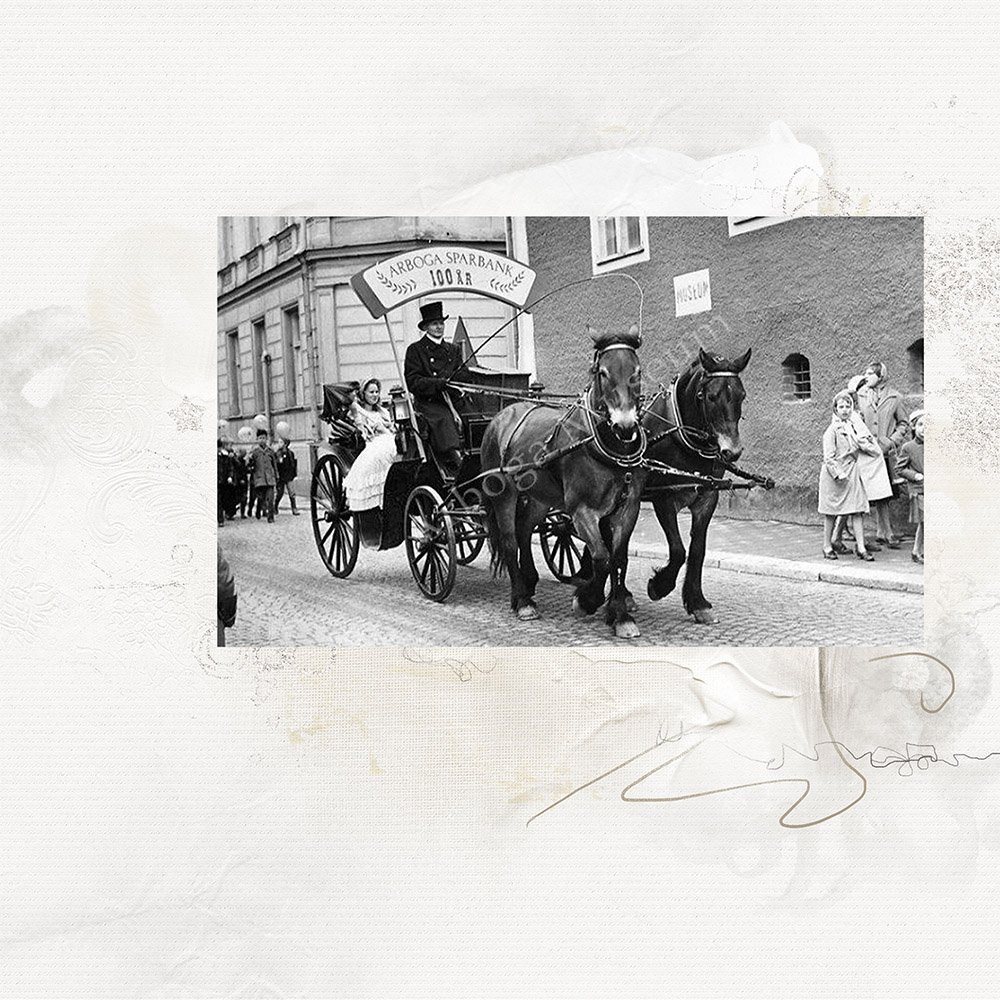
Open an ArtsyPaper and photo of your choice to provide a background layer for your layout.
- I used ArtsyPaper No. 1 from ArtPlay Palette Sparkle.
Tip: Duplicate the paper layer, and work with the copy, to protect the original.
- Place the photo on the ArtsyPaper using the Move Tool from the Tools Panel to create a foundation for your layout.
2. Blend Photo
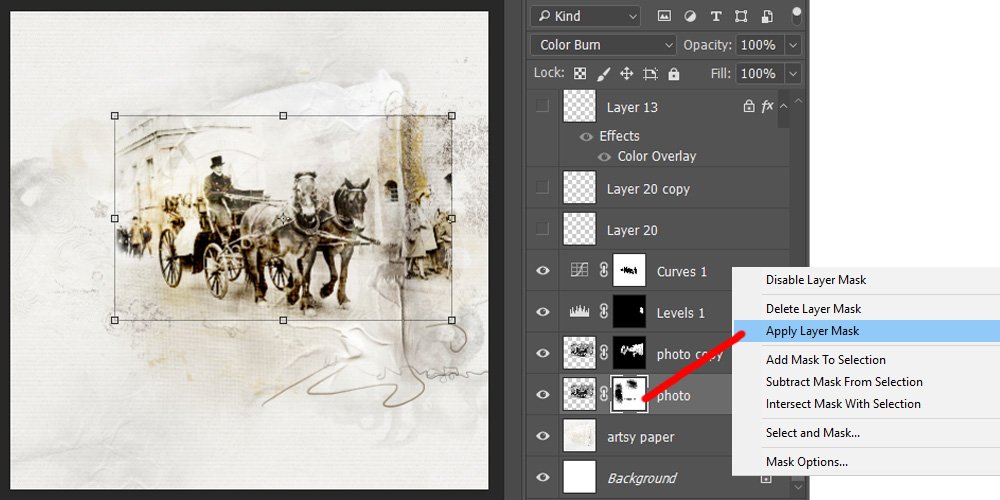
Mask your photo over the ArtsyPaper.
- Use a FotoBlendz Mask with the Clipping Mask Function in Adobe Photosop/Elements, or blend with a Layer Mask and Photoshop Brushes.
Note: When you blend your photo over an Artsy Paper, you might see texture from the underlying paper show through your photo.
Try This:
- Mask the same photo twice to create greater visual interest.
3. Apply Texture
Add texture to your layout using Photoshop Brushes.
- See this FREE Loading and Using Brushes video for basic guidance on brushes.
View the diagram and list of BrushSets (Tools) used below:
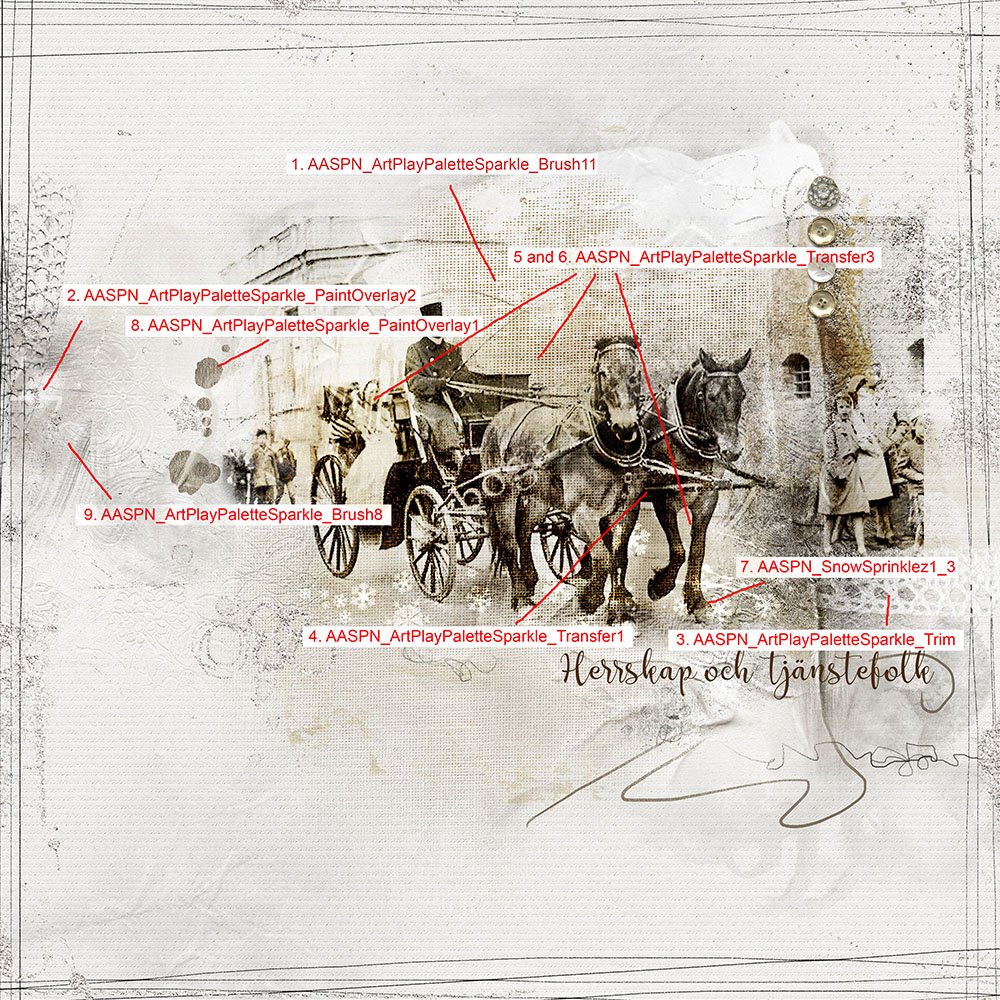
1. Brush #10 (ArtPlay Palette Sparkle)
- Added a Color Overlay (Layer> Layer Style> Color Overlay) in a brown tone sampled from the photo.
- Duplicated (Layer> Duplicate) the brush layer twice.
2. PaintOverlay #2 (ArtPlay Palette Sparkle)
- Placed on the left side of the page using the Move Tool from the Tools Panel.
3. Sparkle Trim (ArtPlay Palette Sparkle)
- Placed to the right side of the page.
4. Transfer #1 (ArtPlay Palette Sparkle)
- Placed above the horses, with the Color Burn Blending Mode applied, to increase the contrast in that area of the image.
5. Transfer #3 (ArtPlay Palette Sparkle)
- Added between the wagoner and the horses, with the Linear Burn Blending Mode applied, to darken that area.
- A second copy of this Transfer was placed over the woman in the wagon.
- A third copy was placed over the horse’s legs on the right.
- Both of these layers were set to Linear Burn Blending Mode.
6. A file from SnowSprinklez No. 1
- Placed in the foreground, with an Overlay Blending Mode applied, to highlight the movement of the horses.
7. Paint Overlay #1 (ArtPlay Palette Sparkle)
- Placed to the left of the photo to extend it.
8. Brush #8 (ArtPlay Palette Sparkle)
- Placed on the left side of the page.
4. Embellish
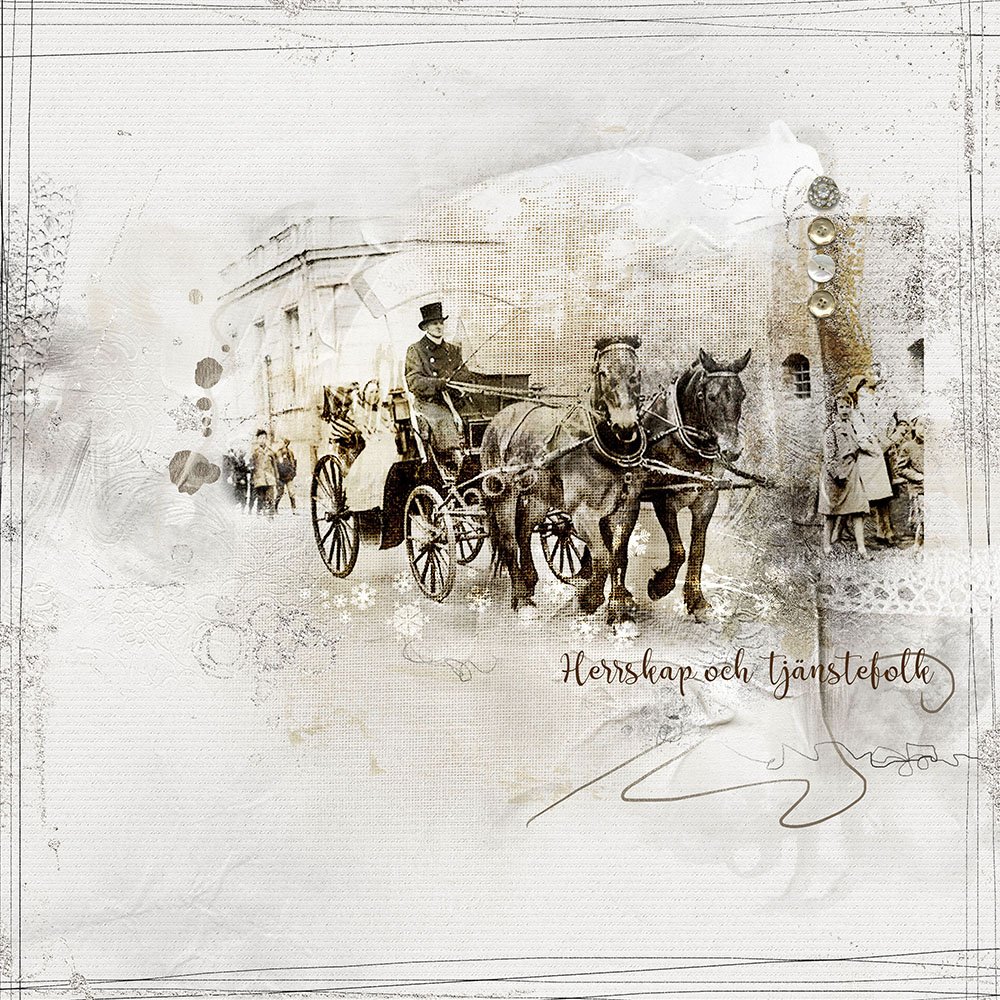
Complete you page by adding elements of your choice.
- I used embellishments from ArtPlay Palette Sparkle, plus an edge overlay from Sparkle Edge Overlays No. 1.
Click on the above image for a complete digital product supply list.
Post your questions about How to Use Different Textures in Digital Scrapbook Pages here.
Thanks Ulla-May for another great tutorial and for showing all the brushes you used!
Beautiful layout, with stunning texture work, Ulla-May. Thank you for this excellent tutorial…I will be trying out your process and techniques.
Thanks.. wow this is loaded with so much useful info, can’t wait to give it a try! Your page is fantastic!
superb