
Today, Linda is sharing one of her favorite techniques, Use ArtsyTransfers with Templates.
Use ArtsyTransfers with Templates
Story
Every September, masses of Goldenrod flowers cover the twenty-four acres of unplowed Stolley Prairie.
- The blooms last only a few weeks, but what a beautiful scene while in bloom.
- The effect of a sea of yellow is beautiful, but one photo doesn’t show all the striking detail in a prairie scene.
- Had I just created a one photo page instead of including some of the details I saw on my walk, the viewer would not have seen the Monarch butterflies attracted to Goldenrod when they are blooming.
- They would not have seen the flowers in detail.
- The detail photos clipped to the template enhance this page.
Introduction
Learn how to showcase photos by using template masks.
- Place Solid Paper 2 from ArtPlay Palette Daffodil on a 12 x 12 New Layout.
- Open template 2 from Stitched Template Album No. 1.
- Select all the Template layers in the Layers Panel and move to your New Layout using the Move Tool from the Tools Panel.
- Click on the corner of the Bounding Box and drag inwards to reduce the size of all layers.
- Position to the left of the layout design to create Visual Interest.
- Select, open and clip photos to the template masks using the Clipping Mask function in Adobe Photoshop or Elements.
- Place one of the ‘textbox’ layers included with the template to the right of the photos to accommodate your story or journaling.
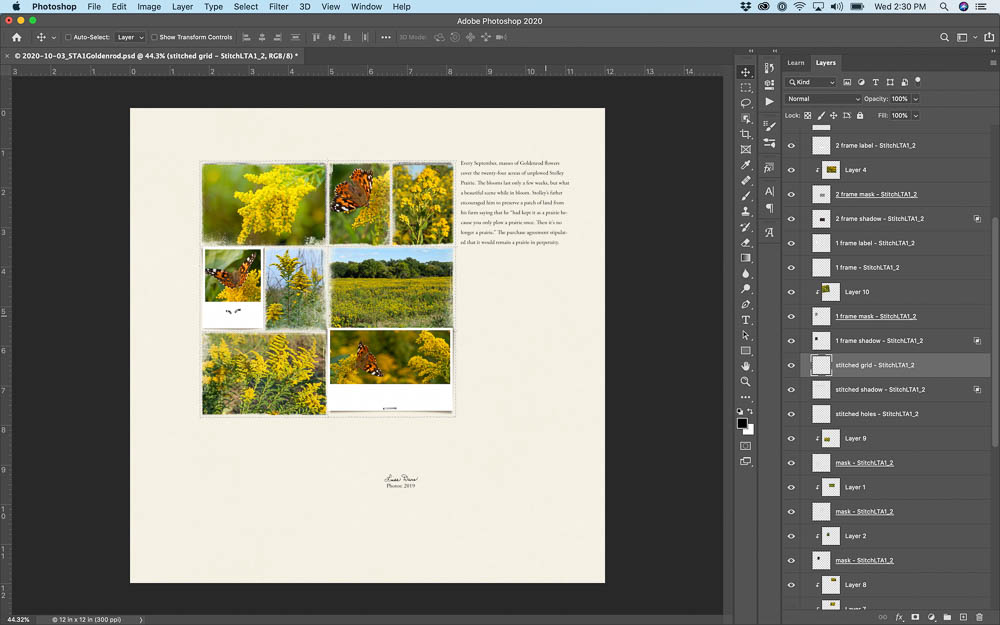
1. Use Artsy Transfers to Frame Template
- Open file 3 from Artsy Transfers Daffodil.
- Place ALL layers below template layers in the Layers Panel.
- Group these layers into a sub-folder via Layer> Group Layers to better organize.
- Adjust position of the layers to best support your design.
Note. Linda also used regular photo frames to add interest to her image cluster.
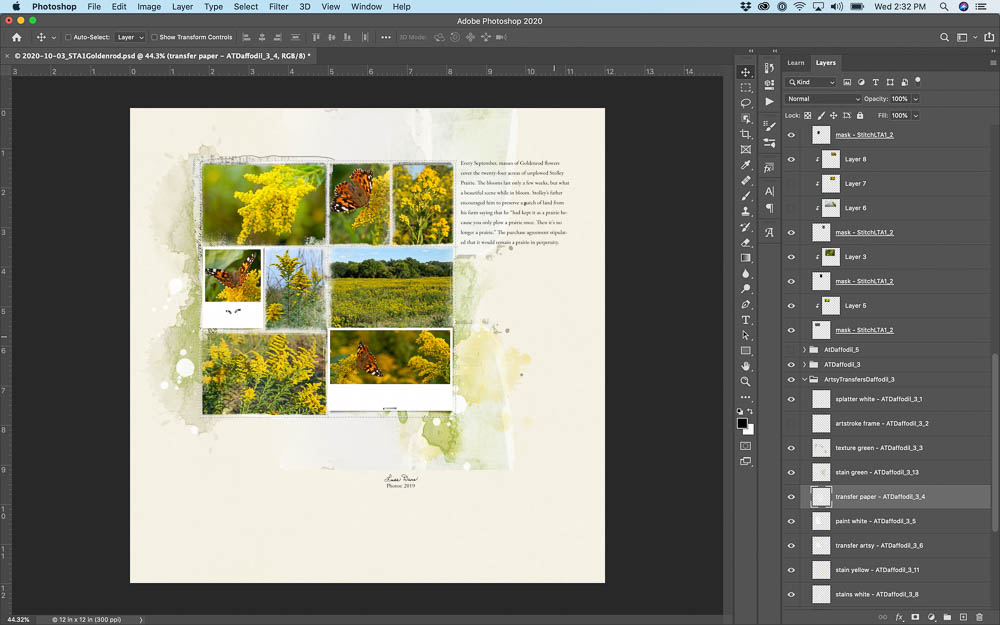
2. Create Depth Around Template
Place ArtsyTransfer layers to add visual interest to the background of the layout design.
- Place layers of file 5 from Artsy Transfers Daffodil above the group of file 3.
- Turn off stain by clicking on the ‘eye’ icon next to the layer in the Layers Panel.
- Use the Move Tool to adjust the position of any ArtsyTransfers layer.
- Duplicate layers of file 3 by dragging the layers to the New Layer icon in the Layers Panel to intensify the elements or reposition as preferred.
- Move layers from file 2 from Artsy Transfers Daffodil to the right side of the layer design.
- Turn off the visibility of layers as needed and adjust position.
- Place the yellow and green stains from ArtsyTransfers (file 4) and modify as preferred.
Note. Linda used multiple ArtsyTransfers behind her cluster of images to lead the eye through the design.
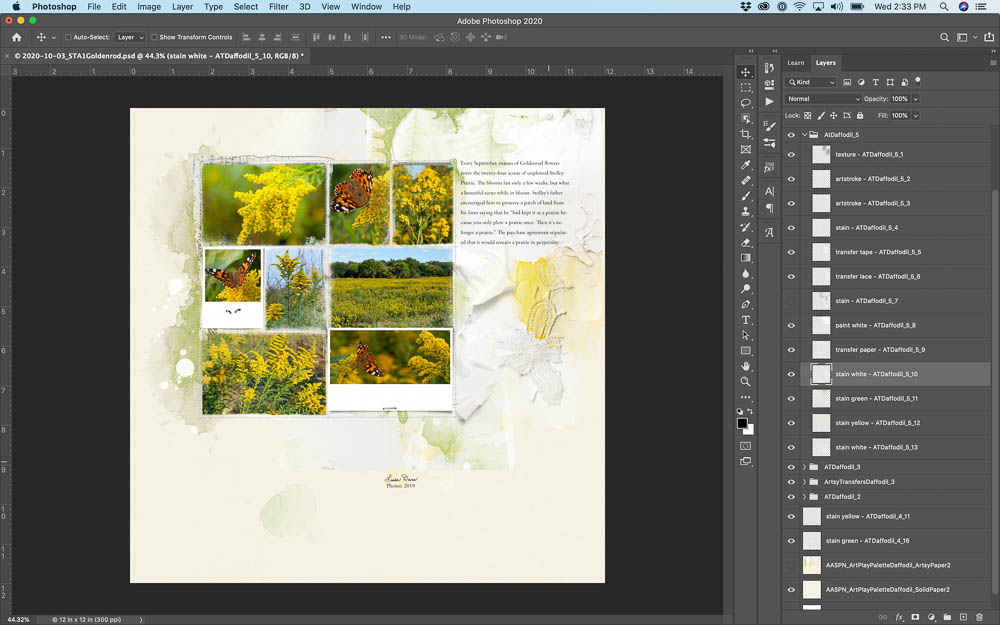
3. Embellish Layout Design
Use dimensional elements to increase the complexity of your design and add visual interest.
- Open file 4 from MultiMedia Birds No. 1 and position above the template layers in the Layers Panel to create a Focal Point.
- Replace the bird with butterfly and shadow from ArtPlay Palette Embers.
- Change the color of the button using an Adjustment Layer.
- Add transfer from Artsy Transfers Daffodil (file 4) below the MultiMedia layers.
- Tuck WordART ‘Marvelous’ from Amaranthine WordART Mix. No. 1 into position.
Note. The placement of her embellishments balances her journaling to lead your eye around the artsy digital scrapbooking design.
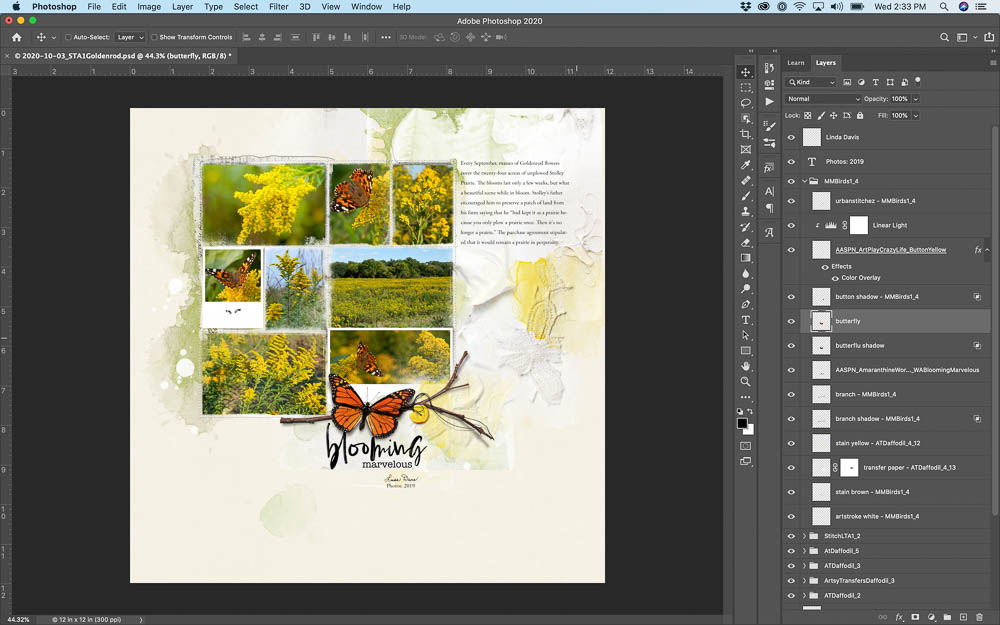
Summary
Modify a FotoInspired Template and embellish with ArtsyTransfers.
- Select a template, resize and position as preferred on a layout foundation.
- Embellish the background by using and modifying ArtyTransfers.
- Add dimensional elements to create a focal point and journaling provides context.
See also:
- 5 Ways to Create an Artsy Scrapbooking Design
- FramedMasks Tutorial
- Artsy Template Masking with Transfers Video
And if you enjoyed this Use ArtsyTransfers with Templates post, please consider sharing using the social media buttons below.