
Diane Weber shares her approach to Modify Square Digital Scrapbooking Papers to accommodate rectangle format scrapbooking.
Follow this tutorial in Adobe Photoshop or Elements.
Modify Square Digital Scrapbooking Papers
Introduction
Make 12 X 12 digital papers ‘fit’ or accommodate different sized layout formats.
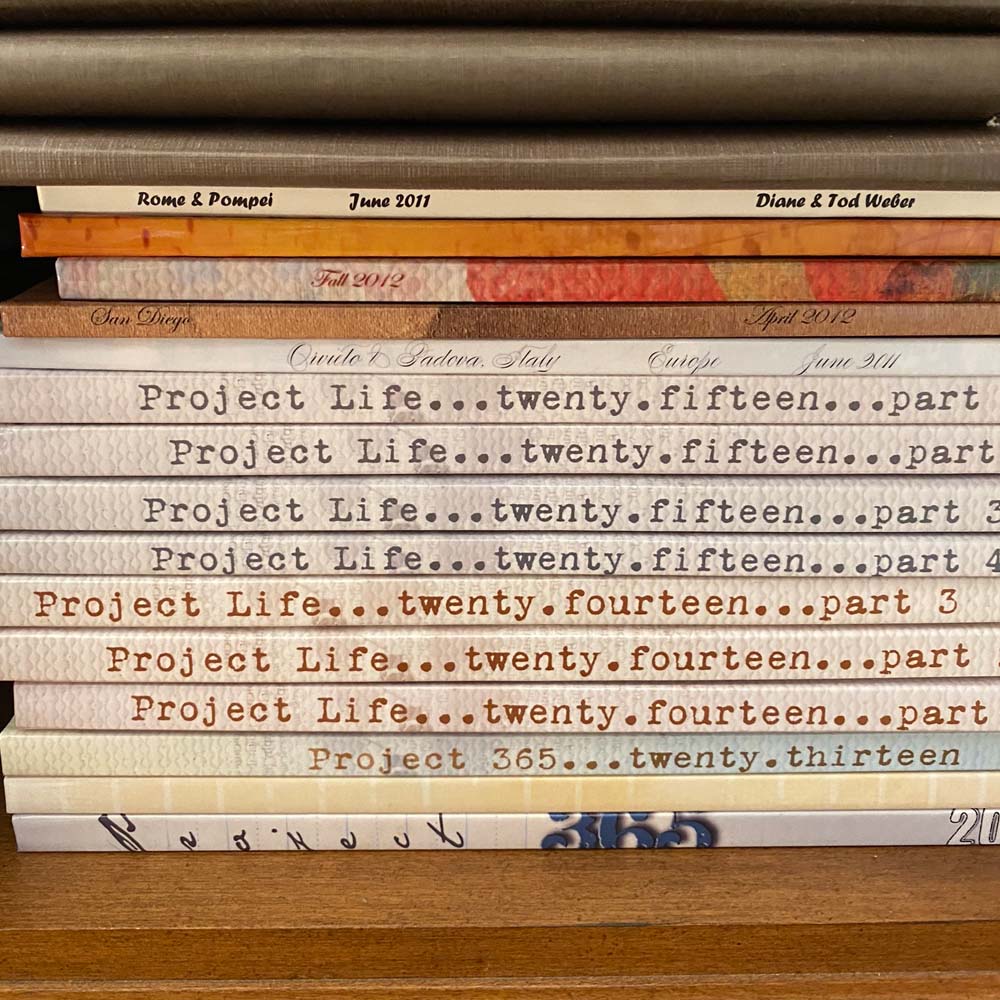
- Four years ago I decided to make the move to 8×10 book format for printing.
- I’d been digitally scrapping for 7 years already, first printing 12×12 pages at Persnickety Prints, then 12×12 books at Shutterfly.
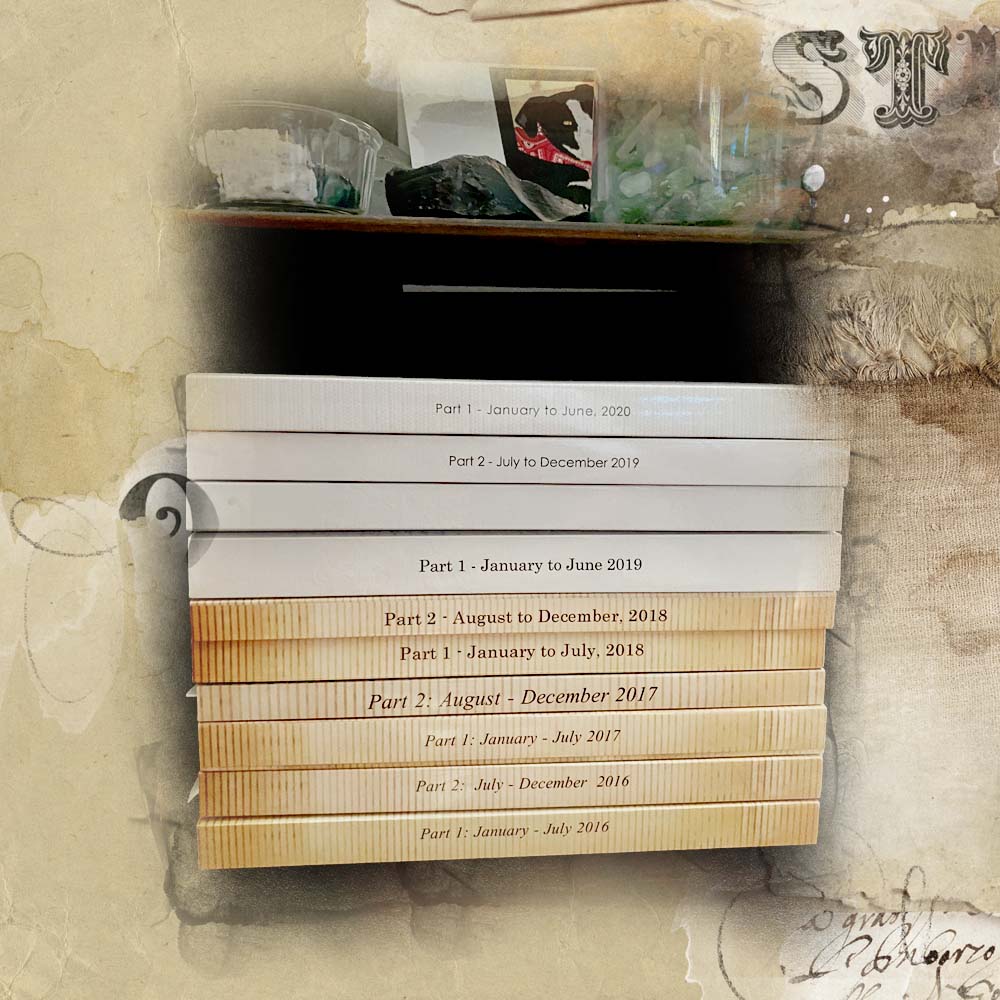
- By 2015 it took four Shutterfly books to contain my annual pages. And they don’t fit well on bookshelves.
- I made the move to 8×10 double-pages, printing the books at Blurb – Their 8 x 10 books can contain a whopping 420 pages and, with sales, one can generally print a book this size for about $40-$60 making capacity and cost of books a big advantage.
Note. If you would like to know more about the Blurb products and work-flow, I am happy to answer questions below.
1. Establish a Foundation
Create 2 pages at once to save yourself time and speed up your process.
- Got to File> New to establish a New Layout design.
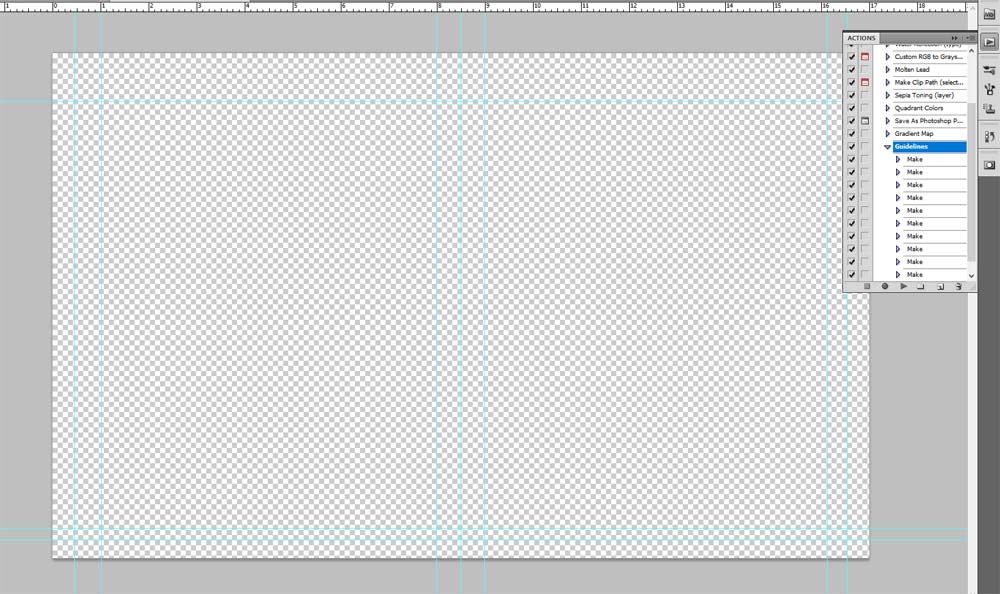
- In the dialog box, enter a Width of 17 inches and a Height of 10.5 inches (or your preferred dimensions.)
- Create and save a PhotoShop Preset so that you can use the same format next time.
- Enter a Preset name such as ‘Double-Page’ or ’17 in x 10.5 in’, then click Save Preset.
Tip: If you are working in Adobe Photoshop, you also have the option to create an Action to set grid lines marking the margins and gutters for your page.
Note. You will need to consult FAQs or contact your preferred printing provider for guidance and requirements on sizes of gutters and margins).
- Check the Action option from the Window menu to open the appropriate panel.
- Click on the small menu button in the top right corner of the Actions Panel to activate your options.
- Choose New Set.
- Name it ‘Guidelines’ and click on the ‘red record’ button to Start Recording.
- Drag guidelines from the side and top rulers.
- When finished, click the ‘square icon’ to Stop Recording.
- Whenever you open a new page, open your Actions Panel, Select the ‘Guidelines’ action and click the ‘arrow icon’ to Play your action.
2. Modify Paper backgrounds
Use 12 x 12 backgrounds to create a 8 x 10 (or dimensions of your preference) layout foundation.
You can:
- Use the same paper twice and layer one on top of the other – Do NOT ‘stretch’ a paper across a double page as this will create ‘pixelation’ and poor print quality in your layout designs.
- Flip one of the papers by selecting Edit > Transform > Flip Horizontal/Vertical to reveal a different orientation.
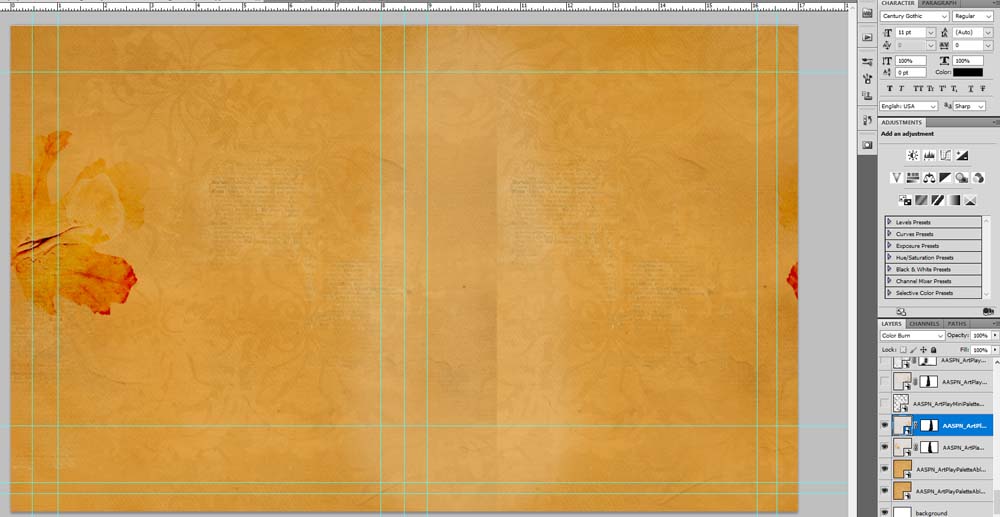
- Combine a solid paper with a patterned paper.
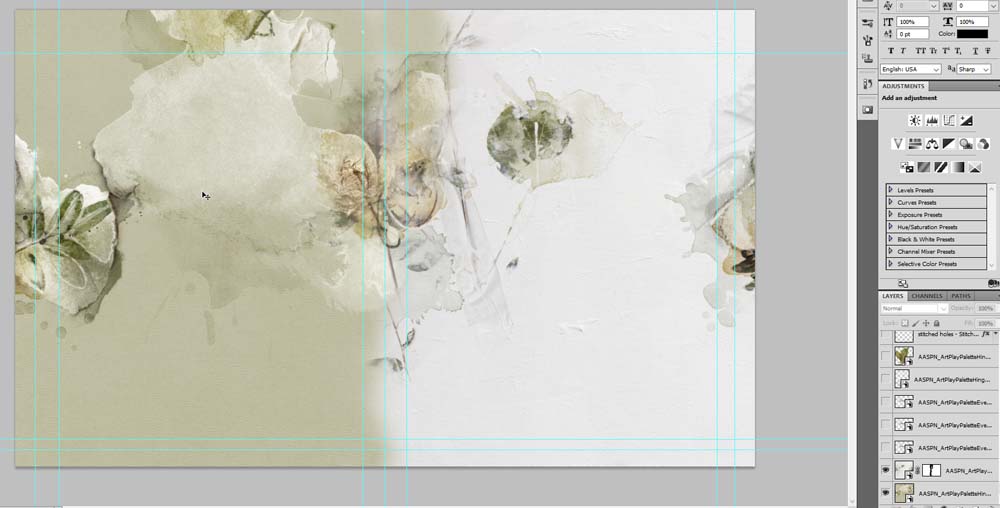
- Select multiple Patterned Papers, using the MOVE tool to capture the paper features in the desired locations
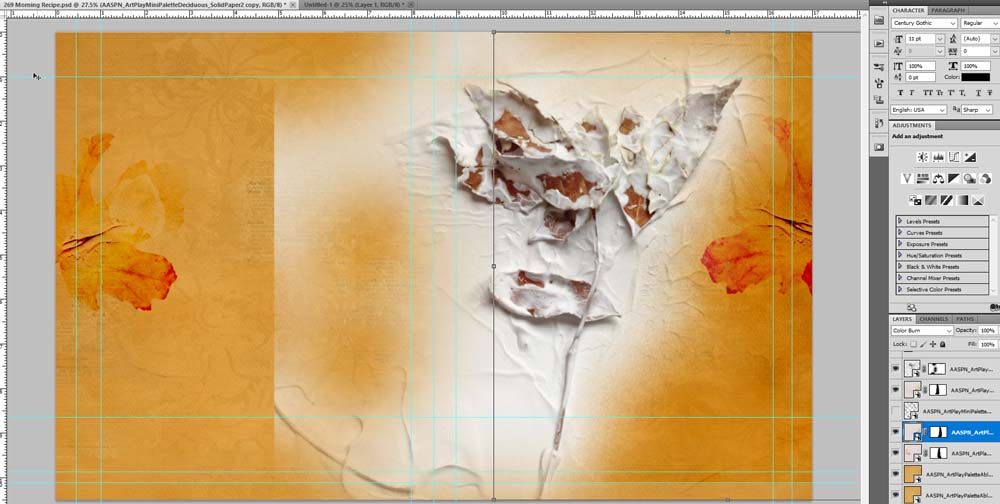
In all these cases, make use of Layer Masks to seamlessly blend layers together.
- Apply a Layer Mask to the paper layer by clicking on the icon at the bottom (Photoshop) or top (Elements) of the Layers Panel.
- Select the Paint Brush Tool from the Tools Panel.
- Ensure the Foreground and Background Colors are set to Black and White respectively.
- Select a ‘blending brush’ of choice, such as those found in the AnnaBlendz Artsy series, from your options at the top (Photoshop) or bottom (Elements) of your screen.
- Paint or stamp on the mask layer to blend out any hard edges in your chosen paper designs.
- You can also choose a soft round eraser (Hardness of 0%) and adjust the size of the Brush by using the Size slider or CTRL/CMD left bracket ([) to make smaller, or right bracket (]) to make larger.
Note. Don’t worry about ‘holes’ in your layout foundation – You can always place another Solid Paper or another digital element at the bottom of the Layers Panel.
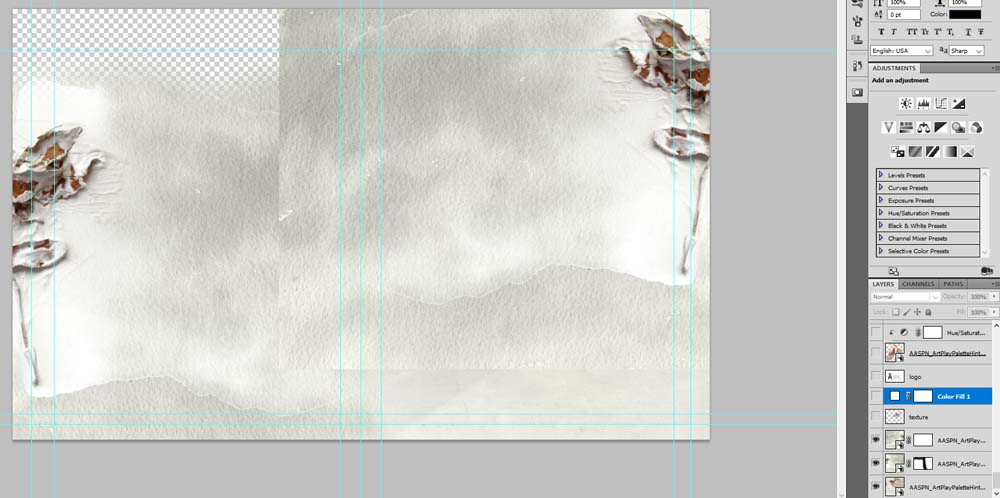
You can also fill with color:
- Click in the New Layer icon at the bottom (Photoshop) or top (Elements) of the Layers Panel.
- Go to Edit> Fill (Layer)
- Choose Color from the drop-down menu to activate the Color Picker.
- Click on an area of your layout to sample a color from your current ArtPlay Palette.
- Ensure the ‘Preserve Transparency’ box is UNCHECKED.
- Click OK.
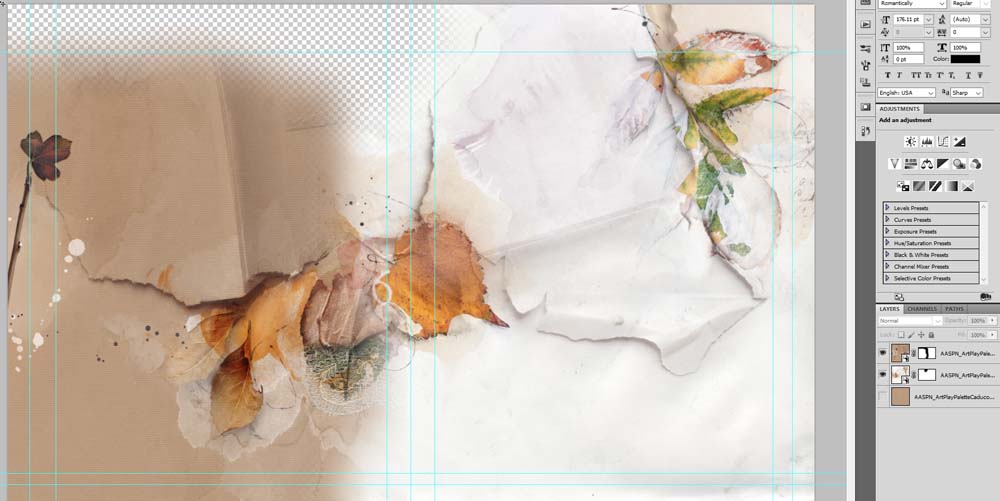
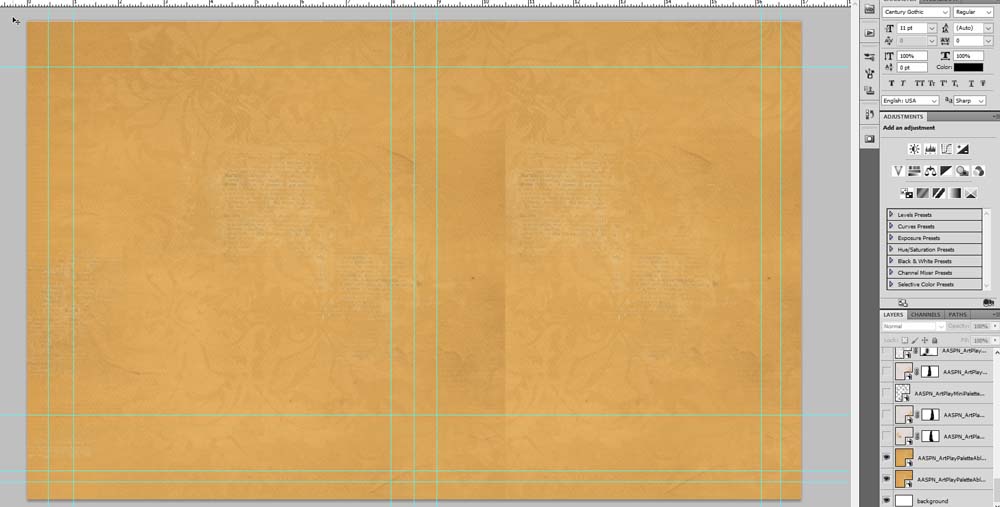
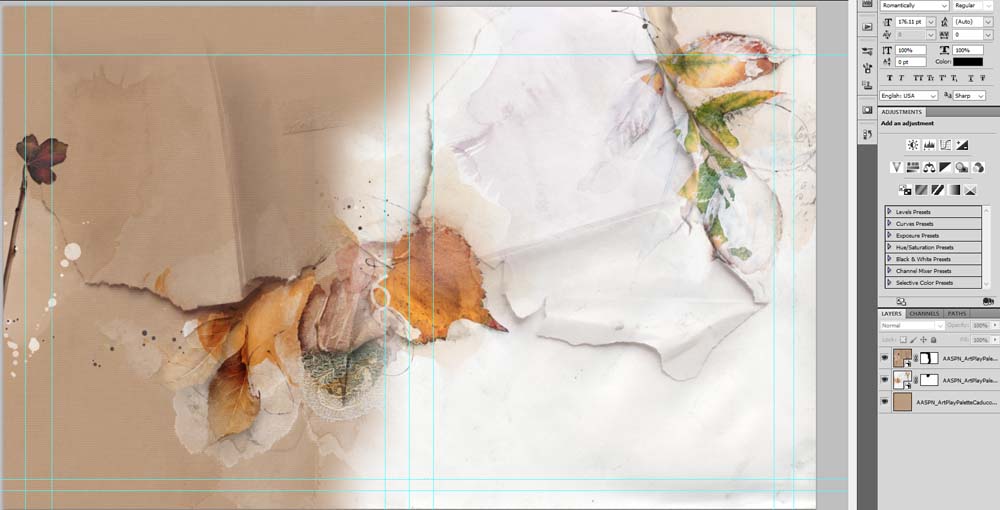
In the following example notice how the Patterned Paper on the left is moved so the leaf clusters align across the gutter.
- Layer Masks were added to both papers and the Paint Brush Tool was used to remove all hard lines, leaving holes in the foundation.
- A Solid Paper is placed at the bottom of the Layers Panel to fill the gaps.
3. Create Layout Design
Add your photos and DigitalART supplies to create your design.
- Think about the story you want to tell.
- Gather your photos and select an ArtPlay Palette based on COLOR or the MOOD you wish to evoke in your scrapbooking or photo artistry design.
- Select Frames, Clipping Masks or Template elements as ‘vehicles’ to easlit add your photos.
- Clip photos to the mask layers of these elements to either blend into your custom background or blend as preferred.
- Add elements such as dimensional embellishments, MultiMedia Elements or WordART.
- Journal the who, what, when, where and how of the story.
Tip:
- Design Principles and Element Properties provides guidance on achieving BALANCE in your digital design.
- ArtsyDoubles offers a step by step approaches to creating beautiful double page spreads.
Summary
Make a square paper fit a rectangle format using the tools in Photoshop.
- Duplicate and Layer.
- Use Layer Masks
- Fill in the gaps when needed.
Note.
- Modifying digital papers for different sized background is just the beginning to creating layouts in rectangle format.
- In future posts, I’ll be sharing approaches and techniques for adapting templates, masks and elements to create double-page spreads in the 8 X 10 format.
For more inspiration:
- See my completed 2020 Part 1 book for ideas and inspiration.
- Read Creating a Canvas of Memories for more ‘big picture’ inspiration.
- Watch the Create a Year 2020 Photo Album tutorial on the [aalogo] Youtube Channel
- Visit the Double Maker page products in the [aalogo] store.
And if you liked this Modify Square Digital Scrapbooking Papers, please consider sharing it using the social media buttons below.
Diane, this post is simply fantastic, and exactly the nudge I needed to figure out switching to the rectangle pages. thanks for all the clear steps you’ve shared; this will be my go-to process now. I’ve made an action to create the 12×12 size…thanks for mentioning the guidelines action.
The action is such a GOOD idea 🙂
Anna, I also made an action to resize a 12×12 to 8×8 for my Blurb photo book. Then all I need to do is resize any text that I had already added. I’m working through my pages to print; deciding which size works best.
Great idea Beverly!