
Today, Laura is sharing her Digital Paper Overlays Technique.
This tutorial was created in Adobe Photoshop Elements 14.
Digital Paper Overlays Technique
Introduction
- Artsy Papers from Artplay Palettes are typically used ‘in the background’ as foundations for layout designs.
- You can however use them more ‘in the foreground’ to elevate and create surprise photo artistry effects.
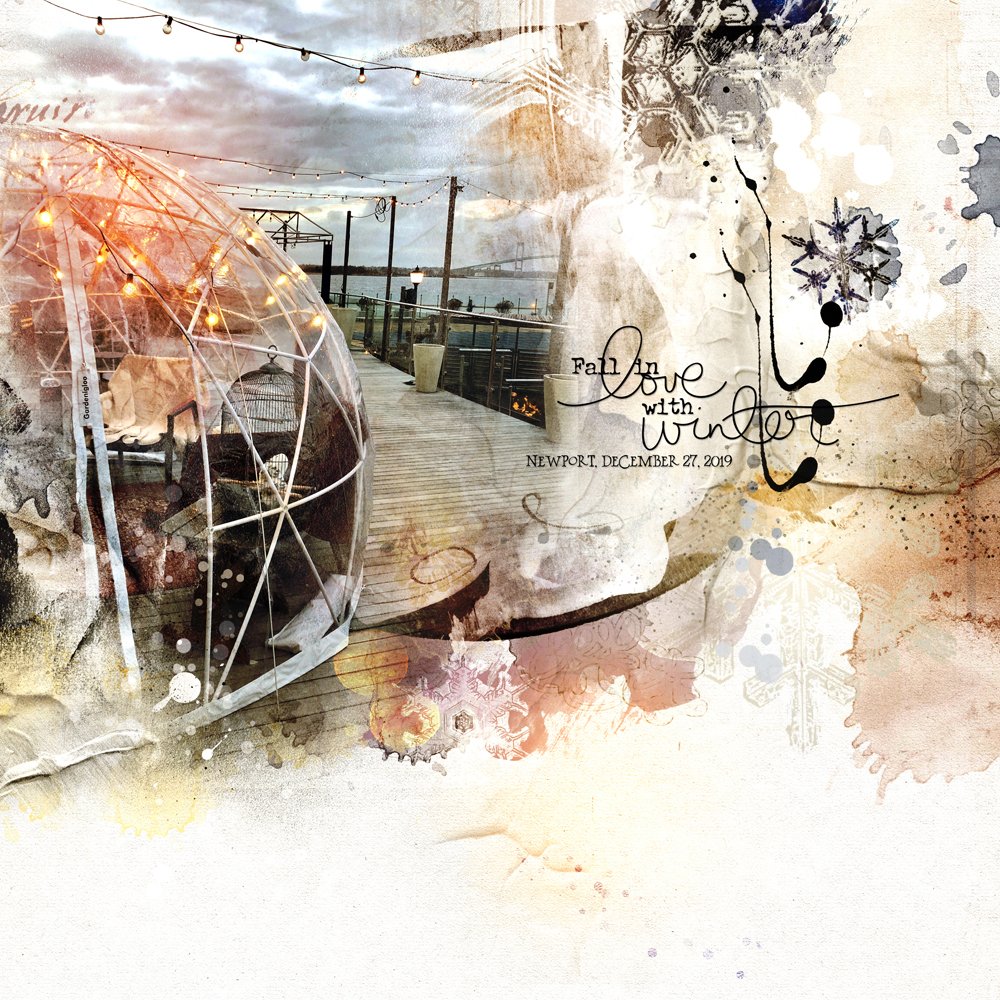
1. Create a Layout
Make a copy of your finished layout and flatten it.
- Go to Layer> Flatten Image.
Note. Make sure you save your layout design as a .psd before you flatten ro preserve the layers for possible future editing.
2. Color Co-ordinate Paper Selection
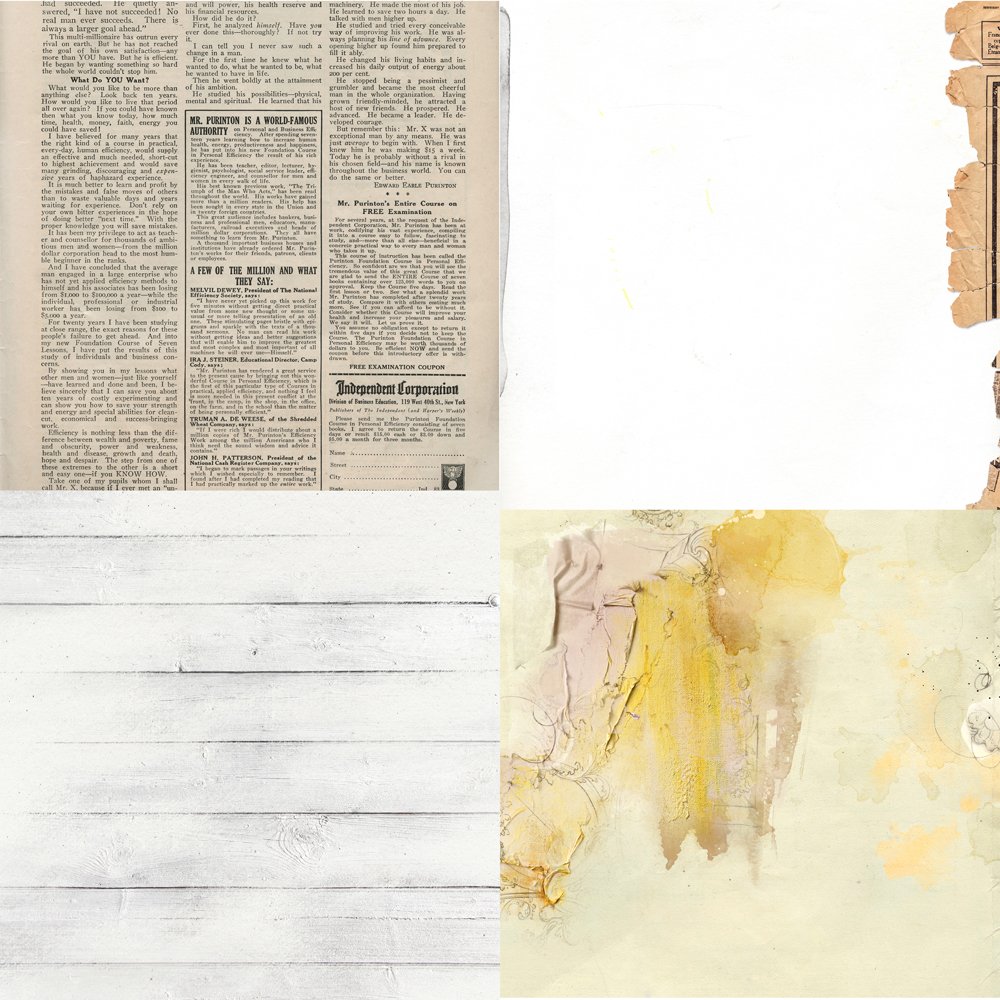
Select ArtPlay Palette Papers that coordinate with your layout design.
- Review your Artplay Palette ‘Paperie’ folders.
- Choose a few digital papers that are similar or contrast with the mood and tone of your layout design.
- Go to File> Open to import your selected digital papers into your workspace.
Tip. Organize your previews of your ArtPlay Palette Paperies in a separate folder so you can scroll through them easily.
Note. I selected papers from four Artplay Palettes:
3. Create Paper Overlay Effect
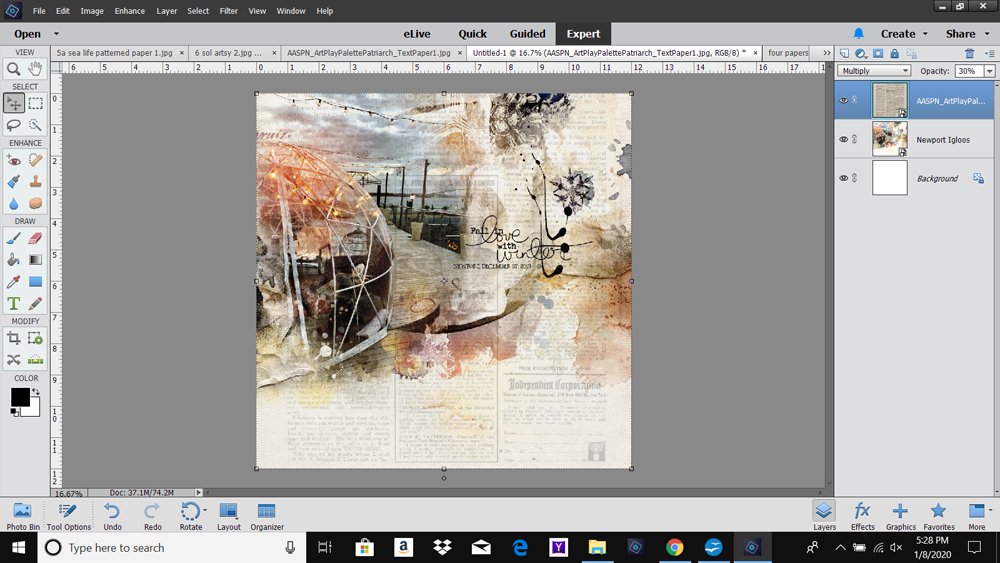
Place your paper over the layout design and apply a Blending Mode.
- Move the a digital paper of choice into your layout using the Move Tool from the Tools Panel.
- The paper design should be directly above the flattened layout design layer in the Layers Panel.
- Ensure the paper layer is selected in the Layers Panel.
- Apply a Multiply Blending Mode from the Layers Panel and set the Opacity to approx. 30%.
- Adjust the Opacity as preferred.
Tip. Experiment with different Blending Modes to alter how the paper layer interacts with the layout design.
4. Modify Overlay Effect
Target the effect of the paper overlay to suit your preference.
- The ‘paper overlay’ layer might enhance your layout in some areas, but perhaps not others.
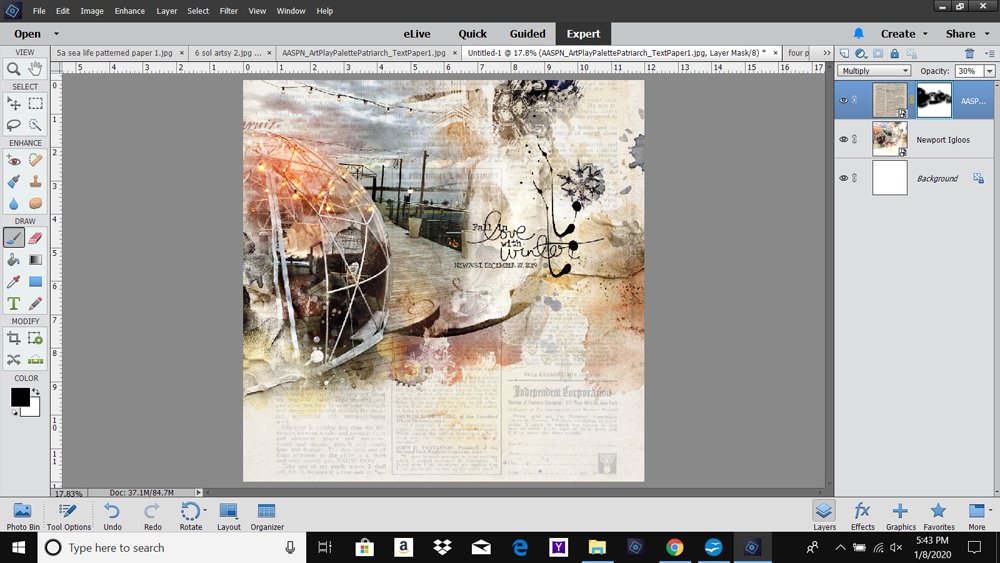
- For example, I didn’t love the way the text on the ‘paper overlay’ layer interacted with the dome and decking in the photo and with my title on the ‘flattened layout’ layer.
- You can use the Eraser Tool to quickly eradicate those areas, but it’s preferable to us a Layer Mask and Brushes as this is a more editable approach.
- Apply a Layer Mask to the paper overlay layer by clicking on the ‘Layer Mask’ icon in the Layers Panel.
- Set the Fore- and Background Colors to BLACK and WHITE respectively.
- Paint on the ‘Layer Mask’ layer to conceal areas of the ‘paper overlay’ layer.
Note. I highly recommend brush 1920 from the AnnaBlendz Artsy Brushes No. 4 set and use it for just about everything. Get it FREE here.
5. Stack Layer Effects
Increase the complexity of the effect by added additional paper overlay layers.
- Add another paper layer on top of the Layers Stack in the Layers Panel.
- Repeat the process outlined in Step 4.
Tip. Start with the Multiply Blending Mode at a reduced Opacity level, then be open to adjusting BOTH the Blending Mode and/or the Opacity.
Note. In this example, I used Solid Paper #4 from Artplay Palette Archive and applying the Color Burn Blending Mode at 30% Opacity created a better result.
Examples of other effects:
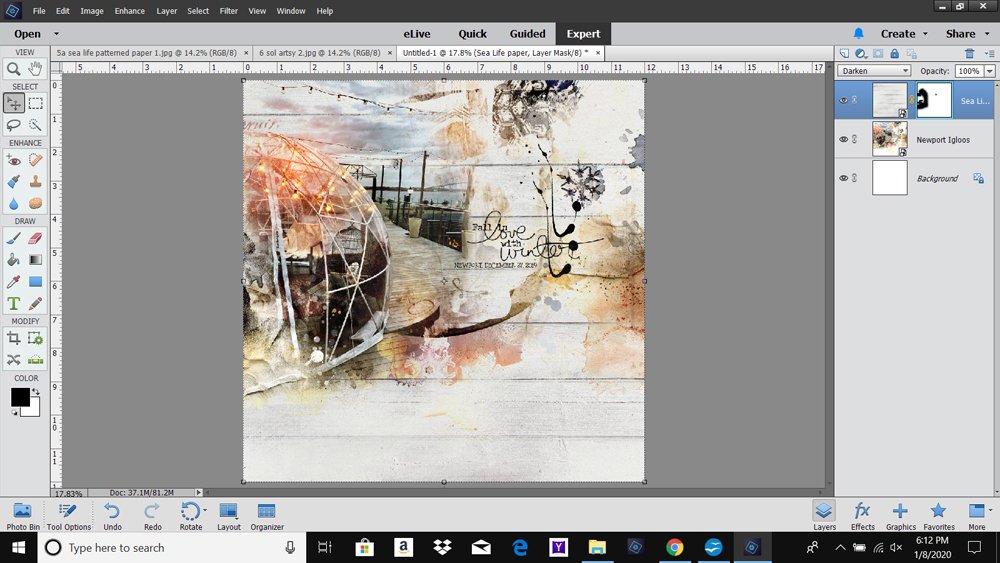
- Combination of Patterned Paper #1 from ArtPlay Palette Sea Life and Darken Blending Mode at 100% Opacity using Layer Mask and Brushes technique.
- Combination of Artsy Paper #2 from Artplay Palette Sol with Color Blending Mode at 55% Opacity.
Note. The results will be dependent on the Element Properties of your layout and Digital Paper Overlays, as well as personal preference.
Summary
Elevate the artistry in your layout designs by using digital papers as overlays with Blending Modes.
- Choose digital papers that coordinate with the Element Properties of your finished layouts.
- Increase the visual interest by imparting Color, Texture, Pattern and Brightness/Contrast into your digital pages.
- Target the effect to specific areas of your design using a Layer Mask and Brushes.
- Stack multiple digital paper layers.
- Experiment with different Blending Modes and Opacity levels.
WE INVITE YOU TO:
- Create a layout using this technique and share in the [aalogo] Gallery.
- Read Color Blocking with Overlays Tutorial.
- Watch Prismatic Digital Artistry and Scrapbooking.
- Learn more about Layer Mask and Brushes
So many possibilities! An excellent addition to my digital tool box! Thanks for the creative tutorial, Laura!
Great idea! I’m anxious to try this. But first, a question: I have AnnaBlendzArtsy4, but I don’t see a brush called “1920.” Mine are only numbered 1-10. So which is it? Or is it a different set?
1920 refers to the size of the brush Kay.