
Today, Creative Team Member, Nancy Adams, is sharing Create Expressive Marks with Charcoal Brushes.
Follow this tutorial in Adobe Photoshop Elements.
Create Expressive Marks with Charcoal Brushes
This tutorial is intended to guide you in using Charcoal No. 1 BrushSet to add expressive mark making to your digital sketches, photos, and artistry.
See this FREE Basic Brushes Class for guidance on using Brushes.
1. Edit Photo
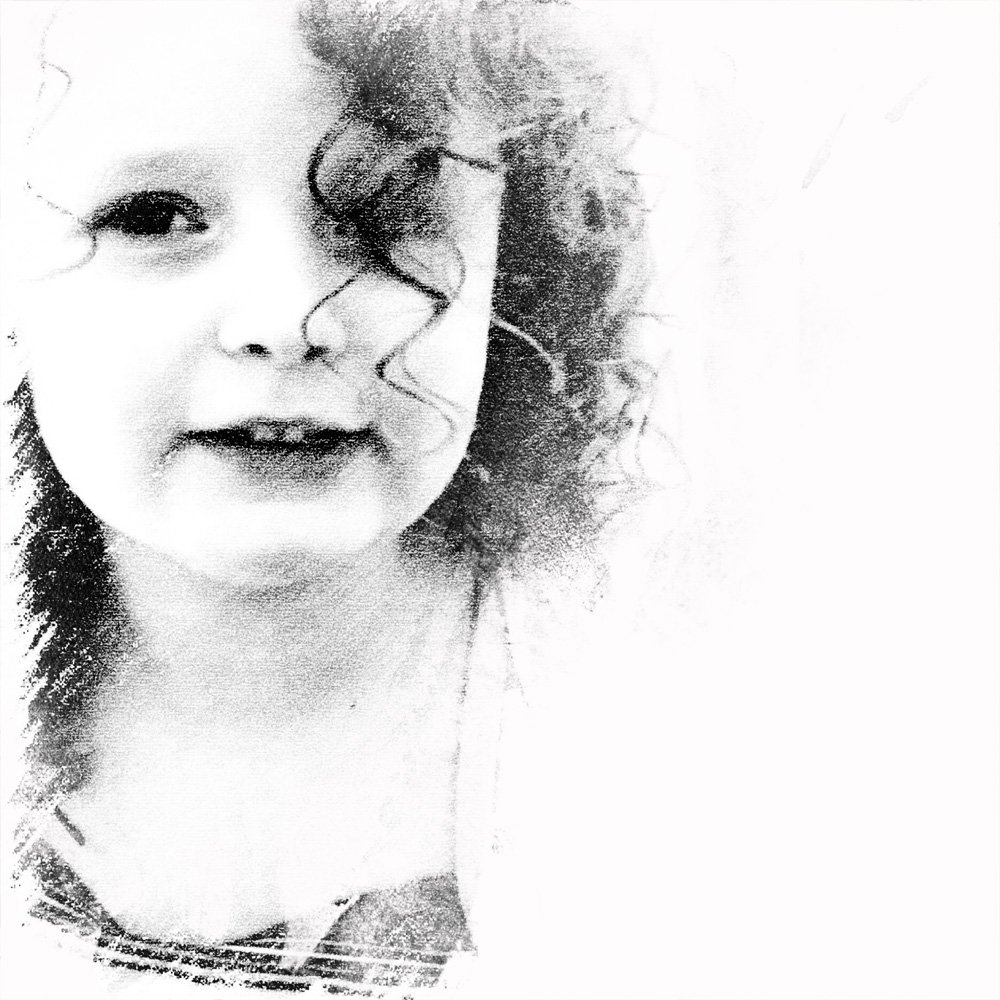
Create a digital sketch using a Photoshop Filter or an app, such as My Sketch.
- In My Sketch load the photo.
- Select the Sepia Drawing Style.
- Save with the highest resolution.
- Transfer to your photo editing program.
2. Create Layout Foundation
Create a New Layout for your digital sketch image.
- Create a New Layout for your digital sketch (File>New Layout.)
- Enter values: 3600 pixels x 3600 pixels at 300 Pixels Per Inch,RGB Color, with Transparent Background.
- Place the sketch on the document (File> Open> Select your photo sketch from its
saved location.) - Convert the sepia sketch to black and white.
- From the Options, go to Menu> Enhance> Convert to Black and White> Select Style> Portraits.
- Clip the Sketch (CTRL/CMD + G) to FotoBlendz1_6.png from Axiom FotoBlendz No. 1 or clipping mask of your
choice.
3. Add Charcoal Brushes
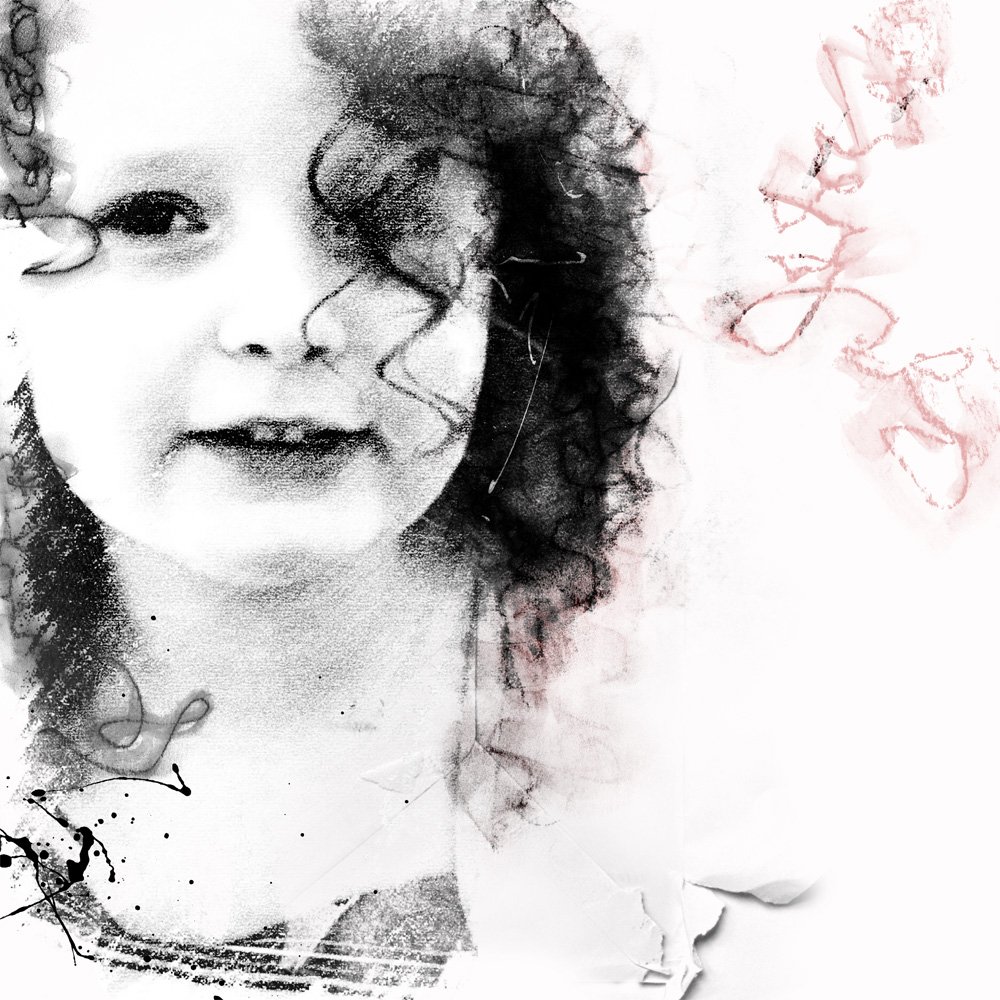
Add dimension and movement with the Charcoal Brushes to support your digital sketch and embellish white space.
- Load the Charcoal No. 1 BrushSet in the Tools Options.
- Select the Paint Brush Tool in the Draw Menu.
- Click the Tools Options> Brushes> Load Brushes> Load Charcoal No. 1 BrushSet.
- Create a New Layer (Layers>New>Layer.)
- On the New Layer, stamp Charcoal No. 1 brush #3 to replace a very faint curl.
- Align the brush with a hair curl that was softened by clipping the photo to the Fotoblendz mask.
- Stamp Charcoal No. 1 Brush #5 to add energy and depth and mimic the curly hair in the shoulder area.
- Use Charcoal No. 1 Brush #11 to create additional weight to the volume of the hair.
TIP: Always add brushes to new layers.
3. Modify Charcoal Brushes
Make adjustments using the Transform Tool.
- Go to Options Menu> Images> Transform.
- Place the cursor on the corner of the Bounding Box surrounding the Charcoal brush.
- Click and drag the double-ended arrow resize the brush proportionally.
- Elongate or narrow the element by clicking and dragging one of the edges of the Bounding Box.
- Select Image>Transform>Skew or Distort to make further adjustments.
- Click on the corner of the bounding box to yield an outline of the cursor.
- Click and drag to modify.
TIP: See also ArtsyFlowers for guidance in using the Warp Tool in Photoshop Elements.
3. Add Splatter Brushes
Apply visual interest with Splatter brushes.
- Add Splatters No. 7 brush #12 and Splatters brush 7-11 as optional accents.
TIP: Duplicate the photo or the brushes layers, or apply Blending Modes, to increase intensity or contrast
4. Complete with DigitalART
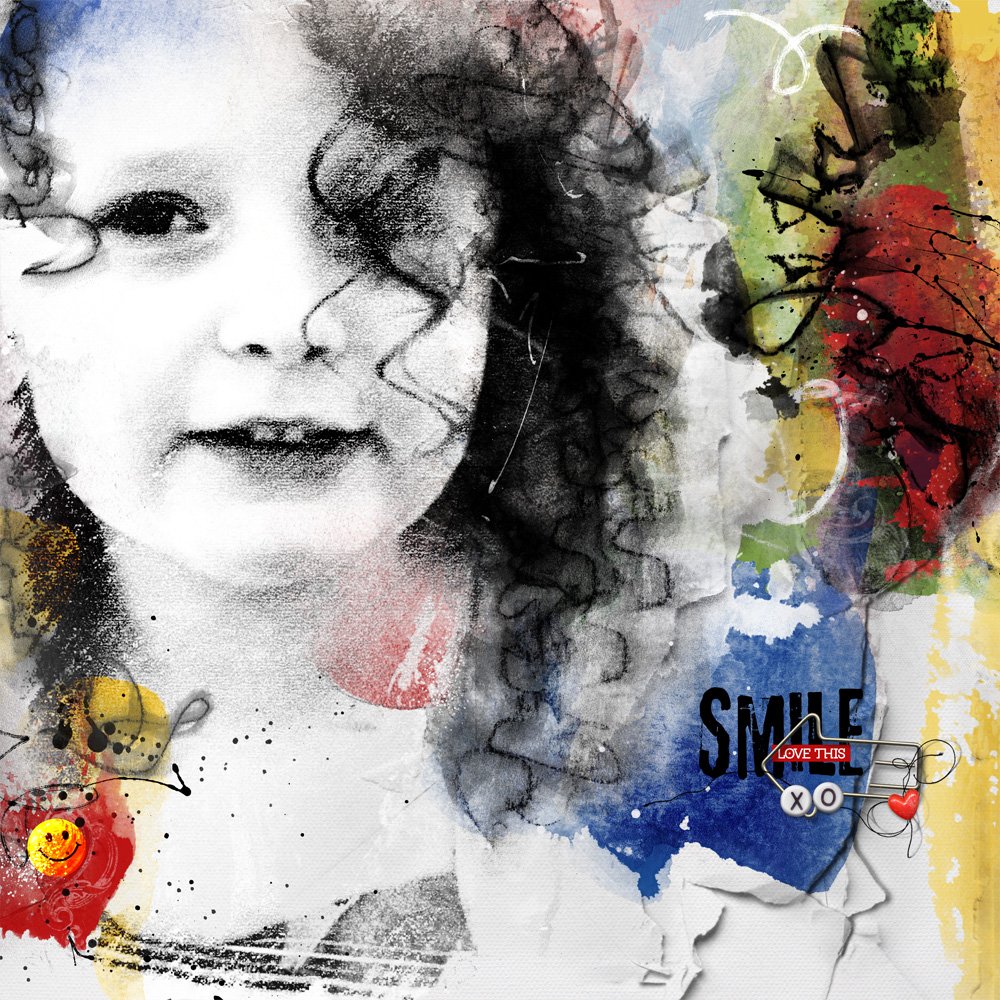
Finish your layout using an ArtPlay Palette of your choice.
- Add ArtsyPaper_1.jpg from ArtPlay Palette Uplift to create a background for your
digital sketch. - Layer ArtsyPaper_3.jpg fromArtPlay Palette Uplift on top of the background paper.
- Apply a Layer Mask to ArtsyPaper_3.jpg and use Brushes on this layer to reveal areas of the underlying ArtsyPaper_1.jpg layout foundation.
- Place Transfer_6.png from ArtPlay Palette Axiom and Transfer_2.png and _4.png from ArtPlay Palette Uplift add additional visual interest.
- Add Wood Smiley Face, Clip Arrow Wire and LabeledWords ‘Love This’ elements from ArtPlay Palette Uplift.
- Embellish the title with BeadedThreadz No. 3 #2
NOTE/TIP: Choose an ArtPlay Palette to establish the mood of the design through color and texture.
 Summary
The charcoal brushes add movement and expression to digital artistry.
- Flexibility is achieved by placing the brushes on separate layers.
- Gestural marks will yield energy and excitement to your favorite subjects.
- The charcoal brushes can be colored for a pastel stroke.
Such a darling subject! Love those curls enhanced with the charcoal brushes…brilliant! Also appreciate the importance of gestural marks in our still art…makes it come alive! Thanks Nancy and Anna for a fun tutorial!