
Today, Creative team member, Linda Davis shares her process Photo Book Project Prep in Adobe Lightroom
Photo Book Project Prep in Adobe Lightroom
Creating artsy digital pages with photos and DigitalART by Anna Aspnes Designs requires organization, especially for photo book projects.
I use Lightroom to organize and edit my photos before exporting them to Photoshop for use on my digital scrapbook pages or the pages I create for books.
Below I share are a few highlights of how I organize for my projects within Lightroom, but keep in mind that there are lots of ways to organize in this program.
Import Photos into Lightroom
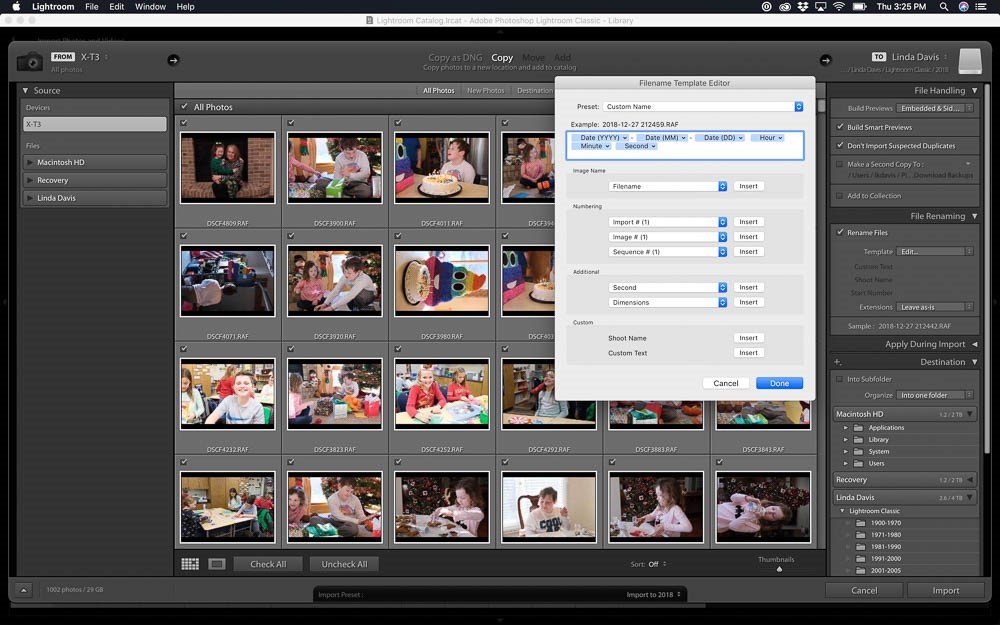
- Copy photos from camera to external hard drive at the top of the import screen, and then move photos for scans or photos located on your hard drive.
- Check the boxes for build smart previews and don’t import suspected duplicates in File Handling panel.
- Rename files using the File Name Editor based on date.
Note: My photos are currently stored on an external 4TB LaCie Rugged Mini. Renaming photos to their capture date, and putting them in folders by year, is the system that I started with in 2010 when I began using Lightroom.
See the sample at the bottom of the File Renaming panel.
Save the steps you use for importing your photos as a preset in the drop down menu at the bottom of the screen to speed up the process.
Add Smart Preview to Photos Stored on an External Drive
- Build Smart Preview upon import.
- Or build after by going to the Library drop down menu, selecting Previews and then “Build Smart Previews”.
- The small rectangle on the top right side of each photo grid indicates that a smart preview was build.
Note: When I stored my photos on my internal SSD drive, I didn’t need to build smart previews. Although it will take extra time to build smart previews when importing photos, those previews make it possible to tag, label and edit photos when the external drive is not connected. The information added to the catalog will write to the photos when the external drive is reconnected.
All edits are non-destructive, meaning the original copy is not changed.
Develop a System for Adding Keywords to Photos
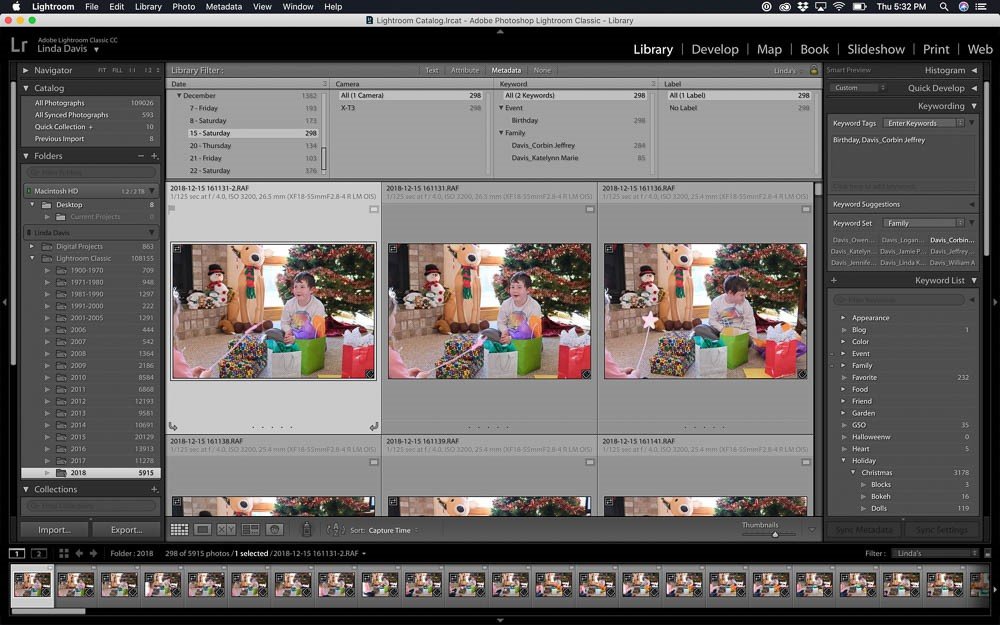
- Add keywords to photos after importing them. Use the shift key to select those needing the same keyword.
- Choose from a Keyword Set; sets are created with keywords most frequently used, i.e. immediate family.
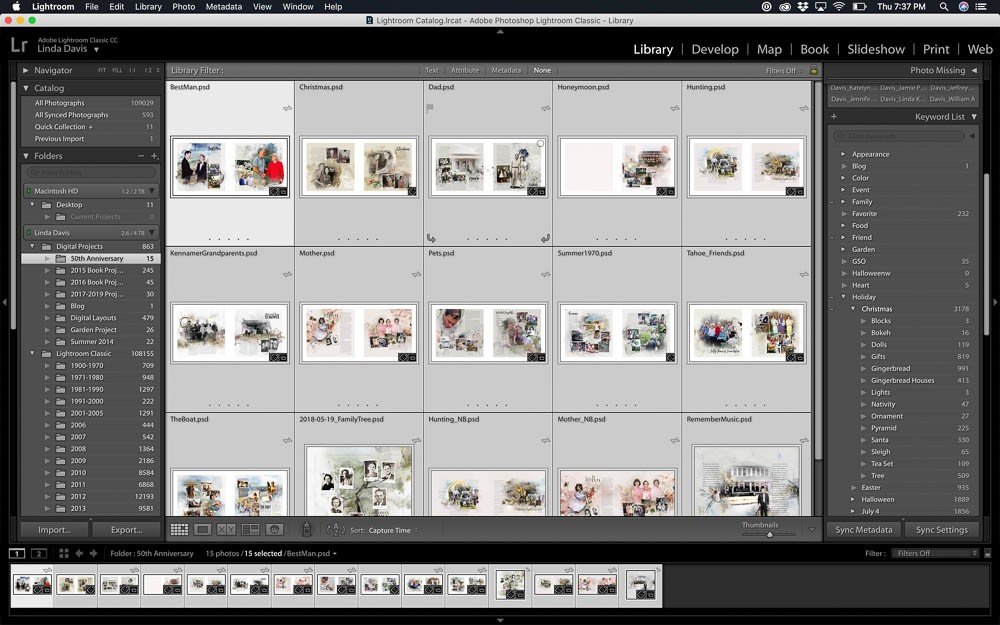
- Or choose from Keyword List, a list in the panel on the left that might include for example, Bokeh, lights, tree, etc. under Christmas.
Note: Adding keywords is a quick task now because I began using them in 2010, long before my photo collection was so large. Keywords are written to both jpeg and raw photo files. With time, I’ve refined my list, grouping them for ease of use. Lightroom rewrites keywords to your photos when you rearrange their hierarchy and saves any edits made in the Develop Module.
Use Filters to Find Photos for Pages
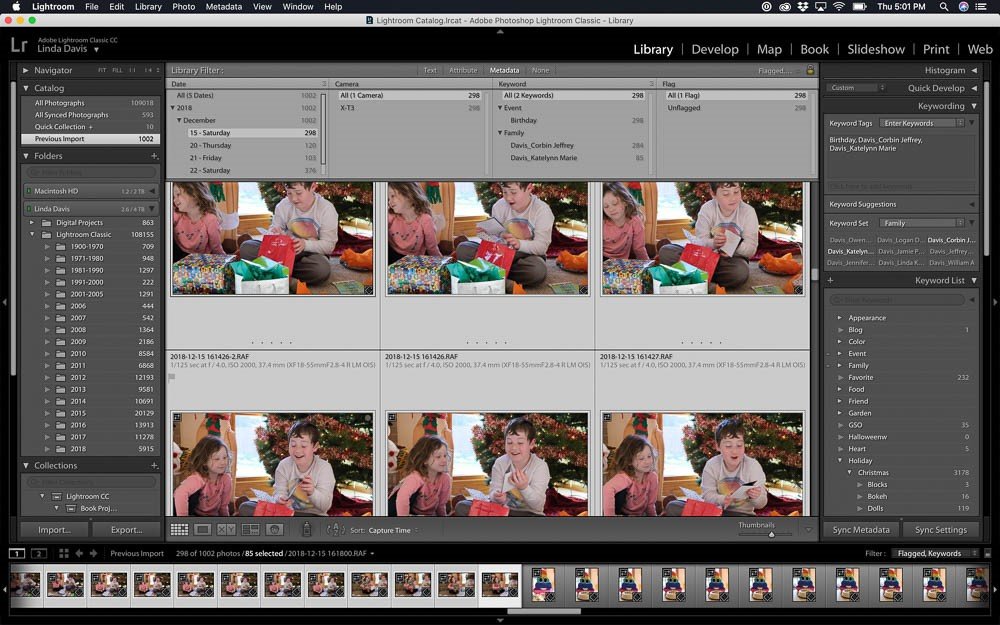
- Access filters by pressing the slash key in the Library module.
- Create filter presets with the most used criteria, i.e. date, keyword, flag, camera
- Search for photos to use on layouts by keyword and whether flagged.
Note: I searched for the photos that I used on the Christmas page for my anniversary book project by choosing specific dates and Christmas keywords. Once I located them, I flagged the ones I thought I would use by pressing P for pick. Those are the ones that I edited before exporting to Photoshop.
Add Digital Pages to Lightroom Catalog
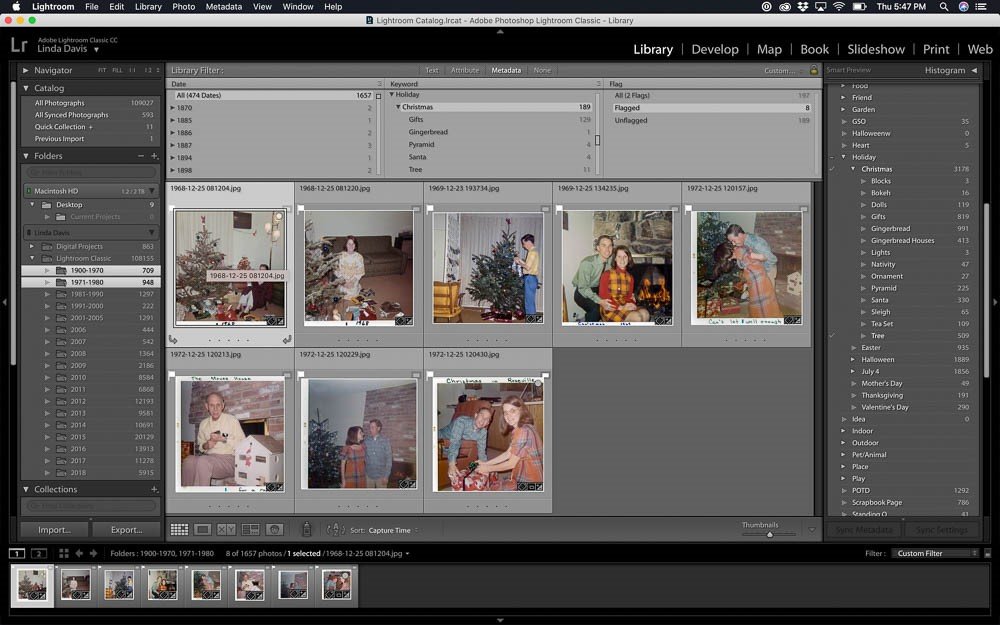
- Save pages created in Photoshop to folders on an external drive.
- Import, (choose Add on the Import screen), pages and check the box for “Build Smart Previews, but do not rename the layouts.
- Add keywords to imported pages.
Note: My catalog also includes the pages that I am creating for my anniversary book project as well as the pages that I’ve created for other book projects. Each project is saved to a different folder.
Closing Thoughts
Lightroom is a catalog of my collection of more than 100,000 photos and the layouts that I’ve created.
- It includes not only photos from several cameras but also scans of old negatives and photos.
- Having a database system like Lightroom for naming and storing photos, adding keywords and searching my photo collection allows me to focus on my creative process, combining my photos with Anna’s designs on artsy pages.
- Once a system is set up, maintenance is easy.
- Think of it as a habit that becomes easier with practice.
Note: If you have a photographer’s subscription through Adobe, you have access to Photoshop, Lightroom and Bridge. A number of free training videos are available through Adobe.
Hi, Linda! I started using Lightroom last year for editing but haven’t used it for organization. As you, I have a LOT of photos and have an efficient filing system and storage in multiple places for protection from loss. I’m going to experiment with storage in Lightroom now that I’ve read your helpful article. Many thanks.
Thank you Linda for sharing the steps and details of your process. I found a few reminders and tips to tweak my LR system. This was very helpful.