
Today, I’m sharing details about my recent experience and providing guidance on the options you have available when your hard drive fails and what to do about it.
Big thanks to my husband, Eric Aspnes, for assisting in the writing of this post.
When Your Hard Drive Fails
It happens to everyone.

Photo by Markus Spiske on Unsplash
It’s not a matter of IF but When Your Hard Drive Fails.
You will at some point have a hard drive failure, simply because you’re dealing with technology, and like everything else, the hardware eventually wears out.
Expect this to happen to you at some point.
In May of this year, I experienced my first critical system failure when my main unit failed after a routine Windows update.
After 16 years in this business, it was probably well overdue.
How to Predict When Your Hard Drive Fails.
Timing is everything.

Photo by Sonja Langford on Unsplash
It’s never a GOOD time.
I had just finished recording the TitleSmarts workshop the previous weekend, and was close to completing ArtPlay Palette Fernweh.
The timing could not have been any worse, as is often the case with these sorts of events.
There’s no point crying over spilled milk.
What’s done is done.
It’s devastating to lose photos, layouts or anything that is of VALUE to you, but your energy is better served in rebuilding and establishing new and better protocols for your file management and back-up.
As much as I wouldn’t wish this type of event on anyone, I am also grateful for the opportunity to share my experience with you.
There is nothing like personal experience to prepare to guide others in this important area of digital scrapbooking and artistry.
Moving Forward.

Photo by Carl Heyerdahl on Unsplash
You have data recovery options.
It’s not a quick and process, but you should know that failed hard drives can often be repaired.
The extent of the damage and the how the drive failed will determine cost of the repair.
- Sometimes it’s a simple matter of replacing the driver.
- Specific partitions of the drive may have gone bad.
- The drive might have to be completely rebuilt ( as was the case for my drive).
Whether you choose to proceed with the repair will be based on the VALUE of the information on your hard drive and personal circumstances.
Find a reputable Data Recovery Service.
Perform a Google search for ‘Data Recovery Service.’
- You should be able to find services local to your area, or on-line options, depending on your location.
- Ensure you select a PROFESSIONAL company that is well versed in Data Recovery to save you time and money.
We rushed into taking our drive to the Geek Squad at Best Buy, out of both convenience and time-constraints, but quickly regretted doing so.
The Geek Squad completely misdiagnosed the problem, and had to send the drive to their Data Recovery Center in Kansas anyway, creating more expense, delay and frustration, than necessary.
Patience is Virtue

Expect the process to take several weeks or months When Your Hard Drive Fails.
It took about 6 weeks for the experts to diagnose our problem, make the appropriate repairs, recover the data and transfer almost 4TB of data to a new drive.
Patience is not one of my strong points, and was it was definitely tested in this particular scenario.
Back It Up
If it’s important to you, keep it safe.
- Your photos, layouts and DigitalART supplies likely ALL fall into that category.
- Establish a back-up solution that best suits your needs, and more importantly, make sure it is working.
My husband, a senior systems engineer, with several higher-education qualifications in computing, is responsible for completing regular back-ups of data at Anna Aspnes Designs.
We had (what we thought) was a good system in place, but it fell short, because the software was falsely providing notification of regular complete back-ups.
As a result, I was missing about 3 months of data.
No one size fits all.
Photo by Annie Spratt on Unsplash
The solution you choose will be personal to you.
Determine your requirements based on:
- Amount of data you have.
- Time you want to spend engaged with the back-up process.
- Cost of this process.
1. External Hard Drives
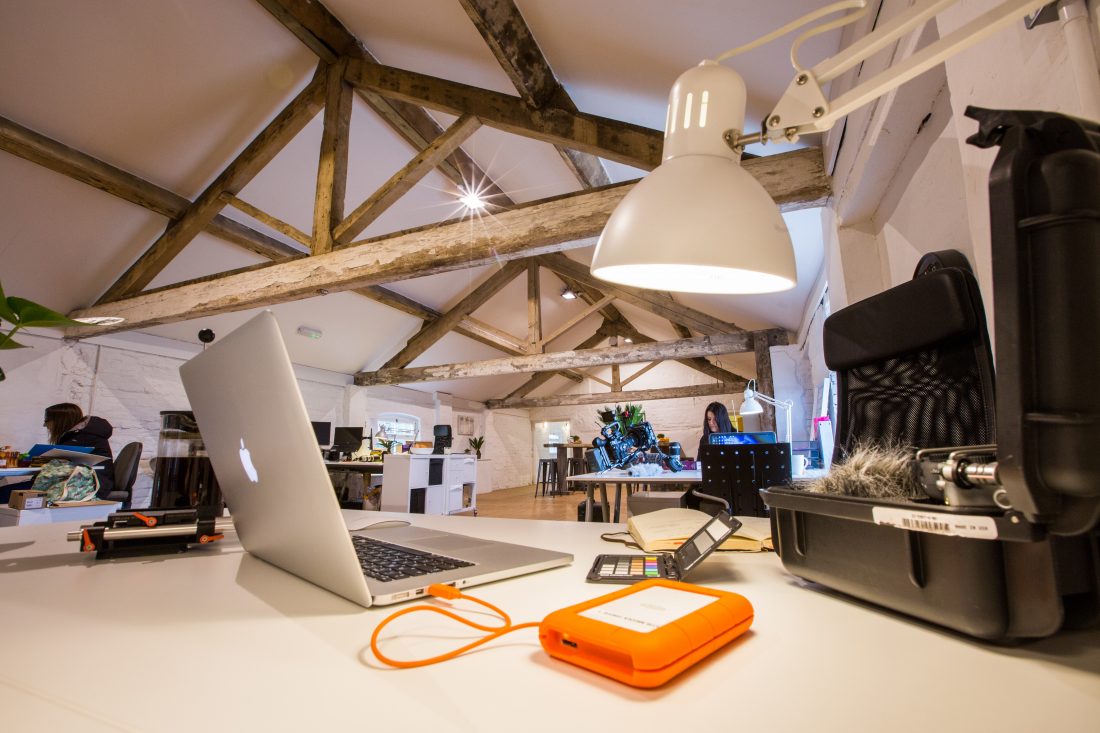
Photo by Jonathan Farber on Unsplash
This drive is external to your computer and is connected using a USB cable.
They come different shapes and sizes, ranging from a couple hundred gigabytes (GB) to several terabytes (TB).
There are two primary types:
- Solid State Drive (SSD)
- Hard Disk Drive (HDD).
Both types of drives make suitable backup solutions.
Advantages:
- Inexpensive (lowest cost per GB.)
- Portable; easy to transport.
- External drives do not take up much space.
- Easy to use; typically plug and play.
- Versatile ; simple to connect to other computers.
- Easy to replace in the event it breaks (unlike internal computer hard drive).
- Speed of data transfer.
Disadvantages:
- External hard drives will eventually fail.
- New USB cords may not work with older hardware.
- Typically requires power source.
- Security vulnerability; unlike computers which use passwords, external hard drives are typically not encrypted or password protected.
- Difficult to recover data in the event if drive crashes.
- No RAID capability.
List of Manufacturers
- Toshiba
- Intel
- Samsung
- Hitachi
- IOGEAR
- Maxtor
- Western Digital
- Seagate
2. Network Attached Storage (NAS)
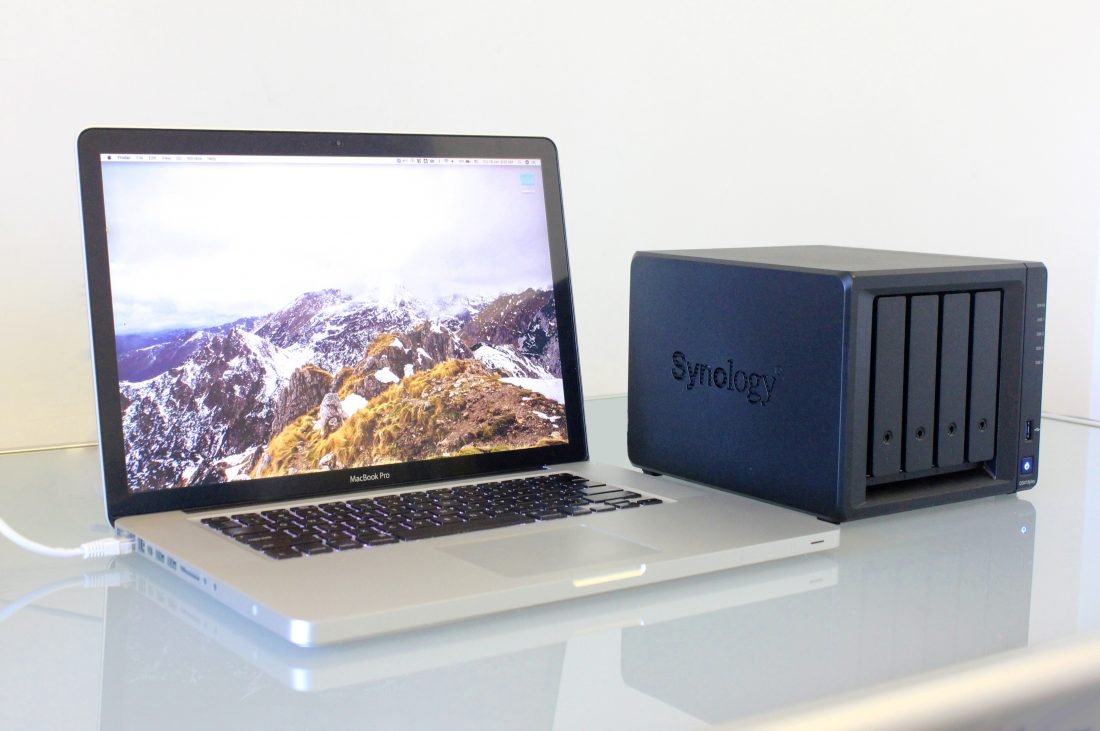
Photo by Alex Cheung on Unsplash
A dedicated storage device with its own IP address.
- A NAS is an easy and affordable way to store data.
- It can be setup as a cloud storage device.
- May be accessible from multiple computers.
Learn more about what a NAS is and why it may be important.
Types:
- Fixed storage (one or two drive bays).
- Multiple hard drive bays.
Advantages:
- File sharing across multiple operating systems (Windows, MAC, Linux.)
- Data redundancy and additional data protection options.
- Ability to hot swap drives in the event mechanical failure of a drive occurs.
- Cloud options (data can be accessible from anywhere.)
- Plug and play.
Disadvantages:
- Expensive
- The user must setup the appropriate security and encryption (maybe beyond the knowledge of some users.)
- Bulky.
- Multiple hard drive failures can affect RAID (may lose data.)
- Software may not backup all data.
List of Manufacturers:
- Buffalo
- Western Digital
- Netgear
- ZyXEL
- Qnap
3. Cloud/On-line Solutions

Photo by Samuel Zeller on Unsplash
A service that enables you to upload you data on an online remote provider.
See Top 10 Cloud Service Providers According to PC Magazine
List of Providers:
- Amazon
- Idrive
- SugarSync
- SpiderOak One
- Microsoft OneDrive
- Certain Safe
- Google Drive
- Apple iCloud
- Box
- Dropbox
Advantages:
- Flexible.
- Some services are free.
- Ease of use.
- Access data anywhere at anytime.
- Security of data from theft, disaster, fires, etc.
Disadvantages:
- May be expensive; dependent on amount of date you have.
- Wide Area Network (WAN) connectivity.
- Sharing Resources.
- Cloud Security.
- Slow download and upload times.
- Can negatively impact computer performance.
4. Additional Considerations

Photo by Joanna Kosinska on Unsplash
Other recommendation which will prove to be helpful When Your Hard Drive Fails.
As scrapbookers and digital artists, you have a couple more simple options you can take advantage.
I have also implemented these strategies since my hard drive crash.
1. On-line Printing Services.
- Upload your photos and layouts, as you capture/create them.
- Many of these services are free and long term, as long as you login periodically.
- There is no requirement to print.
- Try Picaboo for photo books and Persnickety Prints for all other prints.
2. On-line Photo Hosting
- Upload your photos albums in Flickr for safe photo and layout storage.
- Set the level of privacy as preferred.
3. Automatic Syncing
- Set your phone to automatically sync with Dropbox to you’re backing up your photos as you take them.
Conclusion

In this post, we have provided guidance on when your hard drive fails.
Remember that it will at some point.
- Choose and implement a solution based on preference, data requirements and budget.
- Have multiple back-up methods to mitigate the reality that there is no perfect option.
- Revisit and reassess this system often and make changes as needed.
- Triple check and pay attention
- Do the best you can.
Please let us know if you have any further questions.
You may also be interested in:
- Online Storage Solutions: Part 1, Part 2 and Part 3
- External Hard Drives for Digital Scrapbooking
Thanks so much Anna for all the guidance
I hope you get a Mac computer rather than Windows again!!
My husband builds and maintains my system – It would just be too expensive for me get a Mac, and the Apple stores around here are SO busy – It’s a nightmare trying to get an appointment when something goes wrong. Ella has a Mac laptop.
Good advice and information. I’m paranoid so I use multiple backup methods. External hard drive and cloud services. I do not have a business so this has worked for me.
I was paranoid before. Even more so now 🙂
This is helpful, Anna. Here’s my story (and perhaps a word of warning to other Mac users—which, by the way, I have been since the very first little Mac appeared):
I have found myself in a strange situation. I have a lot of data, including my scrapbooking files and extensive genealogy files. I had backed up most of my data to a 2T External HD. I purchased a second 3T to use for backing up my entire system (Mac with Time Machine). However, I had to replace my old MacBook Pro shortly thereafter and learned it had no port for the USB drive. I then purchased an adaptor to make the connection that has the power to run the external (most do not). I never activated the brand new 3T HD. I immediately had problems—the new laptop was evidently a lemon and it was eventually returned to Apple a few months later for an almost complete replacement of its insides, as well as the connection ports. It does have those, just not the typical USB ports; they’re only used for power cable. The computer definitely acted better—but I still found the adaptor would not hold the connection between the laptop and the EHD. I’ve limped along for a year. If I set it all on a table and I’m careful not to jiggle a single thing, breathe, or get up from my chair, it—sometimes—holds the connection. But if I make the tiniest motion, it disconnects, and there’s always the chance it damages the drive because it’s not ejected properly. I do prefer to work with the computer in my lap in my favorite chair, so this is a hardship because of my back problems. Now I’m stuck with a brand new external drive and difficult access to the other. I’m finding I don’t do backups because of this. I have searched (not in the past 3 months though) for a different adaptor and/or EHD that connects to a Mac directly. None seems to exist as yet, according to my own research and word of the store agent where I buy and service my equipment.
I would love to know what other users are doing with the newer Mac laptops do.
Interesting. Hope someone is able to chime in here.
Kay, I also have a fairly new MacBook Pro which has only the new USB3 port which I think is what you are referring to in your post. I do not use Time Machine because I’ve had problems with it in the past. I do not backup programs, settings, system etc. Instead I use an inexpensive program from App Store called Drop Sync which allows me to make copies of folders of my files to external drive. If you have a problem with the software on your internal hard drive , it’s best anyway to begin fresh with a new installation and then copy your files over to the clean hard drive or new computer. I’ve not tried to recover data from an Apple product. I rely on external backups: in my case two Rugged LaCie HDD 4T hard drives with the new USB 3 connector. I bought these drives just after I bought the computer. Wish I had more advice for you, but I’ve found it best to update equipment and software at the same time if possible. Cloud backup was too cumbersome for me. You may find it less of a hassle replacing your external drive when you can afford it. You might try searching Amazon for new cables. I found a cable for my camera that connects directly to my computer’s USB connector as well as a second cable for my external drives.
Pinned this…thanks!
Hi Linda. I spent yesterday morning researching options for an external hard drive and adapter for my MacBook Pro. At the time I purchased it (one year ago), I paid to have all my files transferred to it. But as I said, it was a lemon and I had nothing but trouble. By the time things settled down a few months later, I had already accumulated a lot of new files. I’m now looking into USBC3—or wireless—equipment. I’m tired of trying to deal with the old USB connections! And I appreciate the suggestion of Drop Sync, which I’ll look into. I was using a little app called Backup, which worked but was tedious and slow. I found several cables on Amazon, but I’m not sure to get. I’d like to get one that is compatible with my USB2 external drives—thus, USB3 to USB2. I was told at the Apple store here that I had to have this blankety-blank adapter to provide enough power for the EHD—Western Digital My Passport (one 2T, one 3T) and a simple cable wouldn’t work. Could we exchange a few more e-mails so I can make some comparisons? My addy is prairyk@fhrd.net
Anna—thanks for providing this means of discussion!
I’m a lifelong MAC user too. Sounds like your connector/dongle could be defective. I’d call AppleCare again if you’re still under warranty and ask what they recommend. If they recommend the same type of dongle, ask to talk to a manager. Or go into an Apple store with your MBP and show them what’s happening. I’d ask them what you should use, also have them show you that it works. At my Apple store, there’s lots of friendly and smart people to help you.
And, I agree with Miki on Time Machine—it’s not backward compatible and not well supported at Apple. I’ve had major issues with it.