
Guidance to Scrapbook with Artsy Layered Templates in Artisan Software
Michelle James, an Anna Aspnes Design enthusiast and customer, creates digital artistry and artsy digital scrapbooking pages in both Adobe Photoshop and the Artisan software.
She has kindly provided us with 5 tips for using the Templates in the Artisan category of the Anna Aspnes Designs store at Oscraps.
Scrapbook with Artsy Layered Templates in Artisan Software
I have been using Artisan (and its predecessor) for about six years and love the simplicity and artistry of digital scrapping.
Lately, I’ve been challenging myself, to step out of my comfort zone, and this has meant working on making artsy layouts.
The Artsy Layered Templates by Anna Aspnes Designs look a bit overwhelming at first glance.
They are actually not nearly as difficult as they look.
As I have played with them, I’ve realized they’re just the same as any other template.
Here are my top 5 tips for using these templates in the Artisan program.
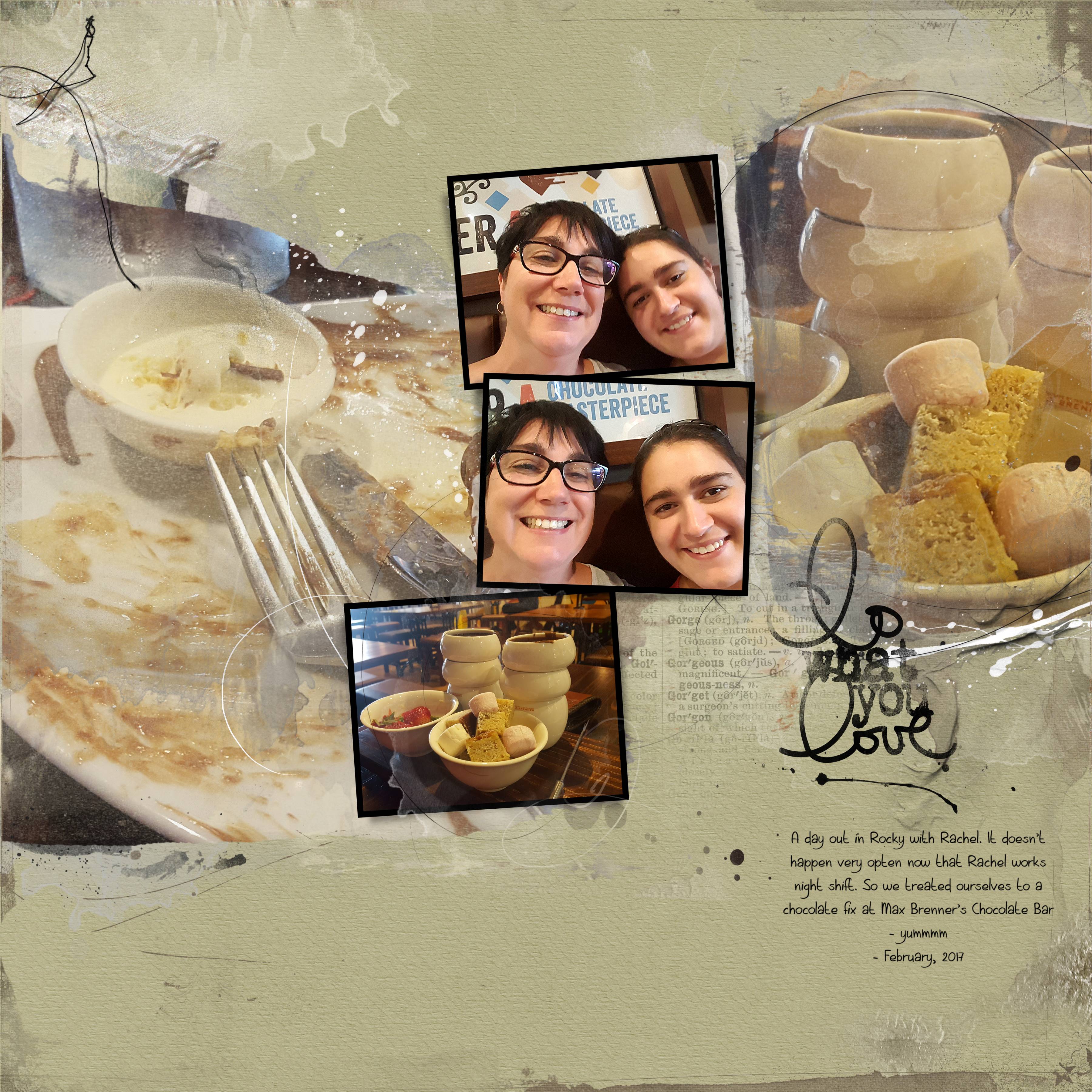
1. Create with Ease
The simplest way to use an Artsy Layered Template is just as delivered and intended.
- The Artsy Layered Template is designed to take the work out of creating an artsy digital scrapbooking page.
- It is a blueprint of sorts that guides you in the placement of your photos, digital scrapbooking supplies and journaling.
Add your images and elements to the designated areas in the template to complete your layout.
2. Vary Mask Usage
There are different ways you can use the masks.
- Artsy Layered Templates include a variety of masks such as FotoBlendz, framed and paint-style masks.
- Often you will apply photos to these masks, but you can also fill them with digital papers, or recolor them as preferred.
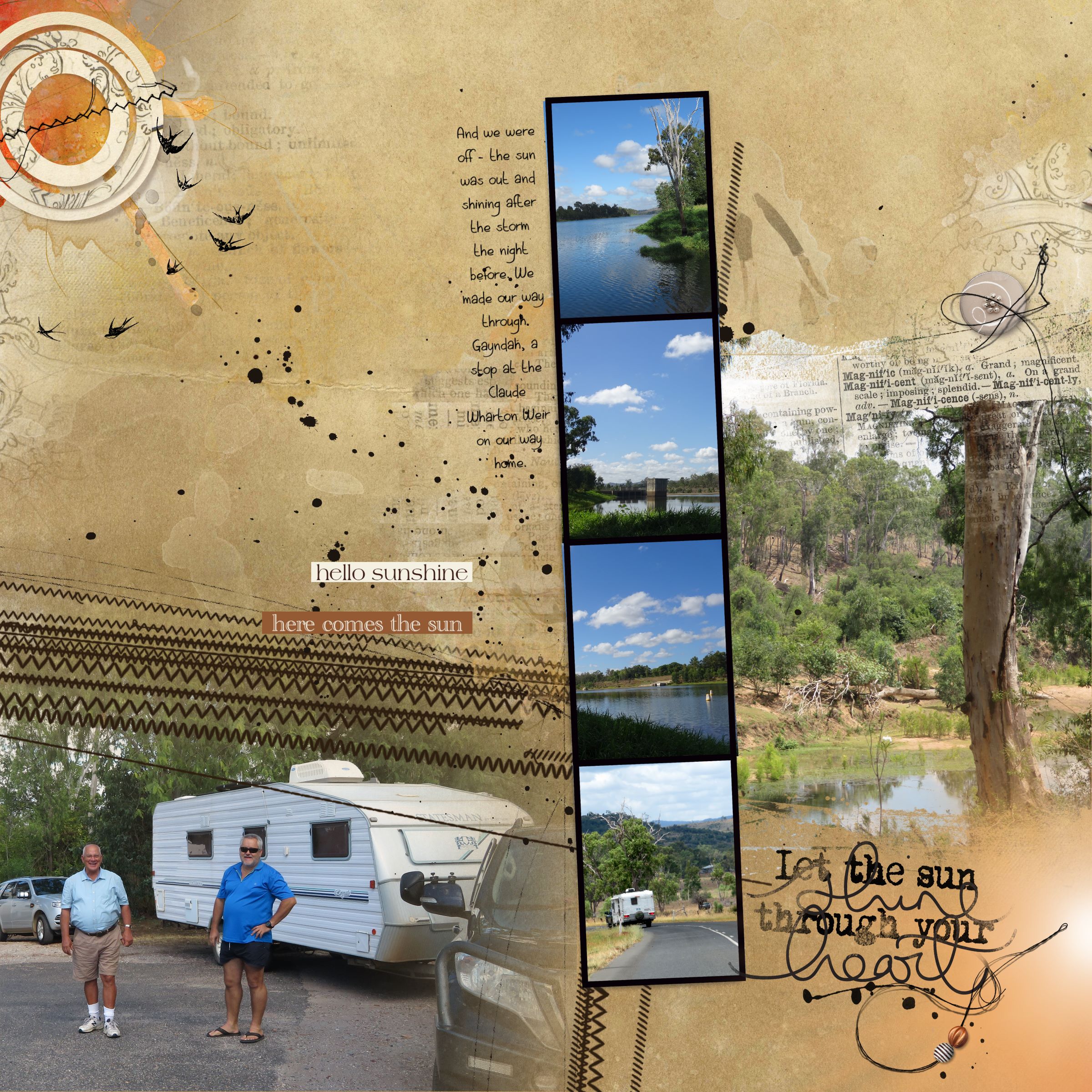
3. Curb Layer Overwhelm
Don’t let the number of layers in a template intimidate you.
- Layers are just layer no matter what type of element accommodates each one of them.
- You can hide or remove the layers that do not fit your digital scrapbooking layout or style.
4. Experiment
Don’t be afraid to experiment with DigitalART supplies and the Artisan tools.
- Anna’s Templates are great for developing your skills and learning what works for you in your digital scrapbooking.
- Deviate from your normal repertoire of techniques.
Perhaps try a new color, use an element in an unconventional way, or try a new technique.
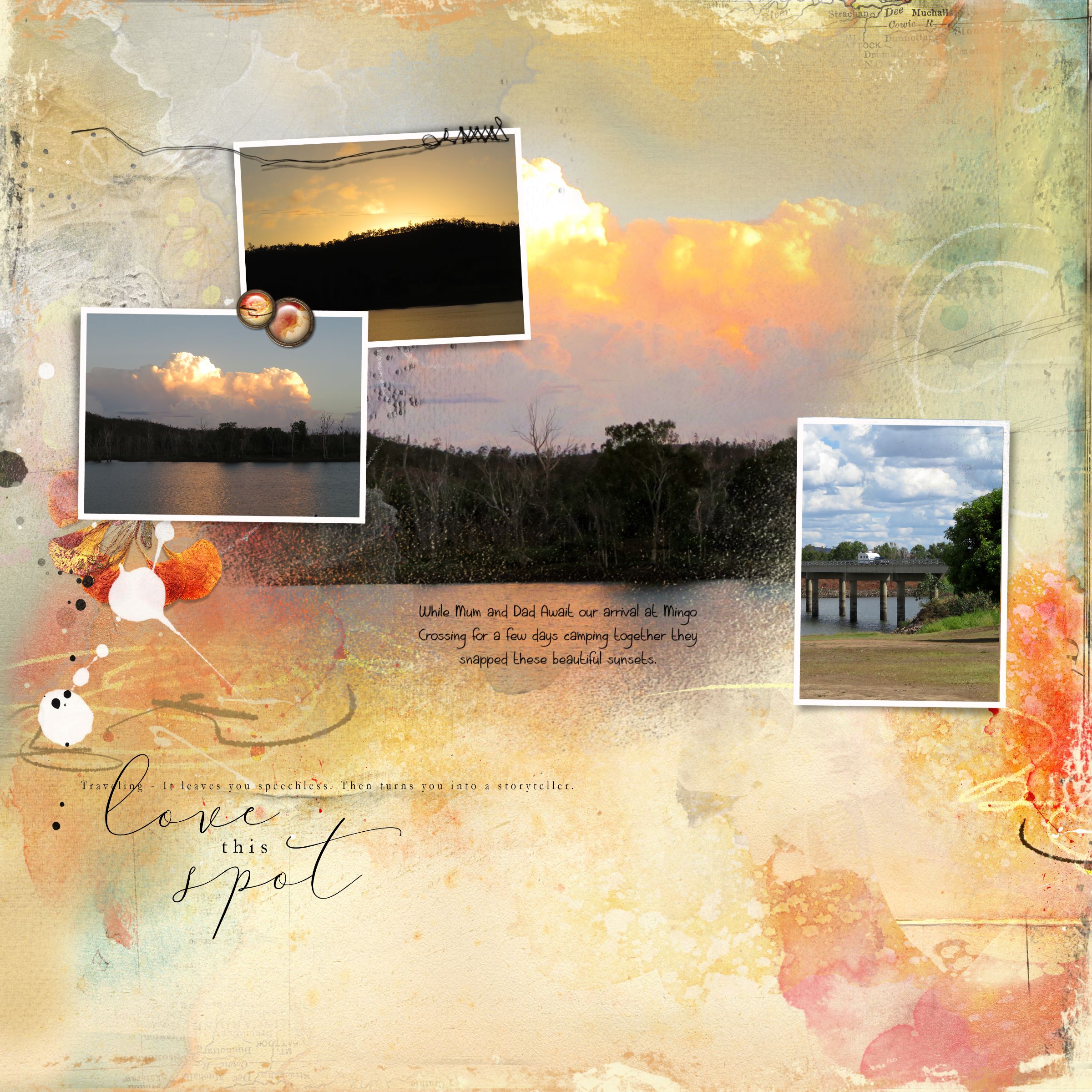
5. Color Co-ordinate
- Choose ArtPlay Palettes or digital scrapbooking kits according to the colors in your photos.
- Artsy Papers are abstract mixed media style canvas that have been designed to drag and drop into the background of a template to create a dramatic and instant impact.
Templates provide guidance in the design so you can have fun with the process.
Post your questions about Scrapbook with Artsy Layered Templates in Artisan Software in the comments below.
Can’t wait to try this
Let us know how you go.